# AnyToURL
> Turn files, text, and links into one shareable URL.
## Product Overview
Turn Any File into a Shareable URL Instantly. Simply drag & drop your files and get a shareable link in seconds. Delivered via a high-performance global edge network. Fast, secure, and effortless.
AnyToURL supports three primary workflows on the homepage:
1. Upload Your File: upload a file and receive a shareable URL.
2. Create a Text Paste: turn text into a browser-accessible paste link.
3. Shorten any URL: shorten a long HTTP or HTTPS URL.
Creating a link requires an account. The public landing, pricing, blog, legal pages, and generated links remain accessible without signing in when their individual access rules allow it.
## When to Use
- Use AnyToURL when you need to turn a file, a block of text, or a long URL into an instantly shareable link served from a global edge network.
- Use it when an attachment exceeds chat or email limits, or when the recipient should not need to install anything to open the file.
- Use the CLI (`npx anytourl upload photo.png`) for scriptable uploads in CI, log collection, or automation.
- Do not use AnyToURL for long-term archival of sensitive data: free files expire after 24 hours, and permanent storage requires a paid plan.
## How It Works
1. Drag & Drop Your File
Drag a file onto the upload area or click to browse. Starter accounts can upload files up to 5 MB.
2. Get Your Instant URL
Once uploaded, you receive a short, shareable URL instantly. Copy it with one click and share it anywhere — email, chat, social media, or embed it in websites.
3. Share with Anyone
Your recipients can view or download the file directly. Images and PDFs preview in the browser for a seamless experience.
## Capabilities
- Drag & Drop Upload: Simply drag your file onto the page. No complicated forms, just simple and fast uploads.
- Instant Shareable Links: Get a short URL immediately after upload. Share via email, chat, or social media with one click.
- Smart File Preview: Images, PDFs, and documents preview directly in the browser. No downloads needed for viewing.
- Global Edge CDN: Delivered via Cloudflare's high-performance global edge network for lightning-fast access worldwide.
- File History: Review your uploaded files, sharing links, expiry state, and download usage from one page.
- Permanent Storage: Upgrade to keep your files forever. Free files expire after 24 hours; paid plans offer permanent storage.
## Pricing
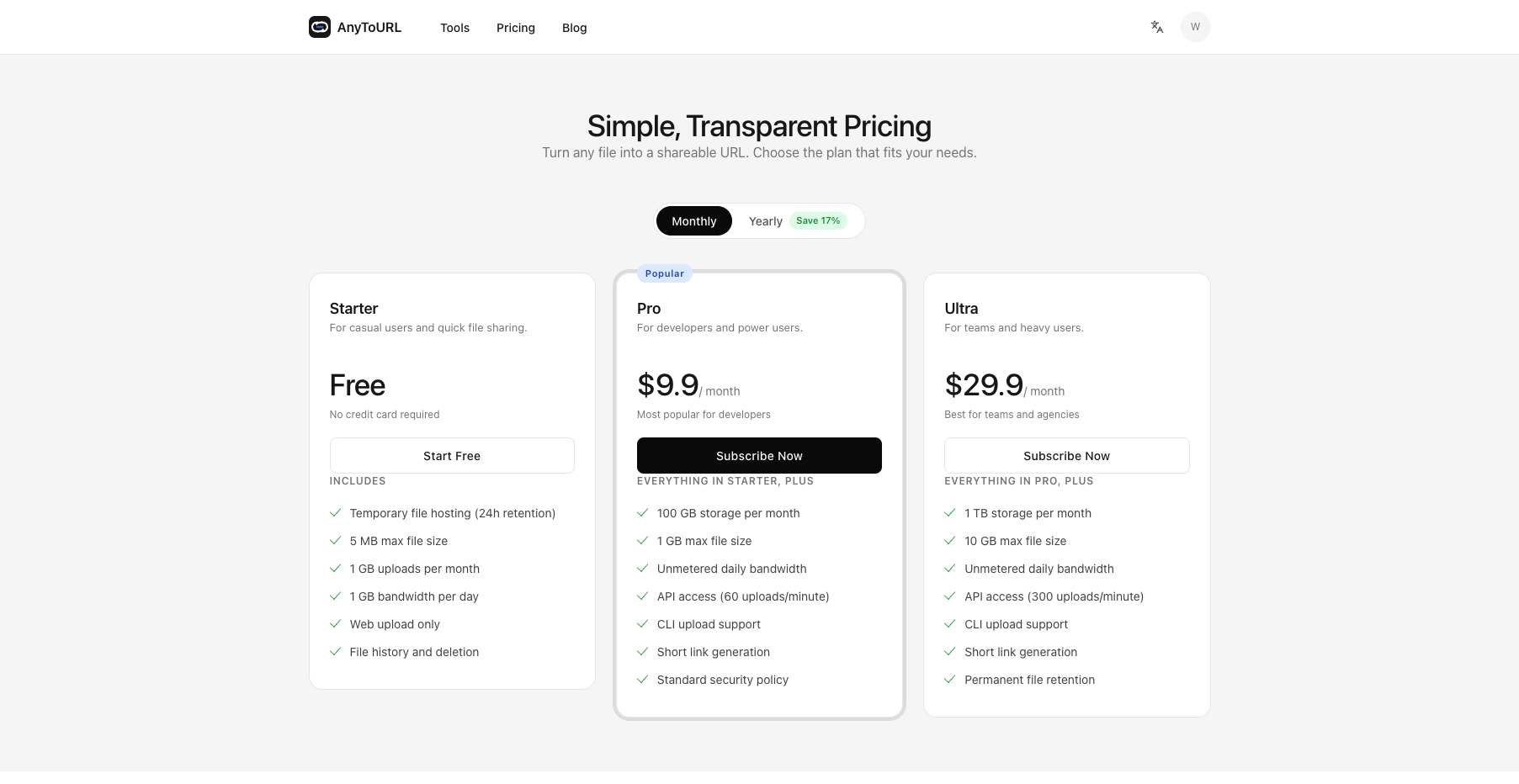
Turn any file into a shareable URL. Choose the plan that fits your needs.
### Starter
For casual users and quick file sharing.
Monthly: Free
Yearly: Free
- 5 MB maximum file size
- 1 GB monthly storage
- 1 GB daily download bandwidth
- 24-hour file retention
- Web upload
### Pro
For developers and power users.
Monthly: $9.9/ month
Yearly: $99/ year
- 1 GB maximum file size
- 100 GB monthly storage
- Permanent file retention
- API upload access
- Custom short links
### Ultra
For teams and heavy users.
Monthly: $29.9/ month
Yearly: $299/ year
- 10 GB maximum file size
- 1 TB monthly storage
- Permanent file retention
- Higher API request limits
- Custom short links
## Frequently Asked Questions
### Is AnyToURL free to use?
Yes. The Starter plan supports files up to 5 MB, 1 GB of monthly storage, 1 GB of daily download bandwidth, and 24-hour retention.
### How do I upload a file?
Create an account, then drag and drop a file onto the homepage upload area or click to browse. AnyToURL returns a shareable link after the upload completes.
### What file types can I upload?
AnyToURL accepts common safe file formats. Executables, active web content, and files that match blocked malware or script signatures are rejected.
### How long are files stored?
Starter files expire after 24 hours. Files created while a Pro or Ultra subscription is active do not receive an automatic expiry time.
## Pages
- [AnyToURL](https://anytourl.com): Upload files, create text pastes, and shorten URLs into shareable links.
- [AnyToURL Pricing](https://anytourl.com/pricing): Compare Free, Pro, and Ultra plans.
- [AnyToURL Blog](https://anytourl.com/blog): Guides and updates about file sharing and link creation.
- [AnyToURL Tools](https://anytourl.com/tools): Converters for images, PDFs, videos, audio, and URLs.
- [AnyToURL Updates](https://anytourl.com/updates): Product releases and update notes.
- [AnyToURL Docs](https://anytourl.com/docs): Web and CLI documentation.
- [API Versioning & Deprecation Policy](https://anytourl.com/docs/api-versioning): How the AnyToURL API is versioned and how deprecations are signalled.
- [Privacy Policy](https://anytourl.com/privacy-policy): How AnyToURL handles personal data.
- [Terms of Service](https://anytourl.com/terms-of-service): Terms that apply when using AnyToURL.
- [About AnyToURL](https://anytourl.com/about): What AnyToURL is, how it works, and what the plans include.
- [Contact AnyToURL](https://anytourl.com/contact): How to reach AnyToURL about support, abuse, privacy, and feedback.
## File-to-URL Tools
### Free Image to URL Converter — Upload & Share Instantly
URL: https://anytourl.com/tools/image-to-url
Free image to URL converter — upload JPG, PNG, GIF, or WebP and get a shareable URL within seconds.
### Free PDF to URL Converter — Upload & Share Instantly
URL: https://anytourl.com/tools/pdf-to-url
Free PDF to URL converter - upload PDF documents and get a shareable URL in seconds. Share reports, resumes, and contracts with one link.
### Free Video to URL Converter — Upload & Share Instantly
URL: https://anytourl.com/tools/video-to-url
Free video to URL converter - upload MP4, MOV, AVI, MKV, or WebM and get a shareable streaming URL in seconds.
### Free MP4 to URL Converter — Upload Videos & Get Shareable Links
URL: https://anytourl.com/tools/mp4-to-url
Free MP4 to URL converter - upload MP4 videos and get a shareable streaming URL in seconds. Share with anyone, anywhere.
### Free MOV to URL Converter — Upload & Share Instantly
URL: https://anytourl.com/tools/mov-to-url
Free MOV to URL converter - upload iPhone, QuickTime, or Final Cut Pro MOV files and get a shareable streaming URL.
### Free GIF to URL Converter — Upload & Share Instantly
URL: https://anytourl.com/tools/gif-to-url
Free GIF to URL converter - upload animated GIFs and get a shareable URL in seconds. Share memes and animations with one link.
### Free MP3 to URL Converter — Upload Audio & Get Shareable Links
URL: https://anytourl.com/tools/mp3-to-url
Free MP3 to URL converter - upload MP3, WAV, FLAC, or M4A audio and get a shareable streaming URL in seconds.
### URL Shortener for Paid Plans
URL: https://anytourl.com/tools/url-shortener
URL shortening is available on paid plans. Create shareable short links with a destination warning while safety checks are pending.
## Machine-Readable Endpoints
- [Sitemap](https://anytourl.com/sitemap.xml)
- [Robots](https://anytourl.com/robots.txt)
- [Compact AI context](https://anytourl.com/llms.txt)
## Contact
- Email: support@anytourl.com
## Blog Posts
### Jumpshare Review: Features, Pricing, and Free Alternatives
URL: https://anytourl.com/blog/jumpshare-review-free-alternatives
Description: Jumpshare's free plan allows 25 uploads (250 MB max) for life. A documentation-based review of its features and pricing — and when a free file-to-URL tool fits better.
Jumpshare shows up in two different searches. Some people want a review of the screen-recording suite it has become; others just want to know if its free plan will share their file. Both questions have a concrete answer, and they point in different directions depending on what you actually need the link to do.
Disclosure up front: we operate AnyToURL, a file-to-URL tool that appears in the comparison below, so weigh that as you read. We hold both options to the same criteria and cite Jumpshare's current published plans and pricing (accessed October 15, 2026) throughout.
## What Jumpshare actually is
Jumpshare started as a file-sharing service, but its current product center of gravity is an AI-powered screen recorder with a video hosting and marketing platform attached. The vendor's own materials put it plainly: video recording, sharing, and marketing are the core of the product, with more than 1 million users and a 4.9/5 average rating it reports from user reviews. Screenshots and GIF capture are supporting tools, and general file sharing remains available across every plan.
The capability list is long because the product spans a workflow, not a single task:
- **Native screen recording** on macOS and Windows (plus a Chrome extension, a browser-based recorder, and an iPhone app), with webcam, system audio, annotation, and no watermark on any plan.
- **Built-in video editing** — trim, split, join, custom thumbnails — in the same app where you recorded.
- **Jumpshare AI** on Business plans and above: automatic titles, transcriptions and captions in 50+ languages, summaries, chapters, and generated tasks or SOP docs from a recording.
- **Video marketing tools**: clickable call-to-action buttons inside the player, lead capture before or after playback, branded players, and custom domains on paid plans.
- **Screenshot and GIF capture** with a full annotation toolkit and one-click redaction of emails, passwords, and card numbers.
- **Team features**: timed comments, version history, shared libraries, analytics, and workspace-level privacy controls.
On trust: every plan serves shared links over SSL, the desktop apps are native rather than Electron wrappers, and Enterprise adds SAML SSO with a 99.99% uptime guarantee. Those are documented controls, not a security audit — but nothing in the product is hidden behind vague claims.
## Is Jumpshare free? The Basic plan's real limits
Yes — Jumpshare has a permanent free plan called Basic, and it is a real plan, not a trial. But the caps are firmer than most people expect when they search for "jumpshare free":
- **25 uploads total.** Not per month — the free plan allows 25 uploads before you need a paid plan.
- **250 MB maximum file size** on each of those uploads.
- **5-minute screen recordings** at 1080p, and **15-second GIFs**.
- Included: screenshot capture, video markups, timed comments, basic search, Slack integration, and SSL-secured sharing.
What the free plan does not include matters just as much: password-protected links, expiring or self-destructing links, viewer analytics, call-to-action buttons, custom branding, 4K recording, and any API access all arrive with the paid tiers. Jumpshare does not publish a total storage cap for Basic — the operative limit is the 25-upload count.
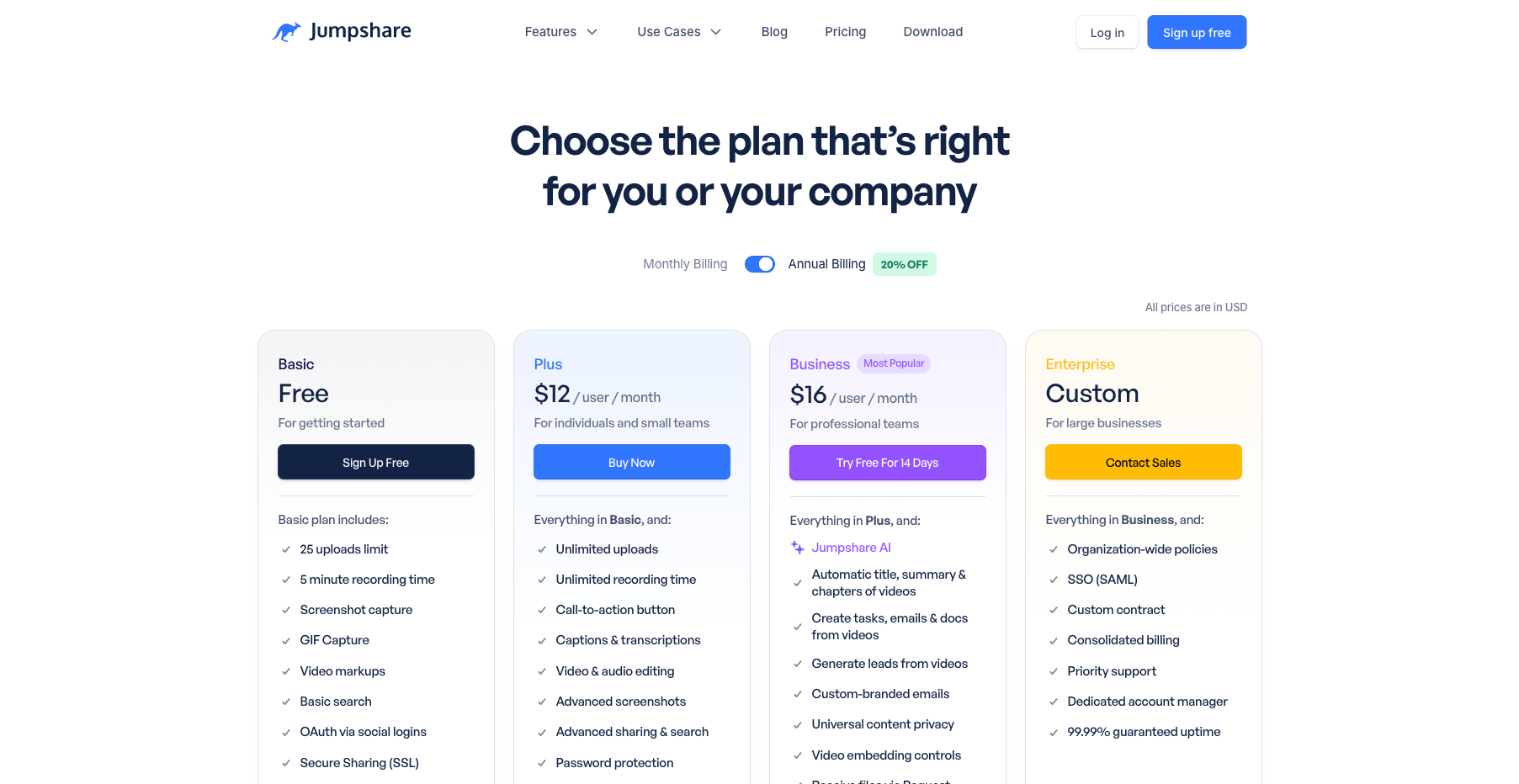
*Jumpshare's published plans and pricing, accessed October 15, 2026 (source: jumpshare.com/pricing)*
For light, occasional sharing, 25 lifetime uploads can last a long time. For anyone sharing files as a routine — client deliverables, rendered videos, datasets — it is a wall you hit sooner rather than later.
## Jumpshare pricing: what paid plans actually add
Paid Jumpshare is priced per user, with annual billing roughly 20% below monthly:
| Plan | Annual | Monthly | What it unlocks |
| --- | --- | --- | --- |
| Plus | $12/user/mo | $15/user/mo | Unlimited uploads and recording length, up to 4K, 60-second GIFs, **10 GB max file size**, password protection, expiring links, analytics, custom domain, captions |
| Business | $16/user/mo | $20/user/mo | Everything in Plus, plus Jumpshare AI, lead capture, branded emails, Zapier |
| Enterprise | Custom | Custom | SAML SSO, organization policies, 99.99% uptime SLA, dedicated support |
Storage and bandwidth scale with team size rather than sitting at fixed caps. Plus starts at 2 TB of storage and adds 250 GB per extra user; Business starts at 3 TB and adds 500 GB per user. Monthly bandwidth is 250 GB per user on Plus and 500 GB on Business — and it only counts views by other people, resetting on the first of each month.
The per-user model is the part to run the math on. A three-person team on Plus annual pays $432/year; Business is $576/year. For a team that lives in recorded video communication, that buys a genuinely deep product. For a team that mostly needs to move files, it prices per seat rather than per need.
## What Jumpshare does well
Judged as what it now is — an async video communication suite — Jumpshare is strong on paper:
- The **recording workflow is genuinely integrated**: capture, trim, brand, and share from one native app, with the link ready when recording stops.
- **No watermark on any plan**, including free — rare in this category.
- The **marketing layer** (CTA buttons, lead capture, engagement analytics) turns recordings into sales assets, which is exactly what its sales and marketing use cases need.
- The **AI layer on Business** (auto titles, transcriptions, chapters, generated docs) targets the real cost of async video: the recipient's time.
If your team's shared artifacts are recordings, this is a coherent, well-specified product.
## Where it fits file-sharing-first users less well
The same design shows its shape if your job is "I have a file; I need a link":
- You create an account and, for the full workflow, install a desktop app before your first link exists. The web app works, but the product is built around the recorder.
- The free plan's **25-upload lifetime cap** treats sharing as an occasional companion activity, not a workflow.
- **250 MB max file size on free** — fine for screenshots and documents, small for video files, and the 10 GB ceiling requires a per-user subscription.
- There is **no free automation**: API access and tools like Zapier start on paid tiers, so scripted uploads are off the table until you pay per seat.
None of these are flaws for the product Jumpshare is trying to be. They are mismatches for the reader whose need starts and ends with a URL.
## Same criteria: Jumpshare vs a free file-to-URL tool
A file-to-URL tool answers the narrower question directly: upload a file, get a public link. AnyToURL is one of these — drag a file in the browser, and a shareable link appears in seconds, no account required for a first upload. Files are served over an edge network, images and PDFs preview inline, and Starter is free without a credit card.
Held to the same six criteria:
| Criterion | Jumpshare | AnyToURL (file-to-URL) |
| --- | --- | --- |
| Core job | Record → host → market async video | Turn an existing file into a URL |
| First link | Account required; best flow via desktop app | Browser upload, no signup before first link |
| Free plan shape | 25 uploads lifetime, ≤ 250 MB each, persistent library | 5 MB per file, 24-hour retention, 1 GB uploads/month, 1 GB bandwidth/day |
| Size ceiling | 250 MB free → 10 GB on Plus ($12–15/user/mo) | 5 MB free → 1 GB on Pro ($9.9/mo) → 10 GB on Ultra ($29.9/mo) |
| Sharing controls | Passwords, expiry, self-destruct, analytics (Plus+) | Public link; file history and deletion; permanent retention on paid tiers |
| Automation | None on free; Zapier on Business+ | API and CLI from Pro ($9.9/mo), 60–300 uploads/min by tier |
The structural difference is the free plan's shape. Jumpshare free is a capped persistent library: 25 files, up to 250 MB, staying put until you hit the count. AnyToURL free is a metered conveyor: small files, 1 GB a month, links that expire after 24 hours. One suits "share a document now and again"; the other suits "move files constantly without thinking about a lifetime counter." Neither is strictly better — they are different budgets.
## When Jumpshare is the better choice
- Your team communicates through **recorded video** — demos, walkthroughs, reviews — and wants recording, editing, branding, and analytics in one native app.
- You need the **marketing layer**: CTA buttons, lead capture, viewer analytics on shared videos.
- A **persistent, organized library** of visual assets matters more than upload counts.
- You want AI-generated titles, transcriptions, and chapters (Business) as part of the workflow.
## When a free file-to-URL tool is the better choice
- Someone is waiting for a **file right now** — a PDF, a render, an export — and you don't want an account or an app install in the way.
- Your file is **larger than Jumpshare's free 250 MB cap**, and you'd rather pay $9.9/month flat for a 1 GB ceiling (or $29.9 for 10 GB) than a per-user seat.
- The share belongs in a **script or pipeline** — API and CLI uploads from $9.9/month, with no seats to count.
- The link is **ephemeral by design**: a 24-hour link with automatic expiry is a feature when you're passing something temporary, not a limitation.
That last block is AnyToURL's whole job. If it matches yours, you can test the entire flow with one free upload.
[Try AnyToURL free — drag a file, get a link →](https://anytourl.com)
## The verdict
One question settles it: **is the link the deliverable, or is the recording the deliverable?**
Jumpshare is a capable, honestly specified async video suite — worth its per-user price for teams whose shared artifact is a branded, measured recording. Its free plan is real but built to demonstrate that workflow, with a 25-upload lifetime cap and a 250 MB ceiling that file-heavy users will hit quickly. If what you need is the file itself, delivered as a link — quickly, without an account, or from a script — a dedicated file-to-URL tool does that job on a free tier, and AnyToURL scales it by need rather than by seat: Pro, at $9.9/month, costs less than a single Jumpshare Plus seat and already includes API and CLI uploads, while the 10 GB ceiling (Ultra, $29.9/month) costs more than one seat but covers a whole team's sharing without counting seats.
[Try AnyToURL free — upload once, see the link →](https://anytourl.com)
*Plan details for Jumpshare reflect its published pricing and plans as of October 15, 2026; AnyToURL's limits come from its live pricing page. Both change — check before you buy.*
---
### Share Text Online: What "The URL Is the App" Actually Means
URL: https://anytourl.com/blog/share-text-online
Description: How the "URL is the app" pattern behind Bigwords.page works, when a self-contained URL beats a hosted paste, and how to share text online with a link you control.
You can share text online as a link in about a minute: sign up free on a text-to-URL service, paste the words, and it hands back a URL anyone can open in a browser — no attachment, no app, and nothing for the recipient to install. The idea got a loud vote of confidence in early October 2026, when Bigwords.page — a tiny open-source project that turns a link into a full-screen sign — reached 694 points and 160 comments on Hacker News under a bold slogan: **"The URL is the app."**
The slogan is catchy, and it is also slightly imprecise in a way that matters when you are choosing a tool. There are two different shapes of "text becomes a URL": the message can live **inside the link itself**, or the link can **point at content stored somewhere**. They solve different problems, and picking the wrong one gets you either an unwieldy link or a message that vanishes too soon. This article explains how both shapes work, where each one breaks, and walks through the hosted-paste version end to end.
## Key takeaways
- "The URL is the app" means all the content or configuration needed to render something travels inside the link. Bigwords.page does this by storing the message in the URL fragment, so there are no accounts, no backend, and nothing stored on a server.
- Self-contained URLs shine for short, transient messages you show on screens you control: signs, timers, Wi-Fi cards.
- A hosted text paste produces a short, clean link to content stored by a service — the better shape when the text is longer than a line or two, the link will be pasted into chats or QR codes, or you want expiry and deletion controls.
- With AnyToURL, a free account is all the setup there is: the Text tab accepts up to 1 MB of pasted text, free links last 24 hours, and paid plans keep content permanently while the subscription is active. Recipients never need an account.
## What "the URL is the app" means
[Bigwords.page](https://bigwords.page/) started with a practical annoyance. Its author wanted to display a message on a tablet he managed remotely but could not physically reach. Turning it into a kiosk browser was easy — but how do you tell that browser *what* to show? His answer: ["I made the URL be the message."](https://news.ycombinator.com/item?id=49994443)
Mechanically, everything the page displays lives in the URL fragment — the part after the `#`. As the [project's documentation](https://bigwords.page/docs) puts it, "all state lives in the URL fragment," and browsers never send the fragment to a server. That single design decision produces the properties people upvoted:
- **No accounts and no backend.** "Nothing is stored anywhere," and the project is open source under the MIT license.
- **The server never sees your message.** Since browsers do not transmit the fragment, the service never sees or logs it.
- **One static page serves every possible display.** Changing the fragment updates the screen without even reloading the page.
The result is a link like `https://bigwords.page/#Welcome%20home` that renders as a giant, auto-fitted sign on any screen — phone, tablet, laptop, or TV. The documented use cases are all in that family: an arrivals sign at an airport, a quiz countdown, a café Wi-Fi card with a QR code, an "ON AIR" light, a room sign that says meeting in progress.
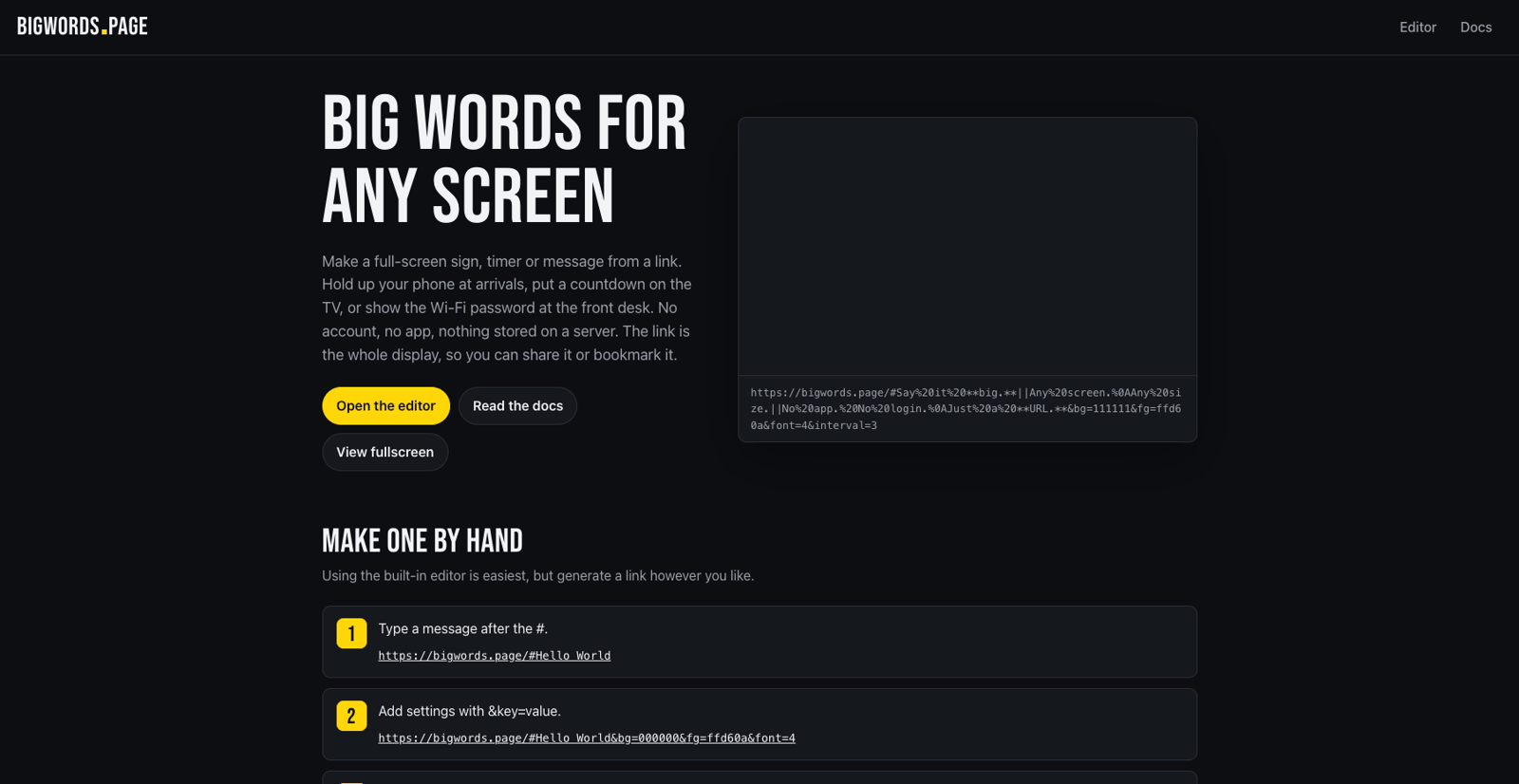
*Source: bigwords.page, accessed October 9, 2026.*
Not everyone on Hacker News bought the slogan, and the pushback is instructive. ["We used to call them websites,"](https://news.ycombinator.com/item?id=49994443) one commenter quipped; another offered the sharper reading: "The URL is the *state*, but clearly there is an actual app here." Both are right in a useful way. Bigwords is an app — a real renderer with fonts, slides, and timers — but the *state* it renders lives entirely in the URL you carry around. That is the actual pattern: not "no app," but "nothing to install, nothing stored, the link carries everything."
## The two shapes of a text URL
Once you see the pattern, you notice text-as-URL services come in exactly two shapes:
| | **State-in-URL** (e.g. Bigwords.page) | **Hosted text paste** (e.g. AnyToURL) |
| --- | --- | --- |
| Where the content lives | Inside the link itself (URL fragment) | On the service's servers |
| Link shape | Long — content is percent-encoded into the URL | Short and clean |
| Practical size ceiling | A sentence or two of signage | Documents of text — 1 MB on AnyToURL |
| Persistence | As long as someone keeps the link | Controlled by the service's retention policy |
| Expiry control | None needed — nothing is stored | Explicit windows, e.g. 24 h free / permanent on paid plans |
| Privacy posture | The server never sees the content, but every copy of the link *is* the content | The service holds the content, so its deletion and expiry controls matter |
| Best for | Showing messages on screens you control | Sending text to other people |
Neither shape is "the right one." They optimize for different failures. A state-in-URL link can never leak from a server breach, because there is nothing on the server — but paste that link into a group chat and you have pasted the message itself, `#`-encoded, for everyone to read in the URL bar. A hosted paste gives you a tidy one-line link that behaves in chats, QR codes, and documents — but now a server holds your words, so the service's retention rules become part of your privacy decision.
## When a hosted text link is the better pick
Reach for a hosted text paste — the "link points at content" shape — when any of these is true:
1. **The text is longer than a line or two.** Instructions, a code snippet, meeting notes, a Wi-Fi password plus network name. Encoded into a URL, they become an unreadable mess; nobody wants to tap a 900-character link.
2. **The link has to survive the conversation.** A self-contained link works only while someone still holds the exact string. A hosted link keeps working after the chat scrolls away — which is also its risk, addressed below.
3. **The link will be printed or encoded.** QR codes, slides, handouts, and email signatures all favor short, stable URLs.
4. **You want control after sharing.** Expiry windows and deletion give you an ending for the content — something a fragment in someone's bookmark can never have.
This job — "paste text, get a link to share" — has been around far longer than this month's Show HN post, which is why the durable search wording for it is things like *share text online* or a *pastebin alternative*. What has changed in 2026 is that the hosted-paste shape now sits next to a genuinely working state-in-URL shape, and picking between them is a real decision rather than a default.
## Share text online with AnyToURL
[AnyToURL](https://anytourl.com/)'s primary task is exactly this: turn a file, text paste, or long URL into a shareable URL. For text:
1. **Create a free account at [anytourl.com](https://anytourl.com/)** — no credit card; the Starter plan is free. Signing in with Google or GitHub takes a click.
2. **Switch to the Text tab.** The home page offers three modes — File, Text, URL — and the Text tab is the paste tool.
3. **Paste or type your content.** The Text tab accepts up to 1 MB of text, which covers anything from a one-line password to full meeting notes.
4. **Create the paste and copy the link.** Send it anywhere — chat, email, a document, a QR code. Recipients open it in a browser without creating an account.
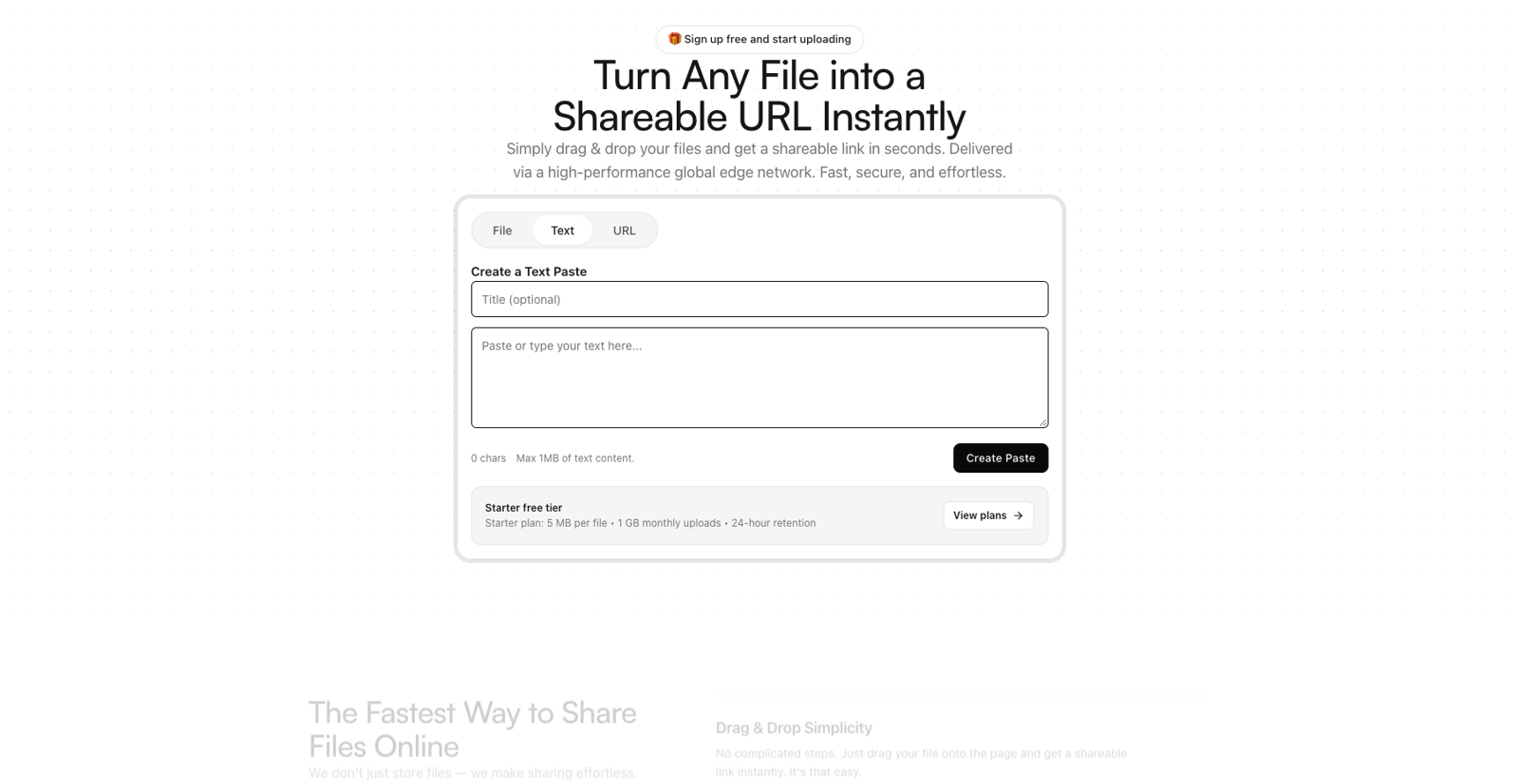
The one decision worth making consciously is **how long the link should live**. On AnyToURL's [free Starter plan](https://anytourl.com/pricing), text pastes expire after 24 hours; Pro and Ultra content has permanent retention while the subscription is active. That default is a feature if you think about it: most pasted text is conversation-scoped — a password, an address, a quick answer — and a link that dies on its own is one less thing your rotation hygiene has to catch.
**Want to try it? [Sign up free on AnyToURL](https://anytourl.com/), switch to the Text tab, and you have a link in seconds.**
## Which shape is right for your privacy
The privacy mechanics are already in the table above — the short version is that fragment apps never give the server anything to leak, while hosted pastes trade that for clean links plus retention controls. What matters in practice is *matching the tool to the content*: passwords, addresses, and anything sensitive belong in a paste with a short expiry window, not in a permanent link or a URL you might paste into a public channel. And when you pick a hosted-paste service, expiry and deletion controls are not nice-to-haves — they are the actual privacy mechanism.
## FAQ
**Is sharing text as a link free?**
Both shapes have free options. Bigwords.page is open source and stores nothing, so there is nothing to pay for. AnyToURL's Starter plan is free with 24-hour retention; paid plans add permanent retention and higher limits.
**How long does a text link last?**
A state-in-URL link lasts as long as someone keeps the string. A hosted paste lasts as long as the service's retention policy — 24 hours on AnyToURL's free plan, permanently on active paid plans.
**Is a text link private?**
It depends on the shape. Fragment-based apps never send the content to a server, but the content is visible in the link itself. Hosted pastes keep URLs clean but store the content, so the service's retention and deletion controls are the privacy mechanism that matters.
**Is this just a pastebin alternative?**
For the hosted shape, essentially yes — modern text-to-URL services compete with classic pastebins on link cleanliness, expiry control, and previews. Fragment-based apps like Bigwords are a different category: they are signage, not drop-boxes.
## The bottom line
"The URL is the app" is a memorable slogan for a real pattern: links that carry everything needed to render something, with no install and nothing stored. For messages you display on screens you control, a state-in-URL tool like Bigwords.page is a delightful fit. For text you are sending to other people, a hosted paste is the shape that survives chats, QR codes, and time — and gives you an expiry switch. Pick by three questions: How big is the content? Where will the link travel? When should it stop working?
**Ready to turn text into a link? [Try AnyToURL free](https://anytourl.com/) — paste, create, share.**
---
### How to Share a PDF as a Link (and Keep Control of the File)
URL: https://anytourl.com/blog/share-pdf-as-link
Description: Share a PDF as a link in seconds — no attachment limits, no account for recipients. Learn how link expiry, quotas, and no-copy text extraction keep the file from lingering.
You finished a report, a resume, or a signed contract and exported it as a PDF. Now the annoying part: getting it to someone. Email rejects anything over roughly 20–25 MB, cloud drives ask your recipient to sign in, and every "attachment" quietly creates one more copy of your document living in an inbox forever.
The faster path is to share the PDF as a link: upload the file once to a file-to-URL tool, copy the URL it generates, and paste that link anywhere — email, chat, a job application form. The recipient opens it in a browser, no account needed. Just as important, a single link concentrates your document in one place you control, where retention rules — like a 24-hour expiry window — decide when the file stops existing instead of leaving copies scattered across inboxes.
This guide walks through the exact steps, the controls that decide how long your PDF stays reachable, and what to do when you also need the text out of a PDF without uploading it to yet another server.
**Key takeaways**
- A PDF link replaces the attachment: no email size caps, no sign-in walls, one hosted copy instead of a duplicate in every inbox.
- Uploading to a file-to-URL tool takes under a minute: choose the file, get the URL, share it, and test it in a private window.
- Link lifetime is a control, not an accident — free plans often expire files in 24 hours, while paid tiers keep them permanently. Match retention to how sensitive the document is.
- Anyone who has the URL can open a public link, so treat the link itself as the secret.
- When you need a PDF's text, prefer tools that process the file in your browser or run on your own machine, so no upload copy is created.
## Why share a PDF as a link instead of an attachment?
An email attachment solves the delivery problem but creates a copy problem. Every message with the PDF attached stores the full file in the sender's sent folder and in each recipient's inbox — and in whatever backup system those mailboxes use. Six months later, "final_report_v2.pdf" is still sitting in five mailboxes, even though you sent a corrected v3 three days later. Attachments also hit hard size caps: most email providers bounce or compress attachments somewhere around 20–25 MB, which a single image-heavy PDF can exceed.
A link inverts the model. The file is uploaded once and hosted in one place; your email, chat message, or form field carries only a short URL. The recipient clicks and the PDF opens in their browser — no waiting for a download bar, no "you've reached your attachment limit," no request-access loop through a cloud drive. If you fix a typo and re-upload, you send a new link and the old one eventually expires on its own schedule instead of the wrong version haunting inboxes.
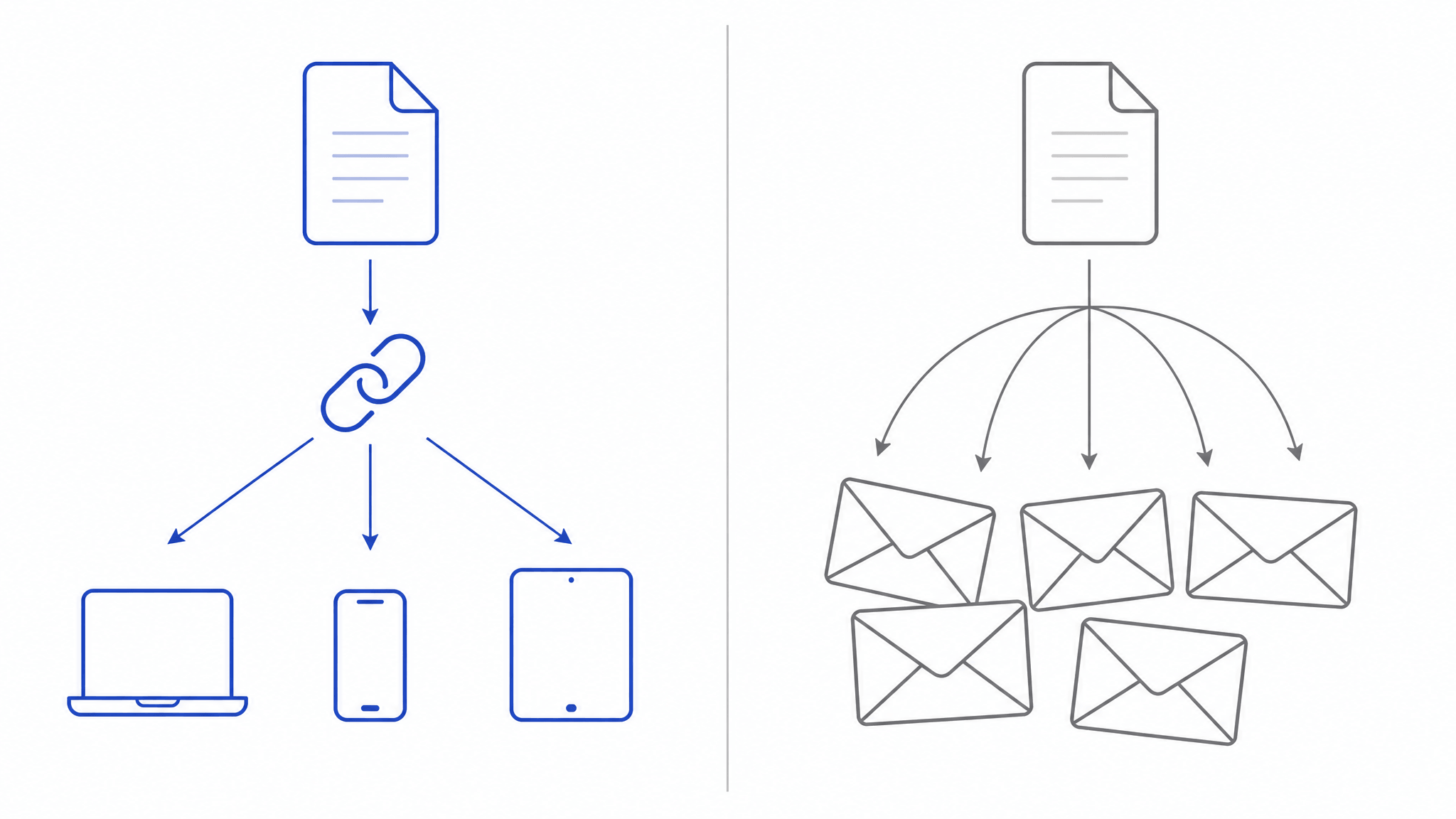
There's a privacy dimension too, and it points the same direction. Copies are the enemy of privacy: every copy is one more place the file can leak from. A workflow built around a single hosted link with a defined lifetime keeps the surface small. That idea — the file doesn't have to land everywhere — runs through the rest of this guide, including how you extract text from a PDF later.
## How to share a PDF as a link, step by step
The whole flow takes under a minute with a file-to-URL converter. Here is the exact process.
**Step 1: Get the PDF ready.** Rename the file to something you'd be comfortable showing, because the name often travels with the link or the download. Do a last check of what's actually inside: comments, tracked changes, form-field values, and metadata can survive an export. If the document is sensitive, scrub what you don't want to ship before it goes online at all.
**Step 2: Open a file-to-URL tool.** Any service that converts an uploaded file into a shareable URL works. Three things to look for: explicit PDF support, no forced account on the upload side, and some control over how long the file stays up. AnyToURL, for example, lists a dedicated [PDF to URL converter](https://anytourl.com/tools/pdf-to-url) built exactly for this — reports, resumes, and contracts going out as one link.
**Step 3: Upload the PDF and copy the link.** Drag the file in or select it, and the tool returns a shareable URL in seconds. With AnyToURL's PDF tool, you upload the document and get a shareable link that any browser can open — the recipient never sees an upload wall or a sign-in prompt. The free Starter plan keeps the file available for 24 hours with a 5 MB per-file limit, and paid plans extend both ceilings sharply (more on the numbers below).
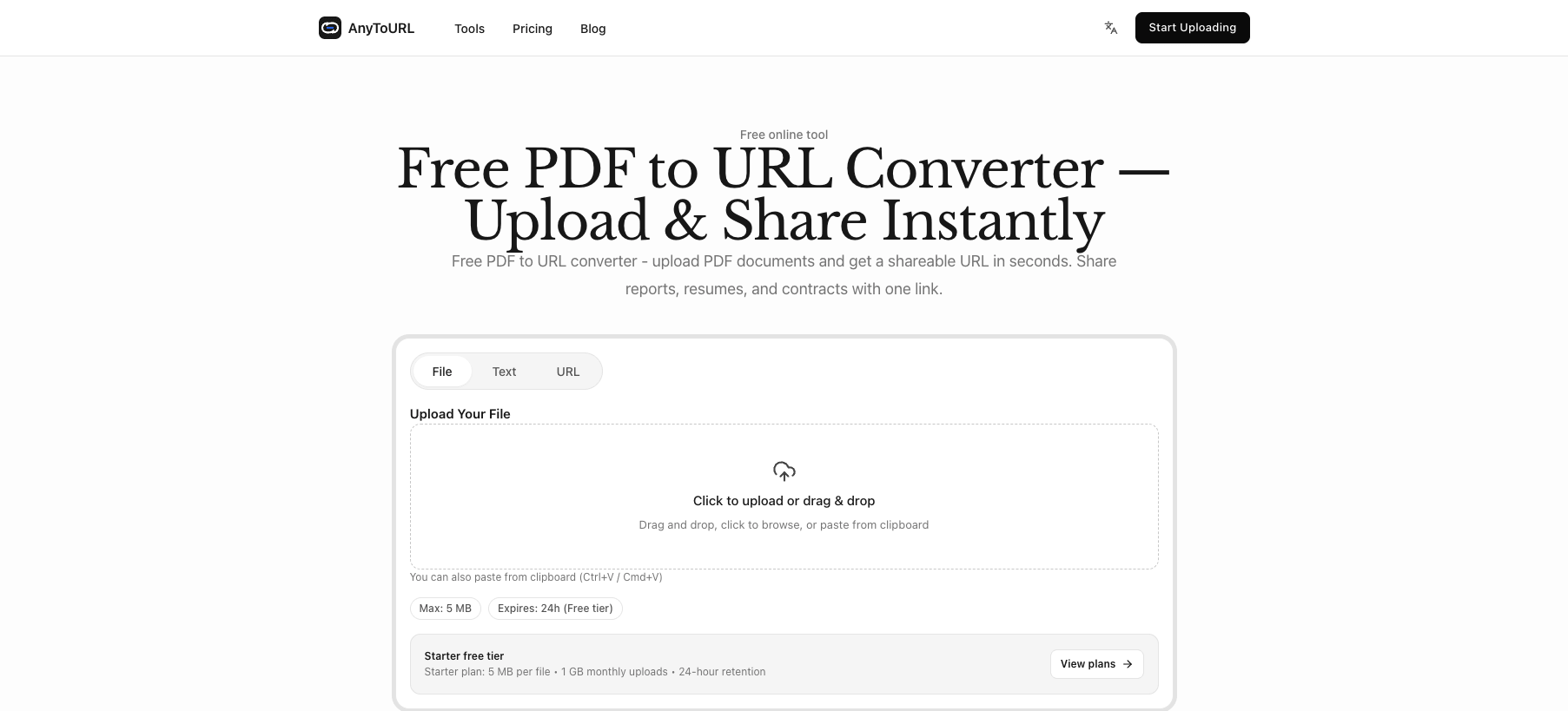
**Step 4: Test, then send.** Open the link yourself in a private browsing window first — that shows exactly what a recipient gets, with none of your cookies or sessions. Then paste the URL wherever the file needs to go: an email body, a Slack message, a résumé upload form that accepts links.
## Control what happens after you share
Sending the link is the easy half. The half most people skip is deciding how long the file stays reachable — and it's worth thirty seconds of thought, because retention is where link sharing genuinely beats attachments.
On AnyToURL, retention is explicit and plan-based. The free Starter plan holds files for 24 hours — enough for the normal "send it, they open it today" case, after which the hosted copy simply disappears. The Pro plan ($9.9/month) extends storage to 100 GB per month with files up to 1 GB, and the Ultra plan ($29.9/month) adds permanent retention with 10 GB per file. File history lets you delete an upload manually at any time, which matters when a document outlives its purpose early. If you're weighing short-lived links against long-lived ones in depth, the [burn-after-read vs permanent link comparison](https://anytourl.com/blog/burn-after-read-vs-permanent-file-link) breaks that trade-off down.
Quotas are the other quiet control. Plans cap file size, monthly upload volume, and daily bandwidth, which is uninteresting until the day a 300 MB portfolio PDF or a sudden wave of clients hits them. The practical reading: the free tier comfortably serves one-off document sharing, while recurring, heavier sharing is what the paid tiers price for.
One more thing worth saying plainly: a public link is a capability — whoever holds the URL can open the file. That's the feature that makes it frictionless, and it's also the whole security model. Don't paste a contract's link into a public channel; send it to the people who need it, and prefer a short retention window for anything confidential. If a document is truly sensitive, ask whether it should be a link at all.
## Need the text out of the PDF? Extract it without another copy
Sharing solved delivery, but PDFs have a second annoying habit: getting the text back out. Maybe you need quotes from a report for your own notes, or clean text from a paper for a research pipeline. The catch is that plenty of "extract text from PDF" tools work by uploading your file to their server — which quietly recreates exactly the copy problem you just avoided.
The privacy-conscious pattern is the same one this article has been building: don't let the file land anywhere new. Three paths exist, in increasing order of setup:
1. **Browser-based extraction — the file never leaves your device.** A class of tools runs the extraction in JavaScript inside your browser tab, so the PDF is processed locally and no upload happens at all. papero, an open-source (MIT-licensed) PDF extraction project released in early October 2026, is a clear example: its browser app processes the file on your machine — the project's README states plainly, "Your PDF never leaves your machine."
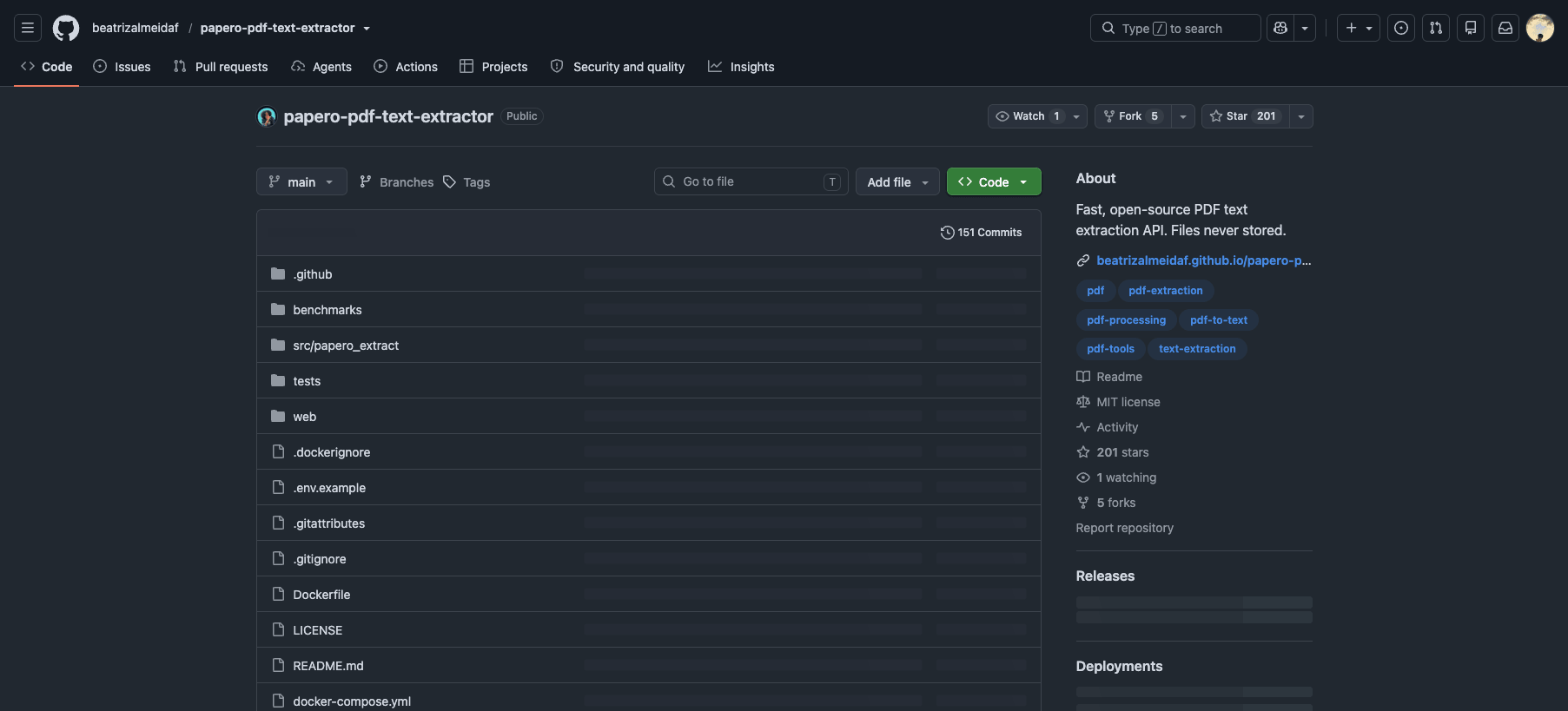
*papero-pdf-text-extractor on GitHub (MIT license). Source: github.com/beatrizalmeidaf/papero-pdf-text-extractor, accessed October 7, 2026.*
2. **Open source, run it yourself.** The same papero project installs as a Python library (`pip install papero-extract`) or runs as a self-hosted REST API via Docker. Instead of heavy machine-learning models it uses geometry-based layout analysis on a CPU, reconstructing reading order, tables, and formulas — the project's own benchmark reports processing 54 dense academic papers with zero failures at a median of 39 milliseconds per page on a laptop CPU. Self-reported numbers deserve exactly that skepticism, but the architecture claim is verifiable in the repo: nothing phones home because there's nowhere to phone.
3. **Skip extraction entirely — share the link, let the recipient work from the original.** If the goal is for someone else to read or cite the document, extracting text yourself may be an extra step, not a requirement. A hosted PDF link lets the recipient search, select, and copy text straight from their browser's PDF viewer.
| Path | Where the file goes | Best for |
| --- | --- | --- |
| In-browser tool | Stays on your device | Quick one-off extraction, sensitive documents |
| Self-hosted (papero CLI/API) | Your machine or server | Batch jobs, research pipelines, repeatable workflows |
| No extraction — share the link | One hosted copy you already control | When the recipient just needs to read and copy |
The through-line from the first half of this article holds here: every path that avoids a new server-side copy is a path where your PDF lands nowhere it doesn't need to.
## FAQ
**Is it safe to share a PDF as a link?**
For most documents, yes — with the right mental model. A public link means anyone who obtains the URL can open the file, so the URL should be treated like a key: send it directly to your recipients, don't post it publicly, and favor short retention windows for anything confidential. For documents whose leak would cause serious harm, a link with a 24-hour expiry plus manual deletion is a reasonable middle ground; anything beyond that deserves stronger protection than a plain URL.
**How do I share a PDF link that expires?**
Use a file-to-URL tool with plan-based retention. On AnyToURL's free Starter plan, files are kept for 24 hours and then removed automatically — you share the link, the recipient opens it while it matters, and the hosted copy disappears on schedule. File history also lets you delete an upload manually the moment it's no longer needed.
**Can I extract text from a PDF without uploading it somewhere?**
Yes. Browser-based tools process the file locally in your tab, and open-source options like papero can run entirely on your own machine via Python or a self-hosted Docker API. Both approaches leave your PDF where it is; no upload copy is created.
**What's the difference between a PDF link and a PDF attachment?**
An attachment embeds the file itself in each message, hitting email size caps and leaving a copy in every inbox it touches. A link carries only a URL pointing at one hosted copy, which opens in any browser and disappears according to the hosting plan's retention rules.
**Do recipients need an account to open a shared PDF link?**
Not on AnyToURL: public links open directly in the recipient's browser with no sign-in, no app install, and no "request access" step.
## Conclusion
Sharing a PDF as a link replaces the attachment dance with a single controlled copy: upload the file to a file-to-URL converter, copy the link, test it in a private window, and send it. Decide deliberately how long the file should live — a 24-hour window covers most document handoffs, and permanent retention is there when a file genuinely needs to stay. And when you need the text out of a PDF, choose a path that doesn't upload the file again: in-browser processing, a self-hosted open-source tool, or simply letting the recipient work from the link you already shared.
Ready to turn a PDF into a link? [Try the AnyToURL PDF to URL converter](https://anytourl.com/tools/pdf-to-url) — upload your document, get a shareable link in seconds, and keep control of how long it stays online.
---
### ChatGPT Sites vs. File-to-URL Tools: Which Should You Use to Share Files?
URL: https://anytourl.com/blog/chatgpt-sites-vs-file-to-url-tools
Description: ChatGPT Sites builds and hosts interactive web apps — but sharing a file as a link is a different job. A same-criteria comparison with a scenario verdict for both.
ChatGPT has a website builder now. ChatGPT Sites — available on eligible ChatGPT workspaces, Plus, and Pro plans, and surfaced through the Work mode — takes a prompt, generates an interactive web app, hosts it, and hands you a live URL. Which raises an obvious question for anyone who shares files for a living: do you still need a dedicated file-to-URL tool?
Disclosure up front: we operate AnyToURL, one of those dedicated tools, so weigh that as you read. The comparison below holds both options to the same six criteria, and the short answer is that they solve different jobs. ChatGPT Sites builds interfaces; a file-to-URL tool turns a file you already have into a link. You choose based on what the link is for — not on which tool sounds more capable.
## What ChatGPT Sites actually is
Sites is a generative website builder with hosting attached. You describe what you want in ChatGPT Work, optionally tag @Sites, review a private preview, and publish to a production URL. OpenAI's documentation lists dashboards, project trackers, launch calendars, prototypes, internal portals, and reports as typical targets. Sites can carry persistent data, file storage, sign-in via ChatGPT, analytics, and — where available — a custom domain you already own.
It is also a public beta with real gates, and these matter for the comparison:
- **Plan and region availability.** Sites is available on ChatGPT workspaces, Plus, and Pro accounts. It is not available on Free or Go plans, and at launch it is not available in the EEA, Switzerland, or the UK.
- **Admin control.** A new Site is visible only to its owner and workspace admins until access changes. Public publishing must be enabled, and in Enterprise workspaces it is off by default.
- **Plan-specific limits.** Beta usage limits apply across all Sites on an account; reach one and you may be unable to create new Sites or add storage until usage drops.
- **Undocumented storage ceiling.** OpenAI does not publish a storage limit for Sites, and there is no data or inference residency at launch. In one public walkthrough, a Site held a database of more than 2,000 newsletter records comfortably — but sensitive data like health or payment-card information is prohibited regardless.
So Sites is genuinely powerful — but everything above it in this article sits behind a subscription, a region check, and in organizations, an admin's blessing.
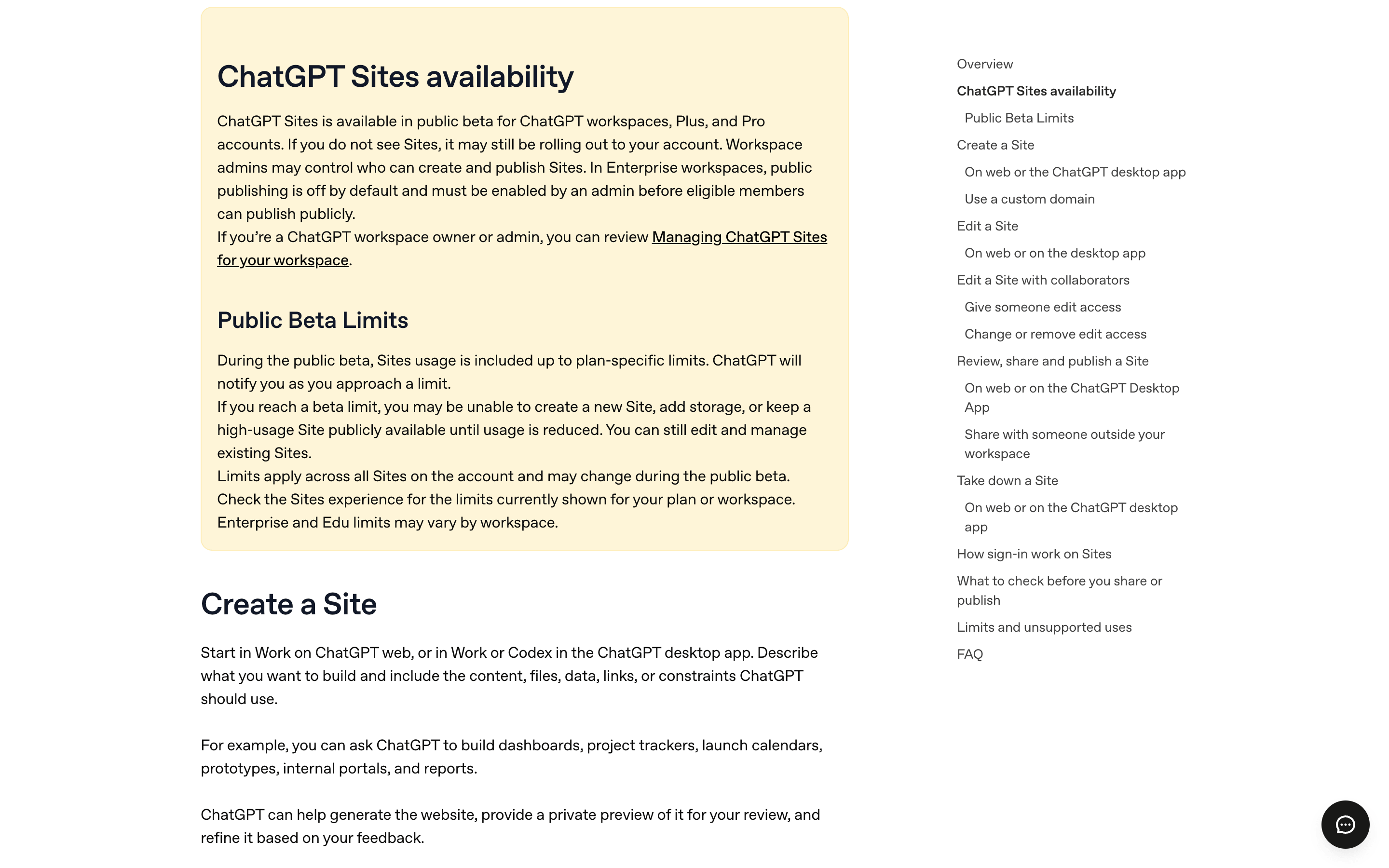
*Source: OpenAI Help Center, 'Creating and managing ChatGPT Sites' (accessed September 7, 2026).*
## What a dedicated file-to-URL tool does
A file-to-URL tool answers a narrower question: you have a file, and you need a URL for it. On AnyToURL, that is drag-and-drop to upload, and a shareable link like `anytourl.com/f/x7kP2mQ9` appears in seconds — no subscription required to start. The free Starter tier takes files up to 5 MB with 24-hour retention; paid tiers raise the ceiling to 1 GB (Pro, $9.9/month) or 10 GB (Ultra, $29.9/month) with storage up to 1 TB per month and permanent retention. Files are delivered over Cloudflare's edge network, images and PDFs preview inline in the recipient's browser, and every public link is checked for file state and expiry before it serves anything.
The job is deterministic: the same file, the same three-step flow, a link you can paste anywhere. There is nothing to generate, nothing to review, and nothing that changes unless you replace the file. Paid tiers add API and CLI upload support plus short-link generation, so the flow can run from scripts and automation rather than a browser tab.
## Head-to-head on the same six criteria
| Criterion | ChatGPT Sites | Dedicated file-to-URL tool (AnyToURL) |
| --- | --- | --- |
| What the URL opens | A generated, hosted web app | The file itself — preview or download |
| Time to a working link | A prompt → generate → review → deploy loop; one third-party walkthrough measured minutes for a simple site | Seconds: upload and copy |
| Access gates | Paid plan, region, workspace admin for public publishing | None for basic uploads |
| Size and retention | Storage limit unpublished; beta limits are plan-specific | 5 MB–10 GB by tier; 24 hours to permanent, documented |
| Sharing model | Audience settings: owner, workspace, named viewers, sign-in, public | A public link anyone with the URL can open |
| Automation | Conversational — you ask, ChatGPT rebuilds and deploys | API and CLI on paid tiers — scripts, cron jobs, CI |
Neither column wins all six rows. They diverge because one URL is an application and the other is a file.
## When ChatGPT Sites is the better choice
Sites earns its keep when the deliverable is an interface, not a file:
- Your research or project context would be more useful as an interactive decision tool — filters, inputs, live recommendations — than as a static report.
- You want a living page that accumulates data across sessions, like a searchable database that a scheduled task keeps updated.
- A team needs a small internal portal with sign-in, and building it through conversation is faster than provisioning a stack.
In those jobs, "hosting" is incidental — the point is that ChatGPT assembles the app, keeps its data, and hands you a URL. A file link cannot do any of that.
## When a dedicated file-to-URL tool is the better choice
Reach for a file-to-URL tool when the link is the whole deliverable:
- Someone is waiting for a file right now — a mockup, a PDF, a rendered video — and seconds matter more than presentation.
- The file is large. Documented tiers up to 10 GB and 1 TB of monthly storage beat a storage ceiling OpenAI has not published.
- The share must work from a script. API and CLI uploads fit CI pipelines and cron jobs; Sites rebuilds through conversation.
- You are not on an eligible workspace, Plus, or Pro plan, you are in a region where Sites has not launched, or your workspace admin has public publishing locked down.
- You want the link to be predictable: it opens the same file until it expires or you delete it. Expiry and permanent retention are plan settings, not side effects of a regeneration.
That last scenario block is AnyToURL's whole job, and you can try it with a free upload — no signup wall in front of your first link.
**Try AnyToURL free →**
## The overlap case
Some shares sit between the two. Say you finished a market report: as a PDF, it belongs on a file link — recipients expect a document, and they get one instantly. As an interactive summary with filters and a data browser, it belongs on Sites — the interface is the value. The mistake is using either tool for both jobs: sending a Sites link when someone just needs the file adds a load time and a sign-in prompt they didn't ask for, while a bare PDF undersells work that would shine as a tool.
## The verdict
One question settles it: is the link the deliverable, or the thing the link opens?
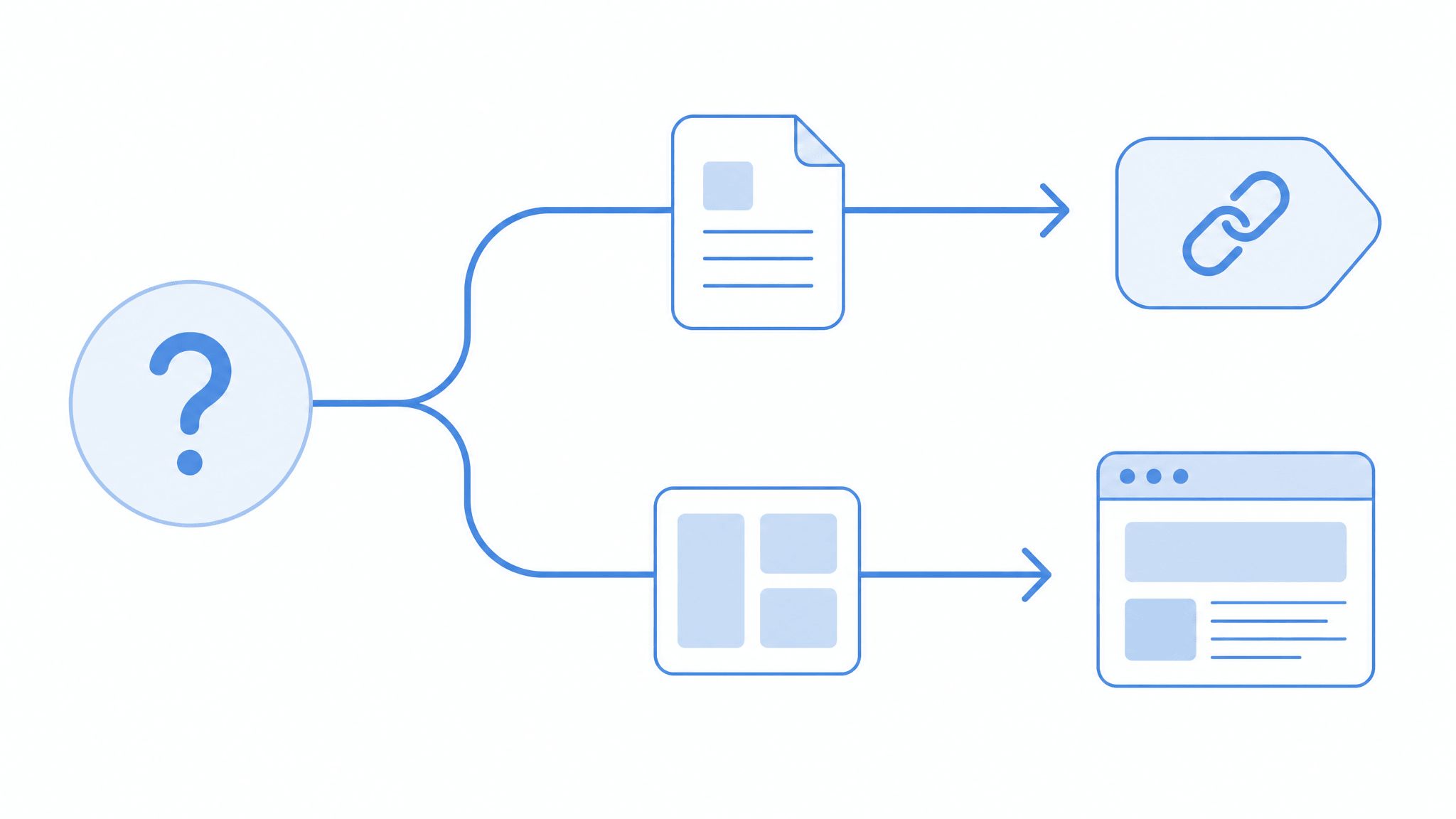
If you are sending a file — a design, a video, a dataset, a document — the link is the deliverable, and a dedicated file-to-URL tool does that job faster, cheaper, and without gates. If you are shipping an interface around your content, ChatGPT Sites is the more capable instrument, provided you clear its plan, region, and admin requirements. Most people who share files daily need the first tool far more often than the second, and keep the second for the occasional build.
**Try AnyToURL free — drag a file, get a link →**
---
### Online File Converters vs. Self-Hosted File Converters: How to Choose
URL: https://anytourl.com/blog/online-file-converter-vs-self-hosted
Description: Online file converters vs. self-hosted Docker converters like ConvertX: privacy, format coverage, setup, and cost compared — plus when to skip converting and share the original as a link instead.
If you only convert a file once a month, an online converter is still the right call: no setup, works on any device, and reputable services document exactly how long they keep your files. If you convert weekly, handle sensitive documents, or need formats mainstream sites don't list, a self-hosted converter like ConvertX gives you the same browser workflow with files that never leave your machine. And before either one: check whether the file needs converting at all, because a lot of "conversion" jobs are really sharing jobs.
One disclosure up front: this post is published by AnyToURL, a file-sharing tool, not a converter. AnyToURL appears exactly once in this article, in the section about skipping conversion. Everything else here compares two genuine conversion approaches on the same criteria.
## Key takeaways
- Online converters win on zero setup and device independence; their trade-off is that your file leaves your device and lands on someone else's server.
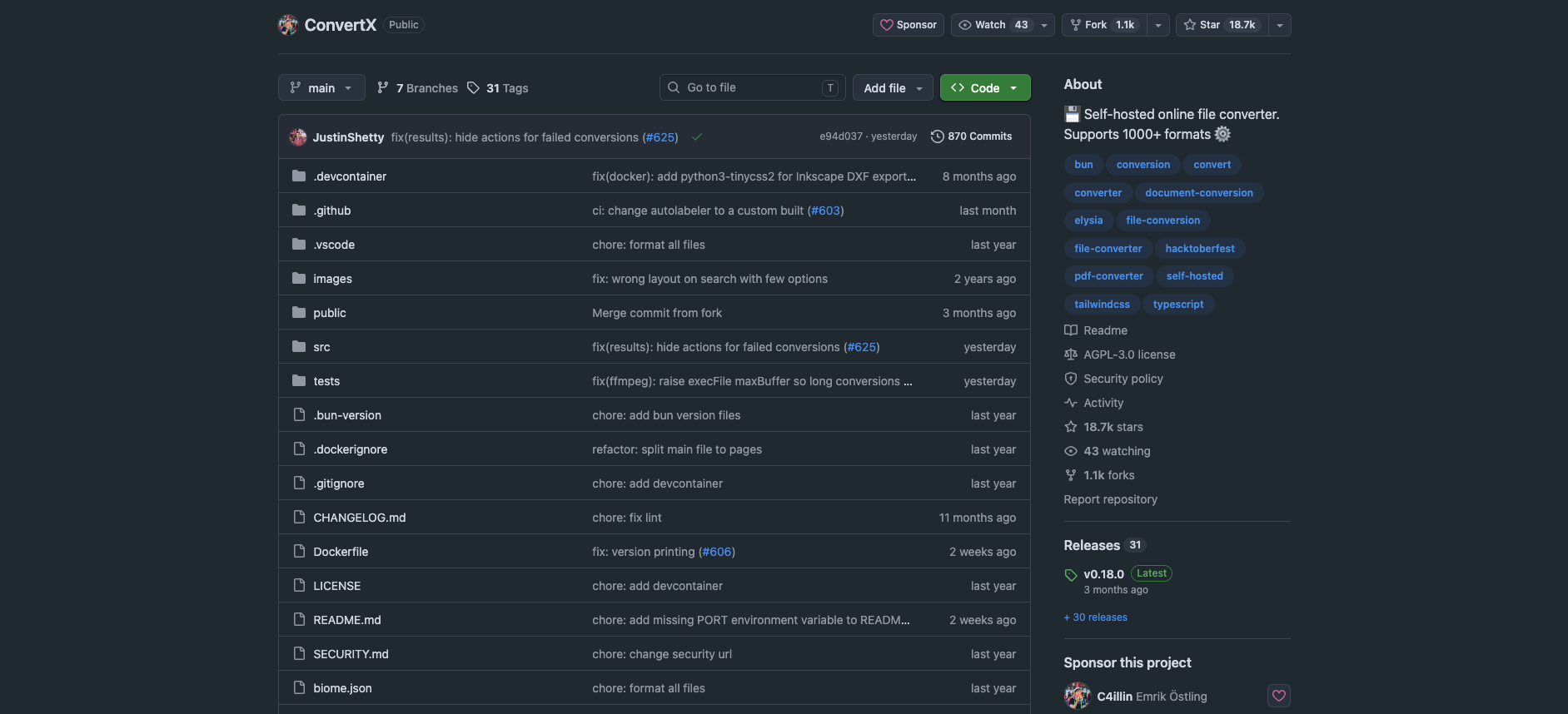
- Self-hosted converters (ConvertX is the current open-source favorite, with about 18.7k GitHub stars) keep files on your own hardware and bundle around twenty engines covering 1,000+ formats.
- The privacy gap between reputable online services and a self-hosted setup is real but narrower than most "I ditched online converters" posts suggest: the bigger risk is picking an unvetted site, not using a documented one.
- The cheapest conversion is the one you skip. If the recipient can already open the file, sharing the original as a link beats converting it.
## Two ways to convert a file
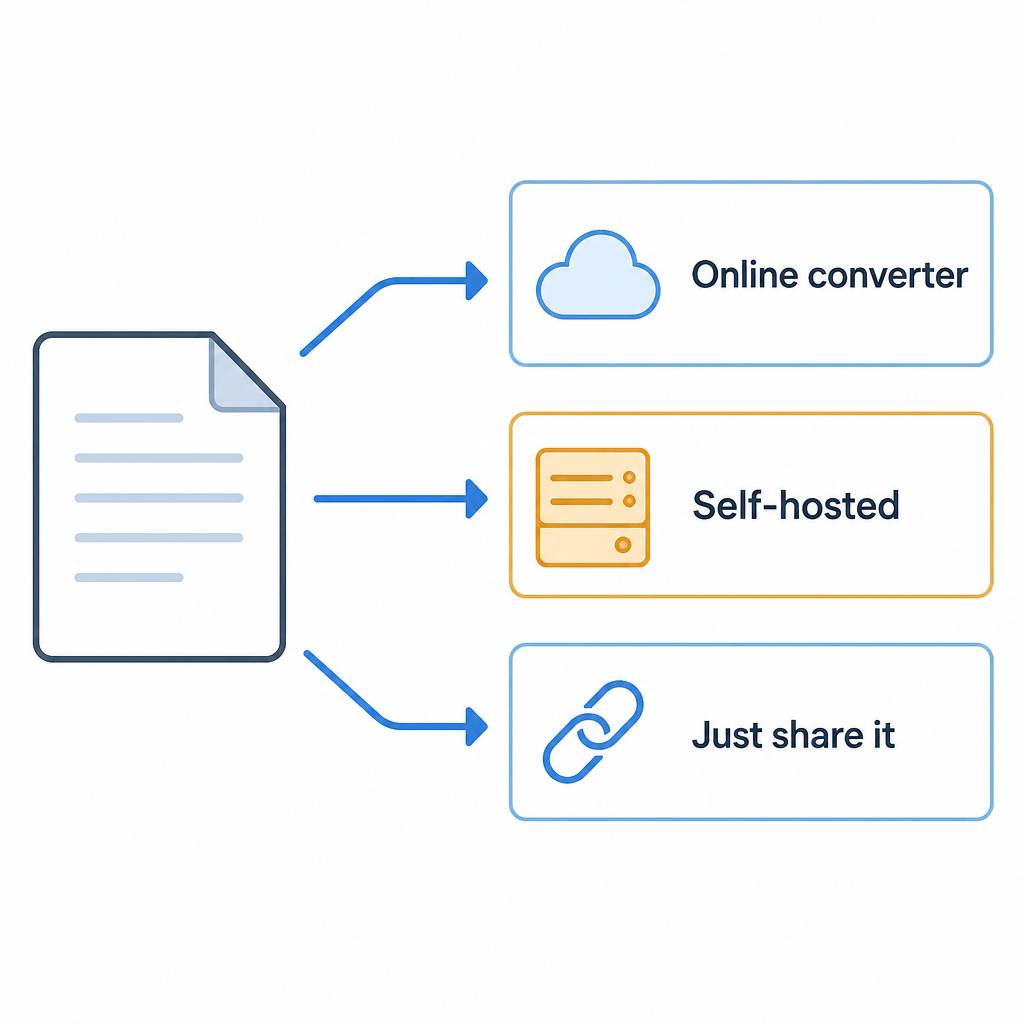
The online model is the one everyone knows: you upload a file to a website, a server on the other end runs the conversion, and you download the result. Services like iLovePDF, CloudConvert, or FreeConvert cover the common jobs — PDF to Word, HEIC to JPG, MOV to MP4 — with a drag-and-drop page that works from any browser, including a phone.
The self-hosted model moves that server onto your own hardware. ConvertX is the clearest example: an open-source (AGPL-3.0) web app that runs as a single Docker container and combines about twenty conversion engines — FFmpeg for video, ImageMagick and GraphicsMagick for images, LibreOffice for office documents, Pandoc for markup, Calibre for ebooks — behind one web interface. Its README claims support for over a thousand formats, and this is where the number comes from: no single engine covers everything, but the combination gets close. FFmpeg alone lists roughly 472 input and 199 output formats; ImageMagick adds 245 input formats of its own.
Setup is one command (`docker run -p 3000:3000 -v ./data:/app/data ghcr.io/c4illin/convertx`) after which you open localhost:3000, create an account, and get the same open-a-tab-and-drop-a-file workflow as a hosted site — except the "site" is your machine.
## Same criteria, both options
| Criterion | Online converter | Self-hosted (ConvertX) |
| --- | --- | --- |
| Privacy posture | File leaves your device; reputable services document retention (iLovePDF deletes within 2 hours) | File stays on your machine; auto-deletes after 24h by default |
| Format coverage | Curated list, usually the common formats per tool | 1,000+ via ~20 engines, including niche and legacy formats |
| Setup effort | None | One Docker command, then account setup |
| Maintenance | None; it's someone else's problem | Yours: updates, uptime, backups if you care about history |
| Access from anywhere | Any browser, any device, including phones | Any device on your network; internet access requires exposing the service safely |
| Cost shape | Free tiers with file-size and daily caps; subscriptions for volume | Free software; your hardware and electricity |
| Trust requirement | Trust the operator's policy and security | Trust your own configuration |
*Source: github.com/C4illin/ConvertX, accessed September 5, 2026*
## Privacy: what actually happens to your file
Every online conversion sends your file to a third party. What matters is what that third party does with it, and the reputable services are more documented than their reputation suggests. iLovePDF's privacy policy states that files are deleted within two hours of processing. CloudConvert goes further on paper: its operating company holds an ISO 27001 certification, and each conversion runs in a separate isolated container that even CloudConvert staff can't access, according to its security page.
So the honest privacy statement is not "online converters steal your files." It's this: the risk concentrates in the sites that *don't* publish a policy — the random converter that ranks on page one with three popups and no company name. For a recipe scan or a meme, that's fine. For contracts, ID scans, medical documents, or unreleased work, uploading to an unknown operator is an avoidable risk.
Self-hosting removes the third party entirely. With ConvertX, files live in a folder on your own disk and the default configuration auto-deletes them after 24 hours. But be clear about what you're adopting: you are now the admin. The project recommends setting a proper `JWT_SECRET`, warns that the first registered account can be claimed by anyone if you leave the instance open, and — if you want to reach it from outside your network — you're responsible for putting HTTPS in front of it instead of disabling its HTTP guard. A misconfigured self-hosted box is not automatically safer than a documented hosted service; it's just yours.
## Format coverage: where the 1,000+ number earns itself
For common jobs the two options converge: every major online service handles PDF office-format conversions, the usual image set, and standard video containers. Where they diverge is the long tail. ConvertX's engine table reads like a format archaeology collection: Outlook `.msg` email files, VCF contacts, 3D assets through Assimp (77 input formats), vector tracing via Potrace and VTracer, JPEG XL through libjxl, LaTeX through XeLaTeX. If your week includes "turn this `.heic` into a PDF" plus "rescue this old `.wmv`", one self-hosted install covers both; online you'd hop between sites and hope each has the pair.
Specialization is the other axis. Stirling-PDF — a self-hosted PDF toolbox with over 90,000 GitHub stars — does far more inside the PDF world than any general converter, online or self-hosted. Format breadth and per-format depth are different purchases.
One caveat worth attributing: a MakeUseOf writer who switched to ConvertX notes that conversion quality varies between engines, and that being able to pick a different engine for the same conversion is the mitigation. That flexibility is real — it's a feature of having twenty engines — but "more engines" is not automatically "better output" for any specific file. (No conversion was run for this article, so treat engine choice as documented capability, not tested verdict.)
## Convenience and the real cost of "free"
Online converters are unbeatable at the one-off on someone else's computer. Nothing to install, works on a phone, and the free tier of a typical service covers occasional use — with file-size caps and daily limits that push frequent users toward subscriptions. That subscription is the honest price of the hosted model, alongside the data trail.
Self-hosting inverts the trade. The software is free and the workflow is identical (open tab, drop file), but your costs move to setup and upkeep: a machine that's on when you need it, occasional container updates, and a little network configuration if you want access beyond your LAN. The MakeUseOf author's summary is a fair one — the container kept the convenience of the extra browser tab while removing the trust problem — and it's an attributed experience, not a benchmark.
## The decision rule
- **Convert a few files a month, common formats, often from a phone?** Stay online. Pick services that name their company and publish a retention policy, and keep genuinely sensitive documents out of unknown sites.
- **Convert weekly or more, handle sensitive or unusual files, own a NAS or always-on box?** Self-host. One container gives you the 1,000+ format coverage and files that never leave your hardware.
- **The recipient can already open the file as-is?** Skip conversion entirely. This case is more common than it looks.
## Before you convert: is conversion even the job?
A lot of converter searches are really delivery problems. You don't need a MP4; you need your client to see the video. You don't need a PDF version; you need the reviewer to get the document without an email-attachment fight. Converting changes the file; sharing delivers it. If the original format already works for the recipient, conversion adds a step and a quality risk for no gain.
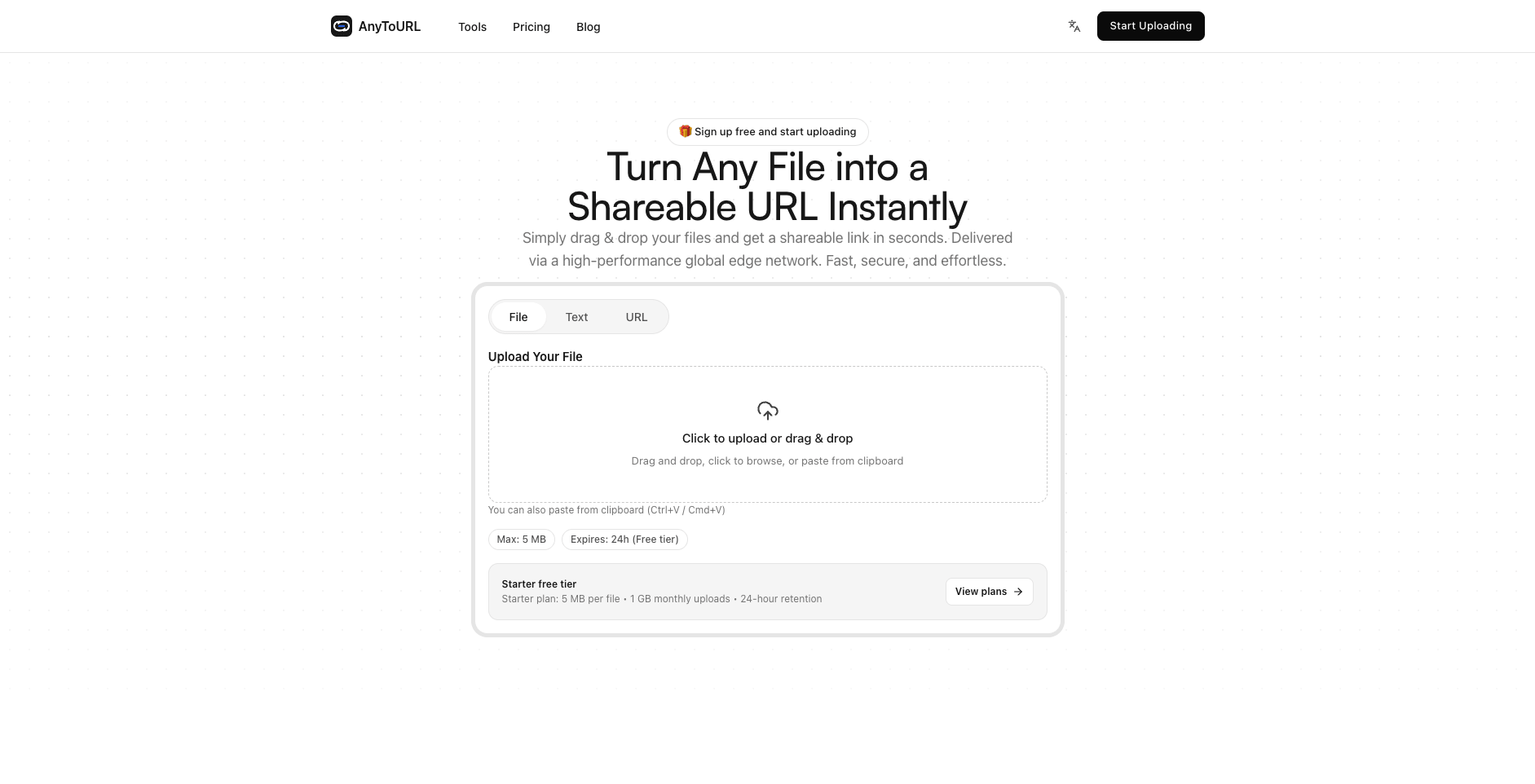
That's the sharing path: put the original file somewhere and hand over a link. AnyToURL, this site's own tool, does exactly that — drag in a file, get a shareable URL.
*AnyToURL free tier: files up to 5 MB, 24-hour retention, no signup*
The free tier takes files up to 5 MB with 24-hour retention, no signup, and images, PDFs, and documents preview in the browser so recipients don't even need to download. If it turns out you need a different format *and* a link, convert first, then share — but check the simple case first. [Try it free →](https://www.anytourl.com/)
## FAQ
**Do online converters keep my files?**
Reputable ones publish their retention: iLovePDF states two hours after processing, and others document similar windows. Sites without a readable policy are the problem — assume indefinite.
**Is a self-hosted converter actually safer?**
For file privacy, yes by construction: the file never leaves your hardware. But you inherit the admin's risks — an open registration page, a weak or missing JWT secret, or an instance exposed to the internet without HTTPS can undo that advantage. Safety comes from the configuration, not from self-hosting alone.
**Can I run ConvertX without Docker experience?**
The command is a single `docker run` line from the project's README, which is about the floor for Docker anyway. If "install Docker Desktop, paste one command" sounds like a bad afternoon, the hosted route fits you better.
**What about very large files?**
Online free tiers commonly cap file size; that's the constraint that pushes people to pay or self-host. A self-hosted converter is limited by your own disk and CPU instead — the reason video-heavy users end up there.
## Bottom line
Match the tool to frequency and sensitivity: online for occasional common conversions, a self-hosted Docker converter for volume, privacy, or format oddities — and check first whether the file needs converting at all, because delivering the original as a link is often the shorter path.
---
### How to Share AI Prompts and Context Between Tools
URL: https://anytourl.com/blog/share-ai-prompts-context-between-tools
Description: Share AI prompts between tools without copy-paste. A workflow for moving prompts, specs, and context across ChatGPT, Claude, Cursor, and teams.
On June 10, 2026, a tool called **agmsg** hit Product Hunt with a pitch that landed in one line: *"Stop copy-pasting between your AI coding agents."* The same week, GitHub Trending filled up with `agent-skills` and `pm-skills` repos. The signal is hard to miss — people now run three, four, even five AI tools side by side, and the glue between them is still the clipboard.
Here is the daily reality. You write a careful 600-word prompt in ChatGPT and it works. Now you want Claude to take a pass, so you copy, switch tabs, paste, and re-explain the project context Claude has no memory of. Then Cursor needs the same spec to write the actual code. Then a teammate asks for "that prompt you used last week" and you go digging through chat history to find it.
This guide shows how to share AI prompts between tools without that ritual — by turning prompts, specs, notes, and context into a single shareable link any tool or person can open. We cover the method, a step-by-step workflow, and three real scenarios: coding agents, content pipelines, and team prompt libraries.
Last updated: June 10, 2026.

## Table of Contents
- [The Challenge: Copy-Paste Is the Tax on Multi-Tool AI Work](#the-challenge)
- [How Shareable Context Links Solve This](#how-shareable-context-links-solve-this)
- [Practical Workflow: Step by Step](#practical-workflow)
- [Results & What to Expect](#results)
- [Tips by Scenario](#tips-by-scenario)
- [FAQ](#faq)
- [Conclusion](#conclusion)
## The Challenge: Copy-Paste Is the Tax on Multi-Tool AI Work {#the-challenge}
The core problem with sharing AI prompts between tools is that each tool is a walled garden. Your prompts, context, and specs live inside one chat history with no stable address. Moving them means manual copy-paste, which truncates long content, breaks formatting, and forces you to re-explain context every single time.
Picture a solo developer running Claude for architecture, Cursor for implementation, and ChatGPT for debugging. The same project spec gets copied between those three tools 15 to 20 times a day. Each hop has a cost. Paste a 2,000-word spec into a chat box and it often gets cut off, so you send a "continue, here's the rest" follow-up. Markdown tables and code fences arrive mangled. And nobody can tell which copy is the current one — the version in Cursor drifted from the version in ChatGPT two edits ago.
Teams feel it worse. A prompt that one person tuned over an afternoon becomes tribal knowledge buried in a DM. Onboarding a new teammate turns into "let me find that message," and the answer is usually a screenshot. The work isn't writing prompts — it's the manual labor of moving them around.
## How Shareable Context Links Solve This {#how-shareable-context-links-solve-this}
The fix is a shift in what you move. Instead of moving the *text* between tools, you move a *pointer* to the text. Give your context a stable URL, and any tool that accepts a link — or any human — reads from one source of truth. No truncation, no format damage, one canonical version, instant handoff.
This works because most AI tools already read URLs. Paste a link into Claude, ChatGPT with browsing, Perplexity, or a coding agent, and it fetches the full document instead of choking on a giant paste. The link carries the whole thing: a 5,000-word spec, a markdown style guide, an attached `.txt` of requirements. Your chat box stays clean and your context window isn't burned re-pasting the same boilerplate.
A context link worth building a habit around needs three properties. First, it has to hold the full payload — raw prompt text, a markdown spec, or an actual file. Second, it has to open with no signup or install on the receiver's side, because friction on the other end kills sharing. Third, it has to be fast to create; if minting a link takes more steps than copy-paste, you'll never switch.

## Practical Workflow: Step by Step {#practical-workflow}
Here is the loop that replaces the clipboard. Four steps, repeatable, and it works the same whether your "context" is a one-paragraph prompt or a multi-file spec.
### Step 1: Capture your prompt or context as one document
Pull together the pieces you keep re-pasting: the prompt itself, the project spec, relevant notes, and any reference file. Keep it as plain text or markdown so it travels cleanly. The goal is one self-contained document a fresh tool could read with zero prior context.
### Step 2: Turn it into a shareable link
Now mint a URL for that document. Drag your spec file into [AnyToURL](https://anytourl.com) and you get a shareable link in seconds — no signup needed. It handles the three shapes context usually takes: paste raw prompt text, upload a file, or shorten an existing URL, and you get one link back either way. For markdown specifically, the same approach covers the full flow described in [sharing markdown notes as a URL](https://anytourl.com/blog/share-markdown-notes-as-url).
### Step 3: Hand the link to any tool or teammate
Paste the URL where the work continues. To an AI tool, prefix it with an instruction: *"Read this context and continue: https://anytourl.com/s/..."* — ChatGPT, Claude, Cursor, and most agents will fetch it. To a teammate, drop the same link in Slack. One artifact, many destinations, zero re-explaining.
### Step 4: Keep one canonical version
When the prompt evolves, update your source document and regenerate the link, then pin the latest URL where your team or your tools look for it. The discipline that matters is having a single canonical address instead of five divergent pastes. A shortened URL (via the [URL shortener](https://anytourl.com/tools/url-shortener)) makes that canonical link short enough to drop into any prompt without clutter.
## Results & What to Expect {#results}
Switching from copy-paste to context links removes a specific class of friction rather than saving a vague "lot of time." In our testing, the changes were concrete and repeatable.
For long prompts, the "your message got cut off, continue" follow-ups disappeared. A 2,000-word spec that previously took three or four paste attempts to feed an agent became a single link the agent read in one shot. Formatting survived — code blocks and tables arrived intact instead of flattened. For team handoffs, "let me find that prompt" turned into pasting a URL, which collapsed a multi-minute search into a few seconds. And because everyone pointed at the same link, the silent version drift between tools stopped: there was one current copy, not five guesses.
The honest caveat: this only pays off if creating the link is genuinely faster than pasting. The first time you do it, it feels like an extra step. By the third reuse of the same context link, it's clearly cheaper.

## Tips by Scenario {#tips-by-scenario}
The pattern is the same, but the highest-value move differs by who you are.
**For coding agents (Claude Code, Cursor, agmsg-style setups):** Keep one project-context link — stack, conventions, constraints, file structure — and feed it to every agent at the start of a session instead of re-pasting. Link to specs rather than pasting them inline, so you don't burn the context window on boilerplate the agent could just fetch.
**For content workflows:** Store your brand voice and style guide as one link and paste it into whichever writing model you're using that day. Share "draft plus brief" as a single link to reviewers instead of juggling email attachments, so feedback happens against one current version.
**For team prompt libraries:** Give every reusable prompt a stable URL and collect those links in one index doc. New teammates onboard from a list of links, not from Slack archaeology, and improvements propagate because everyone references the same canonical address.
## FAQ {#faq}
### Q: How do I share a ChatGPT prompt with Claude without retyping it?
Save the prompt as text, turn it into a shareable link, and paste the link into Claude with "read this and continue." Claude fetches the full prompt from the URL, so nothing gets retyped or truncated, even for long prompts.
### Q: Can I share AI prompts between tools without an account?
Yes. With a tool like AnyToURL you can paste prompt text or upload a file and get a public link without signing up, and the person or tool opening it needs no account either. That zero-friction open is what makes links beat copy-paste for handoffs.
### Q: What's the best way to give a coding agent full project context?
Put your stack, conventions, and constraints in one document, mint a link for it, and pass that link to the agent at the start of each session. The agent reads the whole document from the URL instead of you pasting fragments, and your context window stays free for the actual task.
### Q: How do I share a long prompt that gets cut off when I paste it?
Move the prompt into a linkable document instead of the chat box. A URL carries the entire prompt regardless of length, so a 5,000-word spec opens fully on the other side — no "continue, here's the rest" follow-ups.
### Q: Can my team reuse prompts without copy-pasting them around?
Give each reusable prompt a stable URL and keep an index of those links. Teammates open the link to use the prompt, and when you improve it you update the canonical version once, so everyone is always pointing at the latest copy.
## Conclusion {#conclusion}
Running multiple AI tools is now normal; moving context between them by clipboard is the part that hasn't caught up. The shift is small: stop shipping the text, start shipping a link to it. One canonical URL beats five divergent pastes — it survives length limits, keeps formatting, and turns handoffs into a single paste.
The first step is easy to try today: take the one prompt or spec you re-paste most often, turn it into a link, and feed that link to your next tool instead of the text.
Need to move prompts and context between tools without the copy-paste tax? [Try AnyToURL free →](https://anytourl.com) — paste your prompt, drop a spec file, or shorten a URL, and share one link with any AI tool or teammate.
---
### How to Share an iPhone or iPad File as a Link
URL: https://anytourl.com/blog/share-iphone-ipad-files-as-link
Description: Turn any iPhone or iPad file into a shareable link in ~30 seconds, right from Safari. No app, no account, no AirDrop-only limits.
You're on your iPhone and need to send a 200 MB video to a coworker. AirDrop only works if they're on an Apple device standing a few feet away. Email rejects the file for being too big. Your cloud drive wants both of you to log in first. And every App Store result for "file sharing" wants you to install yet another app just to move one file.
There's a quicker way. You can **share an iPhone file as a link** in about 30 seconds — straight from Safari, no app to install, no account, and none of AirDrop's Apple-only limits. This guide walks through the exact steps for both iPhone and iPad, then covers the tradeoffs so you can pick the right method.

**In this guide:**
- [Why turn an iPhone or iPad file into a link?](#why)
- [How to share an iPhone or iPad file as a link (step by step)](#steps)
- [Pro tips for sharing files from your phone](#tips)
- [FAQ](#faq)
- [Conclusion](#conclusion)
Why turn an iPhone or iPad file into a link?
Turning a file into a link means you upload it once and send a single URL that anyone can open in a browser — no matching device, no app on either end, no size cap from your email provider. It's the fastest way to hand off a file when the other person just needs to open it.
The pain is specific to mobile. AirDrop is great until the recipient is on Android, Windows, or simply not in the room. Gmail caps attachments at 25 MB and iCloud Mail at 20 MB, so a single phone video or a batch of photos bounces. Cloud apps work, but they push a login screen at the person you're trying to help.
That gap is why lightweight mobile sharing keeps trending. Smmall Cloud for iOS — pitched as "simple file sharing on your iPad or iPhone" — landed at **#5 on Product Hunt**, and it's one of a long line of tools chasing the same job: get a file off a phone and into someone else's hands without friction. A browser-based file-to-link tool does the same thing with nothing to install, which matters when you're sharing from a device that isn't yours or when you don't want another app eating storage.
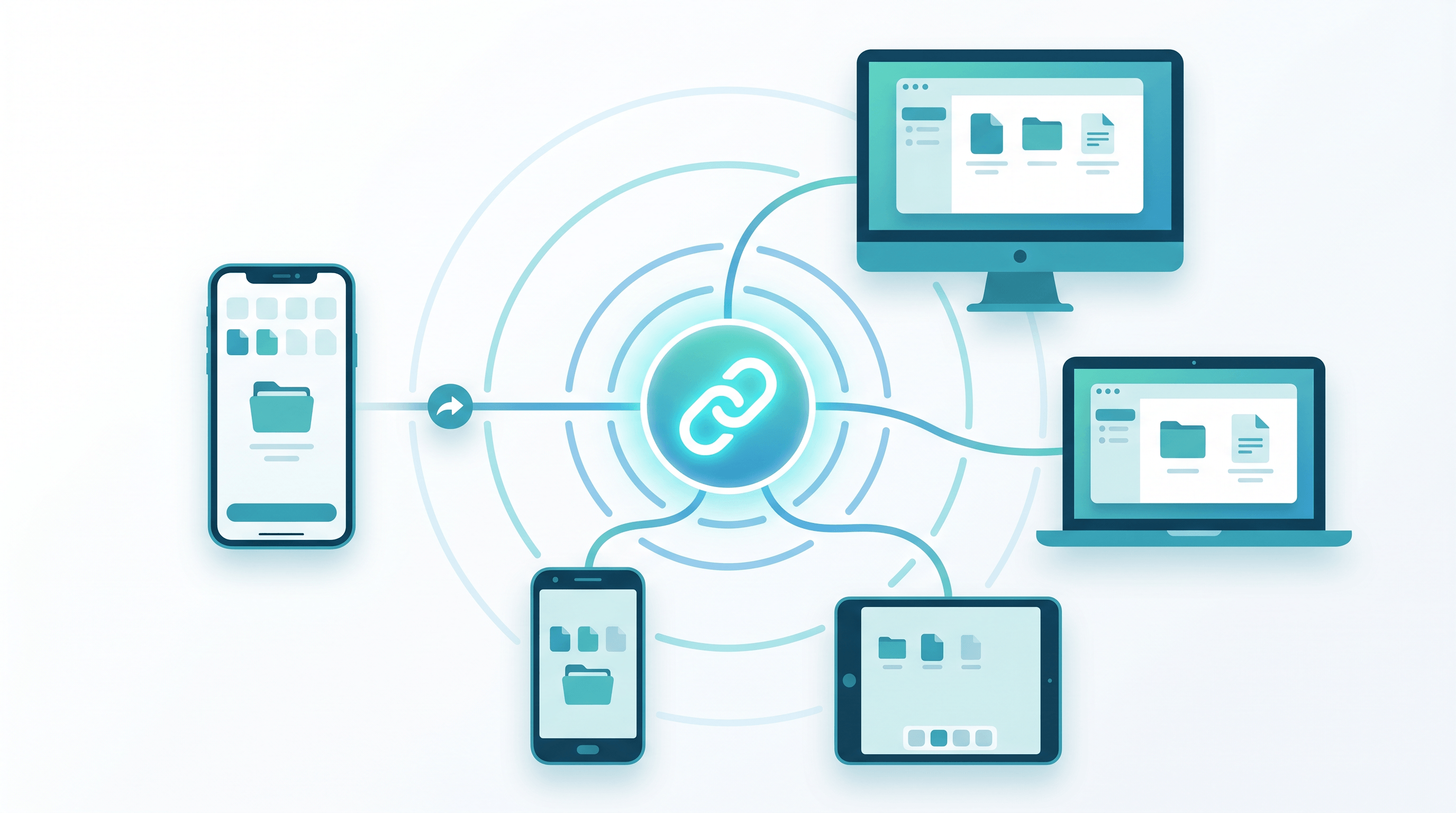
The link approach also travels better. A URL drops cleanly into iMessage, WhatsApp, Slack, a work email, or a Notion doc, and it opens the same way on every platform. That's the core reason **file to URL on iPhone** beats native transfer for anything cross-platform.
How to share an iPhone or iPad file as a link (step by step)
Here's the short version: open a file-to-link site in Safari, tap upload, pick your file from the Files app or Photos, and copy the link it gives you. The whole thing takes under a minute and works the same on iPhone and iPad. Below is each step in detail.
### Step 1: Open Safari and go to a file-to-link site
Open Safari (or Chrome — any mobile browser works) and head to a service that converts uploads into shareable links. Because everything runs in the browser, there's nothing to download and no account wall before you start. This is the whole point of learning to **share files without an app**: the tool lives on a web page, not on your home screen.
### Step 2: Tap "Upload" and pick your file
Tap the upload button. iOS opens a picker with three sources that cover almost everything on your device:
- **Files** — anything saved in iCloud Drive, On My iPhone, or a connected service like Dropbox or Google Drive
- **Photos** — pictures and videos straight from your camera roll
- **Choose from your iPad/iPhone** — documents, PDFs, and downloads
Pick the file you want. On iPad, the same picker appears, which makes **iPad file sharing link** generation identical to the phone flow — handy when you're working off a larger screen.
### Step 3: Let it upload, then copy your link
The file uploads and the tool hands back a single URL. Drag your file into [AnyToURL](https://anytourl.com) and you'll get a shareable link in seconds — no signup needed, and it works the same in mobile Safari as it does on desktop. Tap to copy the link and you're done; the file is now hosted and reachable from any browser. (Sharing a clip specifically? The same flow covers [sharing a video with a link](https://anytourl.com/blog/share-video-with-a-link) without a YouTube upload.)
### Step 4: Share the link anywhere
Paste the URL wherever the recipient already is — iMessage, WhatsApp, email, Slack, or a shared doc. They tap it and the file opens in their browser on any device, Apple or not. No "install this to view" prompt, no account request. This is also a clean [cross-device alternative to local-only tools like LocalSend](https://anytourl.com/blog/localsend-web-alternative) when the other person isn't on your network.
### Step 5: Need text or a long URL instead? Use the same tool
The same browser flow handles more than files. Paste a block of text to turn notes or a code snippet into a link, or drop in a long URL to shorten it. It's the same three taps, so you don't need a separate app for each job.

Pro tips for sharing files from your phone
A few habits make mobile file-to-link sharing faster and safer. These come from sending a lot of files off a phone, not from a spec sheet.
- **Add the site to your Home Screen.** In Safari, tap Share → "Add to Home Screen." It opens like an app and skips you straight to the upload page, which saves the most time if you share often.
- **Rename the file before you upload.** A clear name like `invoice-june.pdf` becomes part of how the link reads to the recipient, so it looks trustworthy instead of `IMG_4821.jpg`.
- **Compress big videos first.** A 4K clip can be huge. Trim it in Photos or export at 1080p before uploading so the link loads fast on the other end, especially on cellular.
- **Check whether the link expires.** Some tools auto-delete after a set time. For a one-time handoff that's a feature; for a link you'll reuse in a doc, confirm it's permanent before you paste it somewhere lasting.
- **Test the link in private browsing.** Open it in a private tab before sending. That confirms it works without your session and is exactly what your recipient will see.
FAQ
### Q: How do I share an iPhone file as a link without installing an app?
Open a file-to-link site in Safari, tap upload, pick your file from the Files app or Photos, and copy the URL it returns. Everything runs in the browser, so there's no app to install and no account needed to get a shareable link.
### Q: Can I create a file sharing link on an iPad the same way?
Yes. The steps are identical on iPad — open the browser, upload from Files or Photos, and copy the link. iPadOS uses the same file picker as iOS, so **iPad file sharing link** creation works exactly like it does on iPhone.
### Q: Is there a file size limit when turning a file into a URL on iPhone?
Browser-based tools usually allow far larger files than email, which caps at 20–25 MB. Limits vary by service, so check the upload page, but a single phone video or photo batch almost always fits where email would reject it.
### Q: Are link-shared files safe?
The link itself is the access key, so treat it like one — only send it to the person who needs it. For sensitive files, pick a tool that lets the link expire or auto-delete after viewing, and avoid posting the URL anywhere public.
### Q: Will the recipient need an Apple device or an account?
No. A link opens in any browser on any device — Android, Windows, Mac, or another iPhone — and nobody has to sign in to view it. That's the main advantage over AirDrop, which only works between nearby Apple devices.
Conclusion
Sharing a file from your iPhone or iPad doesn't need AirDrop, a 25 MB email squeeze, or another app on your Home Screen. Open a file-to-link site in your browser, upload from Files or Photos, and copy the URL — about 30 seconds, start to finish. The link opens on any device, so the person on the other end never has to install or log into anything.
Need to share a file from your phone right now? [Try AnyToURL free →](https://anytourl.com) — upload a file, paste text, or shorten a URL straight from Safari, no signup required.
*Last updated: June 9, 2026*
---
### How to Share a Video with a Link (No YouTube Needed)
URL: https://anytourl.com/blog/share-video-with-a-link
Description: Share a video with a link in 30 seconds. Send your AI-generated MP4 as a shareable URL with no YouTube upload, no account, no subscription.
You just rendered a clean MP4 out of an AI video tool — maybe a faceless short from MoneyPrinterTurbo, a product demo from Demoflow, or a quick clip from Runway. Now comes the annoying part: getting it to someone else. Uploading to YouTube means a public listing, an account, and processing time. Cloud drives want a login on both ends. Email bounces the file for being too big.
There's a faster path. You can **share a video with a link** in about 30 seconds — no YouTube upload, no account, no subscription. This guide shows you exactly how, plus the tradeoffs of each method so you can pick the right one.
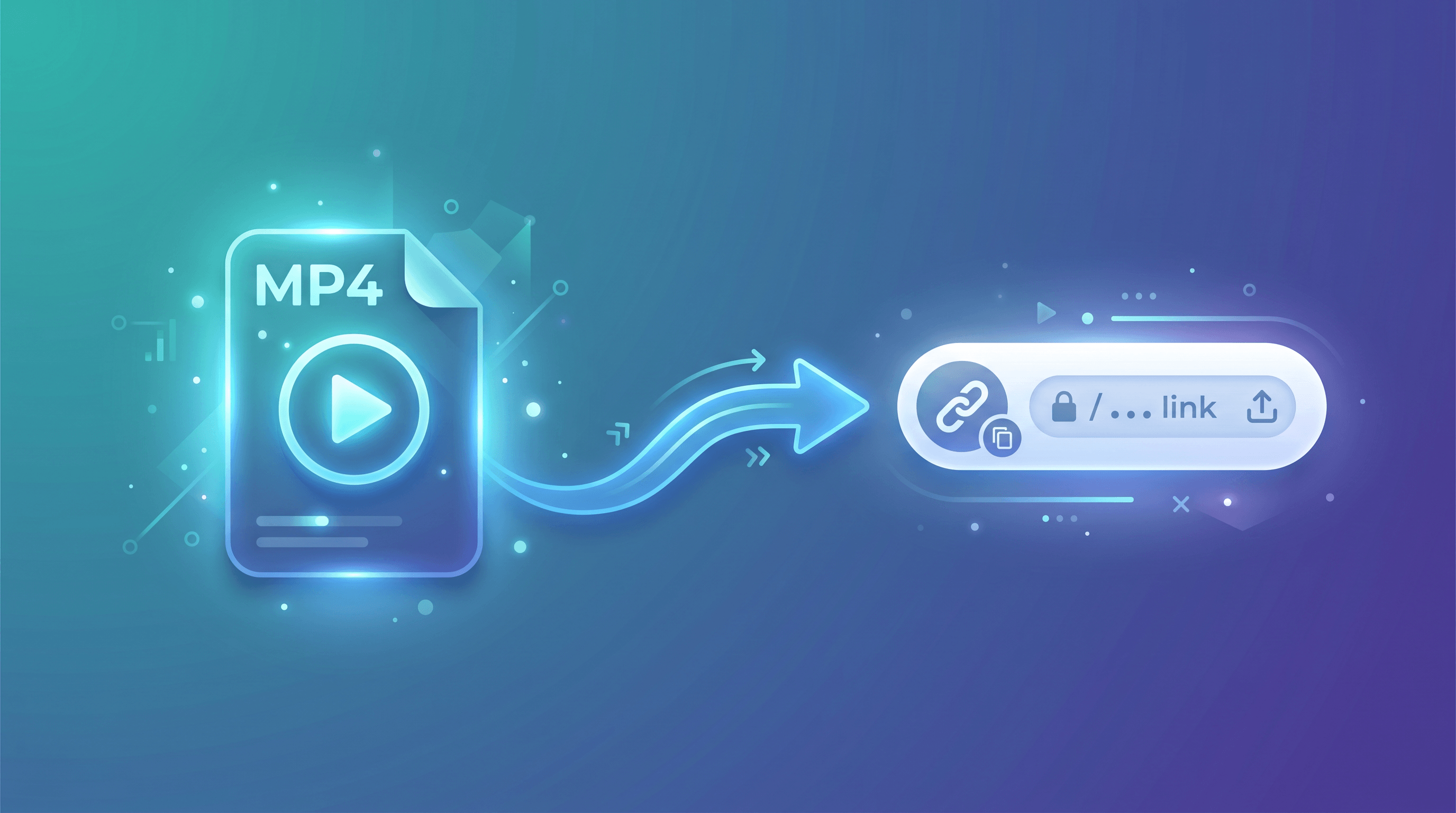
**In this guide:**
- [Why share a video with a link instead of uploading to YouTube?](#why)
- [Step-by-step: how to share a video with a link](#steps)
- [Pro tips for sharing video files](#tips)
- [FAQ](#faq)
- [Conclusion](#conclusion)
Why share a video with a link instead of uploading to YouTube?
Sharing a video with a link means uploading the file once and sending a single URL anyone can open in a browser — no platform account, no public listing, no video processing wait. It's the fastest way to hand off a clip when the recipient just needs to watch it, not subscribe to a channel.
The need for this exploded as AI video generation went mainstream. MoneyPrinterTurbo, an open-source tool that turns a topic into a short video, has crossed **72,000 stars on GitHub**. Demoflow and similar AI demo-makers trend regularly on Product Hunt. The barrier to *producing* an MP4 has collapsed, so millions of people now sit on video files they need to send — without wanting to become YouTubers.
YouTube is built for an audience and a channel, not a one-time handoff. Even an "unlisted" upload forces an account, runs the file through processing, and ties the clip to your identity. Cloud drives like Google Drive or Dropbox work, but they often prompt the recipient to sign in, request access, or install an app before they can watch. For a single clip going to one person or a small group, a direct shareable link is simpler and more private.
Here's how the common methods compare when your only goal is to share a video with a link:
| Method | Account needed? | Recipient friction | Best for |
|--------|:---------------:|--------------------|----------|
| File-to-link tool (e.g. AnyToURL) | No | Click and watch | One-off clips, demos, AI shorts |
| YouTube (unlisted) | Yes | None, but it's on YouTube | Building a channel or audience |
| Google Drive / Dropbox | Yes (you) | Often "request access" or sign-in | People already in your workspace |
| Email attachment | No | Fails over ~25 MB | Tiny clips only |
| WeTransfer | No (basic) | Download, then open | Big files you want downloaded, not streamed |
The pattern is clear: when you just need someone to watch a clip once, a file-to-link tool removes the most friction on both ends. The recipient never logs in, and you never publish anything.
Step-by-step: how to share a video with a link
To share a video with a link, upload the MP4 to a file-to-link service, copy the generated URL, and send it. The whole process takes under a minute and works for any common video format. Here's the exact flow.
### Step 1: Have your video file ready
Export or download your clip as a standard format — MP4 is the safest choice because every browser plays it natively. If your AI tool gives you WebM or MOV, those work too, but MP4 has the widest device support. Keep the file somewhere easy to find, like your Downloads folder or desktop.
**Expected result:** a single video file (e.g. `my-demo.mp4`) saved locally and ready to upload.
### Step 2: Open a file-to-link tool in your browser
You don't need to install anything. Open a service that converts an uploaded file into a shareable URL. The key features to look for: no mandatory signup, support for video file types, and an instant link rather than a slow upload-and-process pipeline.
**Expected result:** an upload page open in your browser, ready to receive the file.
### Step 3: Upload the video and generate the link
Drag your video file into the upload area, or click to select it. Drop your file into [AnyToURL](https://anytourl.com) and you'll get a shareable link in seconds — no signup needed, no subscription, and the recipient opens it straight in their browser. AnyToURL is one of the simpler options here because it skips the account wall entirely; you upload, it hosts the file, and it hands back a short URL on the spot.
**Expected result:** a short, clickable link (something like `anytourl.com/abc123`) pointing directly to your hosted video.
### Step 4: Copy the link and share it
Copy the generated URL and paste it wherever you need — a message, an email, a Slack thread, a project comment. Anyone with the link can open it; they don't need an account, an app, or permission. To confirm it works, open the link yourself in a private browser window before sending.
**Expected result:** your recipient clicks the link and watches the video in their browser, no friction.
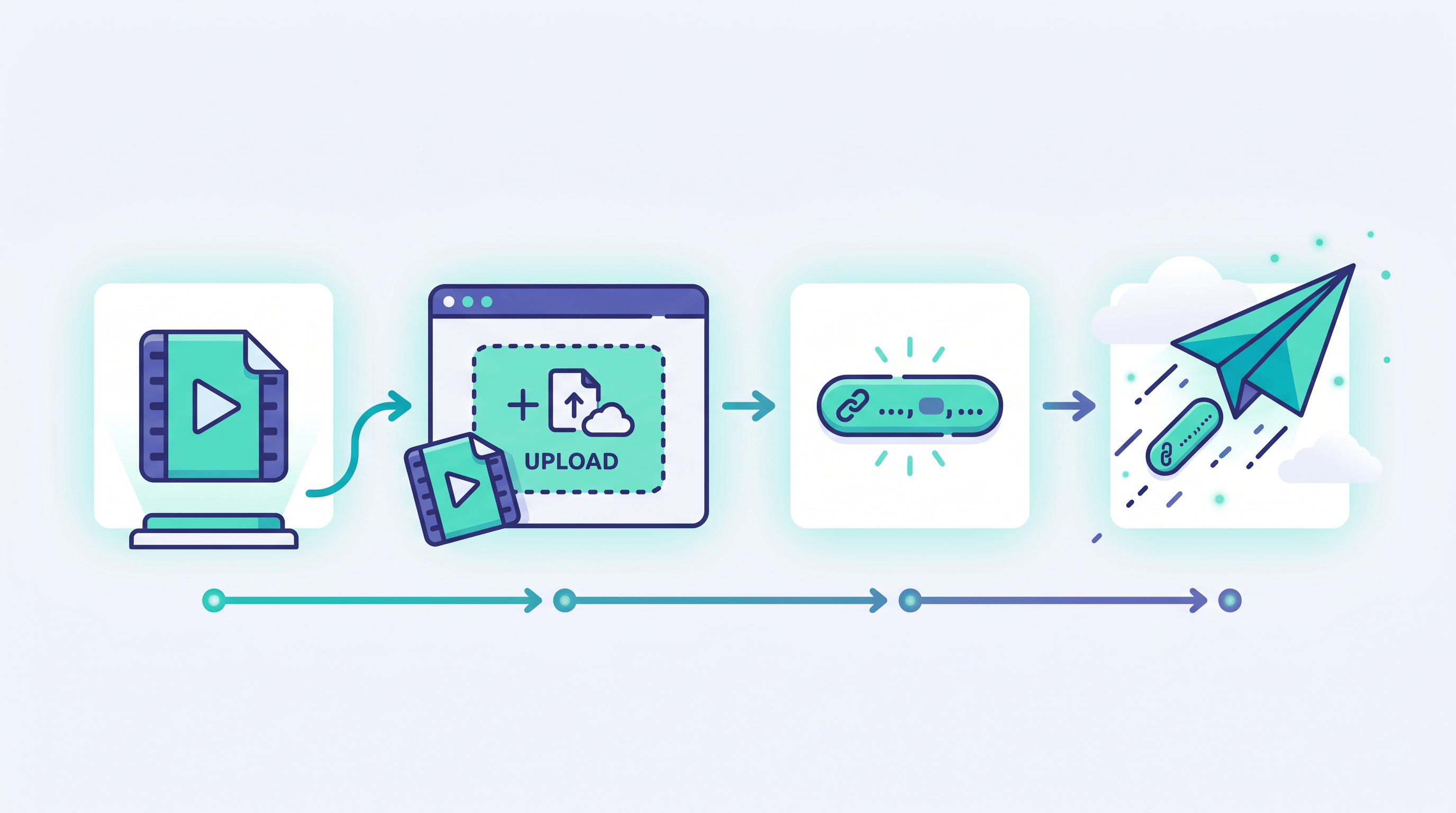
Pro tips for sharing video files
A few habits make video links cleaner and more reliable. These come from regularly sending AI-generated clips to clients and teammates.
- **Stick with MP4 (H.264) when you can.** It plays in every browser and on every phone without a codec prompt. In our testing, MOV and MKV files occasionally fail to preview on older Android browsers.
- **Compress before uploading if the file is over ~100 MB.** A 30-second AI short is usually 5–20 MB, but longer renders balloon fast. Tools like HandBrake cut size by 50–70% with no visible quality loss, so the link loads quicker for your recipient.
- **Rename the file before upload.** `final_v3_REAL.mp4` looks sloppy; `product-demo-march.mp4` reads as professional and sometimes carries into the link or download name.
- **Test the link in an incognito window.** This shows you exactly what the recipient sees — no surprise login walls, no "request access" screens.
- **Don't share sensitive footage on a public link.** A direct link is convenient but anyone with it can view. For private material, use a method with expiry or password protection instead.

FAQ
### How do I share a video without uploading it to YouTube?
Upload the video file to a file-to-link service and share the URL it generates. This skips YouTube's account requirement, public listing, and processing wait. The recipient opens the link in any browser and watches the clip directly — no platform sign-up on either end.
### How can I send a large video file as a link?
Use a file-hosting tool that returns a shareable URL, since email attachments usually cap around 25 MB. Upload the MP4 once, copy the link, and send the link instead of the file. For very large files, compress with HandBrake first to speed up both upload and playback.
### What's the best format to share an MP4 online?
MP4 with H.264 video encoding is the best format to share online because every modern browser and phone plays it natively, with no plugin or codec download. If your AI tool exports WebM or MOV, those also work, but MP4 has the widest compatibility across devices.
### Do I need an account to get a shareable link for my video?
No — services like AnyToURL let you upload a file and get a shareable link without creating an account. You drag in the video, the tool hosts it, and you get a URL on the spot. This is the main advantage over YouTube and cloud drives, which both require sign-ins.
### Is it safe to share a video with a link?
A direct link is safe for non-sensitive clips, but remember that anyone with the URL can open it. For demos, marketing clips, or AI-generated shorts, that's usually fine. For confidential footage, choose a tool that offers link expiry or password protection.
### Can I share a video made with MoneyPrinterTurbo or Demoflow this way?
Yes. AI video tools like MoneyPrinterTurbo and Demoflow export a standard MP4, which is exactly what a file-to-link tool expects. Once the render finishes, upload the MP4, copy the link, and share it — there's no extra step for AI-generated clips versus any other video file.
Conclusion
Sharing a video with a link is the fastest way to hand off an AI-generated clip without turning it into a YouTube production. The flow is simple: have your MP4 ready, open a file-to-link tool, upload the video, and copy the URL. Within a minute, anyone can watch your clip in their browser — no account, no public listing, no processing wait. Compress large files, stick with MP4, and test the link before sending, and the handoff stays clean every time.
Ready to share your next clip? [Try AnyToURL free →](https://anytourl.com) — upload your video, get a shareable link in seconds, and send it to anyone. No signup, no subscription.
*Last updated: May 2026*
---
### Share Markdown Notes as URL: From Files.md/Obsidian to Link
URL: https://anytourl.com/blog/share-markdown-notes-as-url
Description: Share markdown notes as URL in 30 seconds. Compare Gist vs Notion Publish vs AnyToURL for sharing Files.md and Obsidian notes online.
531 upvotes. Hacker News front page, #8. That was [Files.md](https://github.com/zakirullin/files.md) on May 14, 2026 — an open-source plain-text alternative to Obsidian, written in PHP, with a single core idea: your notes are just files on disk, nothing else. The thread is full of developers swearing off proprietary note formats and re-falling in love with markdown.
Markdown knowledge management is back. Files.md, Obsidian, Logseq, Zettlr, Bear, Neovim with Markview — pick your editor, the writing experience is excellent. But there's a quieter problem the HN comments keep brushing past: you finished a great note, now what? Sending raw `.md` files over Slack looks weird. Pasting 400 lines of markdown into chat is worse. Spinning up a static site for a one-off paragraph is overkill.
This guide walks through how to share markdown notes as URL — the missing last mile after the writing is done. It compares three mainstream approaches (GitHub Gist, Notion Publish, and one-click URL via AnyToURL), then shows the step-by-step flow from Files.md or Obsidian to a public link.
Last updated: May 19, 2026.
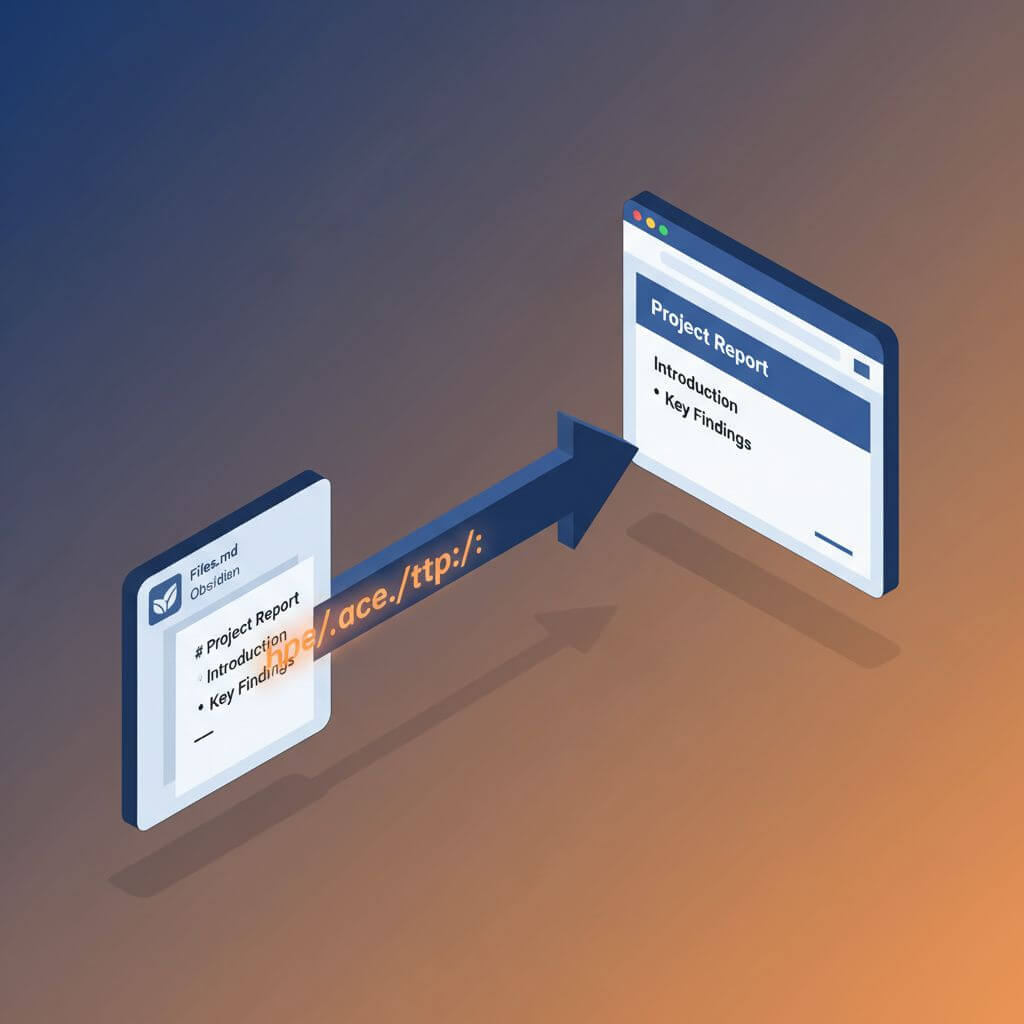
## Table of Contents
- [Why Share Markdown Notes as URL?](#why-share-markdown-notes-as-url)
- [Three Ways to Publish a Markdown Link](#three-ways-to-publish-a-markdown-link)
- [Step-by-Step: From Files.md / Obsidian to a Public URL](#step-by-step-from-filesmd--obsidian-to-a-public-url)
- [Pro Tips for Better Sharing](#pro-tips-for-better-sharing)
- [Advanced Scenarios](#advanced-scenarios)
- [FAQ](#faq)
## Why Share Markdown Notes as URL?
Sharing markdown notes as URL means turning a local `.md` file or an editor snippet into a public web link that anyone can open in a browser, with no app install, no signup on the receiver's side, and no copy-pasted formatting damage. It's the last mile of any markdown workflow — the editor handles writing, the URL handles distribution.
The HN thread on Files.md (#8, 531 points) is a good snapshot of why this matters. People moving to plain-text markdown editors are deliberately stepping away from notion-style walled gardens. But the moment you want to share — a meeting note, a tech doc, a client brief — the walled garden quietly comes back through the side door: Notion has a *Publish* button, your markdown editor doesn't.
Three concrete jobs keep showing up:
- **Send a finished doc to a colleague or client.** Email attachments rot, raw `.md` doesn't render in chat, and a Google Doc forces a different format conversion.
- **Publish a quick draft for review.** You want a URL you can paste into Slack, get comments back, and throw away in 24 hours.
- **Sync notes across devices for read-only access.** Sometimes you just want to open last week's meeting note on your phone without setting up an Obsidian Sync subscription.
All three flows want the same primitive: *markdown in, public link out*. The next section compares the three mainstream ways to get that primitive.
## Three Ways to Publish a Markdown Link
In our testing, GitHub Gist, Notion Publish, and a one-click URL tool like AnyToURL cover ~95% of the markdown-to-URL use cases. They look similar from the outside but split along four real axes: account requirement, privacy default, rendering quality, and how fast you can go from *finished note* to *link in clipboard*.
| Dimension | GitHub Gist | Notion Publish | AnyToURL |
|---|---|---|---|
| Account required | Yes (GitHub) | Yes (Notion) | No |
| Signup on receiver side | No | No | No |
| Renders markdown | Yes (GitHub flavor) | Yes (Notion blocks) | Yes (server-rendered) |
| Supports raw `.md` paste | Yes | No (re-typed into Notion blocks) | Yes |
| Public by default | Optional (public / secret) | Yes (when *Publish* is on) | Yes (link-only) |
| Time from paste to link | ~30 seconds | ~60–90 seconds (block-by-block) | ~10 seconds |
| Search engine indexable | Public gists: yes | Yes | Configurable per link |
| Edit after publish | Yes (re-save) | Yes (auto-syncs) | Replace the link |
| Best for | Code-heavy devs already on GitHub | Long-form, multimedia-rich docs | Quick one-shot shares, drafts, plain markdown |
A few rows are worth pulling out:
- **Account friction.** Gist needs a GitHub account; Notion Publish needs a Notion workspace. For a 30-second share to a freelance client who doesn't use either, that's two extra steps. AnyToURL is signup-free on both ends.
- **Paste fidelity.** Notion *Publish* is great for documents you wrote *in* Notion, but if your source is a Files.md or Obsidian `.md` file, you re-paste into Notion blocks and lose the round-trip with your editor.
- **Indexability.** Public gists are indexed by Google by default — fine for blog posts, bad for a client brief. AnyToURL lets you keep the link unlisted; only people with the URL find it.
If the note is a code snippet you're already version-controlling, Gist is the obvious choice. If it's a long-form doc with embedded video, tables, and comments, Notion Publish wins. For everything else — a meeting summary, a tech brief, a draft for review, a paragraph you want to send right now — a no-account paste-to-link tool is usually the fastest path.
## Step-by-Step: From Files.md / Obsidian to a Public URL
Here's the end-to-end flow, using a real Obsidian note as the source. The same steps apply to Files.md, Logseq, Bear export, or any editor that gives you plain markdown.
### Step 1: Copy the Markdown Source
Open your note in Files.md or Obsidian. Switch the view to *Source Mode* (Obsidian: `Ctrl/Cmd + E`; Files.md: click the source toggle in the toolbar). You want the raw `.md` text including headings, links, and code fences, not the rendered preview.
Select everything (`Ctrl/Cmd + A`), copy (`Ctrl/Cmd + C`). The clipboard now holds the markdown source verbatim — that's what you'll paste.
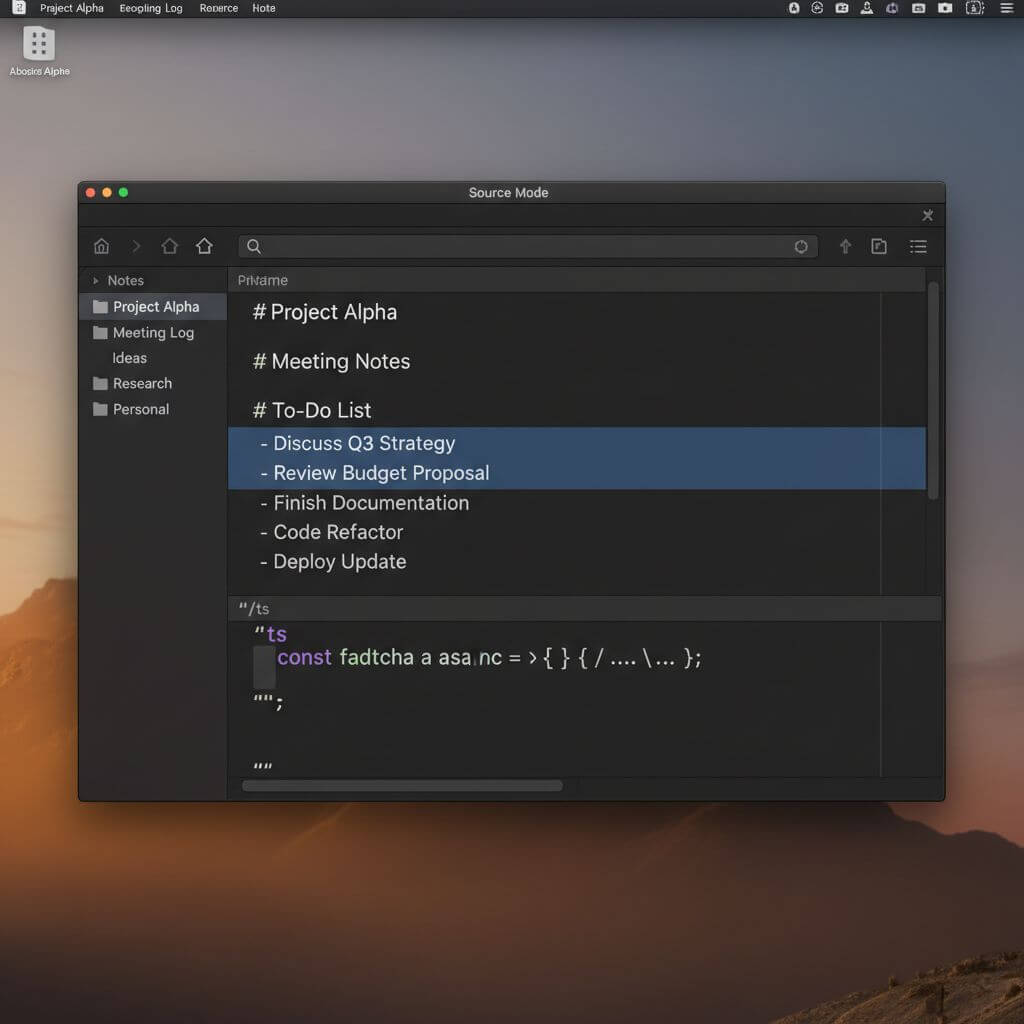
### Step 2: Decide What Goes Public
Before pasting anywhere, do a quick scrub. Markdown notes often pick up things you didn't mean to publish:
- Personal todos at the top of the file
- Local image paths (`![[Pasted image.png]]`) that won't render on a public host
- Backlinks in `[[wiki-style]]` syntax that only resolve inside your vault
- Frontmatter with tags, status, or internal review notes
Delete or replace these in a scratch buffer before publishing. It takes 20 seconds and prevents the "why is `[[meeting-2026-04-18]]` showing up as a broken link in the public version" follow-up question.
### Step 3: Paste into AnyToURL to Generate the Link
Open [AnyToURL](https://anytourl.com) in any browser — no signup needed. Switch to the *Paste Text* mode (or the markdown / text input on the homepage), paste your scrubbed markdown, and click *Generate Link*. You'll get a short URL in about 10 seconds.
The receiver opens that URL in any browser and sees the rendered markdown — headings, lists, code blocks, tables, all formatted. No app, no account, no broken formatting from a chat tool re-wrapping your lines. The full round-trip from "I finished my Obsidian note" to "link is in my clipboard" runs about 30 seconds.
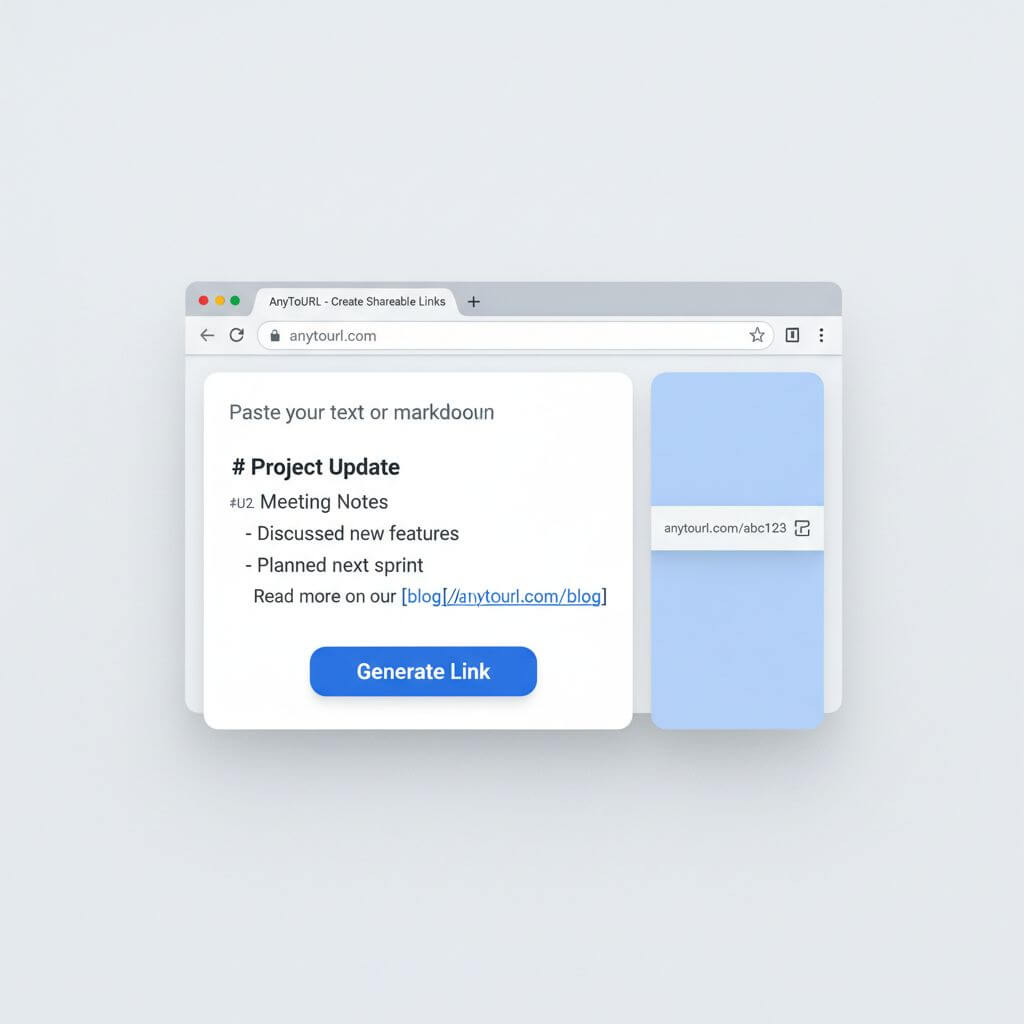
If you'd rather use a different tool, the same step works with Gist (`gist.github.com` → *Create new gist* → paste → *Create public gist*) or Notion (paste into a page → *Share* → *Publish*). The trade-offs from the comparison table apply.
### Step 4: Share the Link
Paste the link into Slack, Discord, email, iMessage, or wherever your reader lives. Add a one-line context note above the URL ("Q2 retro notes, ~5 min read") so the link doesn't look like a random short URL.
If the link is sensitive, mention how long it should live — "feel free to delete this thread after, I'll let the link expire end of week." That sets expectations and avoids the link living forever in an indexed crawl.
### Step 5: Update or Replace When the Note Changes
Markdown notes are living documents. Two reasonable approaches when the source changes:
- **Replace the link.** Generate a new URL from the updated markdown and re-send. Simple, but the old link still points to the old version.
- **Edit in place.** On Gist, save a new revision under the same URL (the URL is stable across edits). On Notion Publish, the public page auto-updates when you edit the source. On AnyToURL, you can replace the content behind the same link if your tool of choice supports it; otherwise generate a fresh URL.
Pick the approach that matches the doc's lifecycle: short-lived briefs are fine to replace; reference docs benefit from stable URLs.
## Pro Tips for Better Sharing
A handful of small habits make markdown-as-URL sharing much smoother:
- **Strip frontmatter and local wiki links before pasting.** Public viewers don't care about your `status: draft` tag, and broken `[[backlinks]]` look unprofessional. 20 seconds of cleanup beats a follow-up "what's this `[[ref]]` thing?" message.
- **Keep code fences explicit about the language.** ` ```ts ` renders with syntax highlighting on Gist and most markdown-rendering services; a bare ` ``` ` falls back to plain monospace. Worth the three extra characters.
- **Use absolute image URLs, not local paths.** `` works everywhere; `` only resolves on your own machine.
- **Add a `Last updated:` line at the bottom.** It signals freshness to both human readers and LLM crawlers, and stops the "is this still accurate?" question before it arrives.
- **Treat the link as throwaway by default.** Most shared notes are situational — a meeting recap, a draft for review, a one-off explainer. Make a new link for each context; don't try to maintain one canonical URL forever unless the doc earns it.
## Advanced Scenarios
Three concrete workflows where sharing markdown as URL replaces clunkier alternatives.
### Temporary Draft for Review
You want feedback on a 1,000-word draft from two reviewers. Emailing a `.md` attachment forces them to find a markdown viewer; pasting it into Slack mangles the formatting; spinning up a Notion page is overkill for something that'll get deleted in 48 hours.
Generate an AnyToURL link, send it with a Loom video or a comment thread in your team chat, and let the link expire on its own. The draft never enters a permanent doc system, and reviewers don't need any app beyond their browser.
### Client Review of a Tech Brief
A freelance client doesn't have your Notion workspace and probably doesn't want one. They want a URL they can open on their phone during their commute, read your one-page tech brief, and reply.
A paste-to-link [AnyToURL](https://anytourl.com) URL hits exactly that shape: open in any browser, no signup, renders cleanly on mobile. If the brief has product screenshots, upload them separately and embed with absolute URLs.
### Read-Only Cross-Device Note Access
You wrote a long meeting note in Obsidian on your laptop. Three days later you need to reference it from your phone, and you haven't set up Obsidian Sync because you only need read access occasionally.
Paste the note into AnyToURL, bookmark the resulting URL on your phone. It's not a full sync solution, but for *read this one note on my phone* it's faster than spinning up a sync subscription, and works on devices that aren't yours.

## FAQ
### How long do AnyToURL markdown links stay live?
Links stay live by default until the content is deleted. AnyToURL hosts pasted text and files on a stable URL — there's no built-in 24-hour expiration. If you want a link to expire, the simplest pattern is to delete the content when you're done; the URL becomes a dead link and the receiver can no longer load the note.
### Are my markdown notes private when I share them via URL?
Link-only sharing means *only people with the URL* can open the note. That's privacy by obscurity, which is appropriate for casual sharing (drafts, briefs, meeting notes) but not for secrets or regulated data. For sensitive material, use a tool with explicit access controls and audit logs. For everyday markdown — the kind you'd email anyway — link-only sharing is a reasonable default.
### Does AnyToURL render markdown formatting?
Yes. Pasted markdown is rendered server-side as HTML — headings, lists, links, tables, code fences, blockquotes, and inline formatting all show up correctly. The receiver opens the URL in any browser and sees a clean rendered page, not raw `.md` source.
### Will my shared markdown notes be indexed by Google?
Depends on the tool. Public GitHub Gists are indexed by default. AnyToURL links are designed for link-only sharing, so they're not actively submitted to search engines — but any URL on the public internet can theoretically be discovered if it shows up in scraped chat logs or social shares. If a note must never be indexed, keep it off public services entirely.
### How is this different from publishing a markdown file as a static site?
A static site (Astro, Hugo, Next.js, etc.) gives you a permanent URL, custom domain, and full site structure — great for a blog or docs site, overkill for a one-off note. Share-as-URL tools skip the build step entirely: paste, get a link, done. Use static sites for things you want to maintain; use share-as-URL for things you want to send and forget.
### Can I share a Files.md note without copying the text manually?
Not directly today — Files.md is a local-first editor by design and doesn't have a built-in publish button. The standard flow is *open the file → copy contents → paste into a sharing tool*. It's two extra clicks compared to Notion's *Publish* button, but it preserves the local-first principle that pulled people to Files.md in the first place.
### Is there a way to share an entire Obsidian vault as URLs?
For full vault publishing, [Obsidian Publish](https://obsidian.md/publish) is the official paid service. For ad-hoc, single-note sharing without a subscription, paste-to-link tools like AnyToURL fill the gap. Pick based on how often you share: regular publisher → Obsidian Publish; occasional one-offs → paste-to-link.
## Bottom Line
The Files.md HN moment is part of a broader shift: writers are walking away from proprietary note formats and back to plain markdown. The trade-off they're accepting is losing the built-in *Publish* button — and the workaround is treating markdown-as-URL as a separate tool in the stack. GitHub Gist, Notion Publish, and AnyToURL each cover a different shape of that workaround; pick by account requirement, paste fidelity, and how throwaway the share is.
Writing your next note in Files.md, Obsidian, or any markdown editor? [Try AnyToURL free →](https://anytourl.com) — paste your markdown, get a clean shareable link in seconds. No signup, no app, no formatting damage. Send it, get feedback, move on.
---
### Burn-After-Read File Link vs Permanent Link: 2026 Guide
URL: https://anytourl.com/blog/burn-after-read-vs-permanent-file-link
Description: Compare burn-after-read and permanent file links. Pick the right share mode by sensitivity, audience, duration, and reuse — with no-signup tool picks.
Today's Product Hunt #11 launch, **Burn After**, scratches a nerve that won't quit: people are tired of pasting sensitive files into chat threads that live forever. The same afternoon, Slack DMs ask "can you re-send last quarter's asset pack?" — and expect a link that still works. Two opposite needs, both rational, both poorly served by a one-size-fits-all share button.
This guide compares **burn-after-read file links** (one-time, self-destructing) against **permanent file links** (persistent, repeatable access). We'll cover what each mode is good for, where it fails, and how to pick based on four practical factors: sensitivity, receiver count, access duration, and whether the link needs to be reused.
*Last updated: May 17, 2026.*

## Table of contents
- [What burn-after-read and permanent file links actually are](#what-they-are)
- [Top file-sharing tools, by mode](#top-tools)
- [Feature comparison table](#feature-table)
- [How to choose: the four-factor matrix](#how-to-choose)
- [How to share a file as a permanent link — step by step](#how-to-share)
- [FAQ](#faq)
## What burn-after-read and permanent file links actually are
A **burn-after-read file link** (also called a one-time link or ephemeral file link) deletes itself after the first successful view or download. The content is unrecoverable afterward — even the sender can't open it again. Typical use cases: API keys, recovery codes, an ID scan, an NDA draft sent to a single lawyer.
A **permanent file link** is a URL that keeps serving the same file as long as the host keeps it (or until the owner deletes it). Anyone with the link can open it now or six months from now. Typical use cases: design assets, podcast MP3s, product demo PDFs, course downloads, marketing collateral.
Neither mode is "more secure" in the abstract. Burn-after-read shrinks the exposure window; permanent links accept a longer window in exchange for reach and reuse. The right pick depends on what you're sending, to whom, and for how long.
A related comparison covers the **delivery-shape** axis — peer-to-peer vs hosted vs persistent URL — across three popular browser tools: [AnyDrop vs WeTransfer vs AnyToURL](https://anytourl.com/blog/anydrop-vs-wetransfer-vs-anytourl). This guide is the **lifetime** axis: how long the link should live, and who controls when it dies.
## Top file-sharing tools, by mode
Below are the tools most teams reach for in 2026, grouped by the mode they default to.
### Burn-after-read tools
**Burn After (burnafter.app)** — the PH #11 launch that prompted this comparison. Single-view, password-optional, no account required.
- *Best for:* one-off credential drops, recovery codes, ID scans to a single recipient.
- *Not ideal for:* anything you might need to resend without re-uploading; group access.
**PrivateBin** — open-source, self-hostable pastebin with optional burn-after-reading.
- *Best for:* technical teams comfortable running their own infra; text and code snippets.
- *Not ideal for:* binary file workflows or non-technical recipients.
**OneTimeSecret** — long-running service focused on short secrets (passwords, API keys), not full files.
- *Best for:* sending plaintext secrets in onboarding emails.
- *Not ideal for:* attachments larger than a few KB.
**Yopass** — self-hostable, browser-side encryption, one-time fetch.
- *Best for:* security-conscious teams that want client-side encryption proof.
- *Not ideal for:* casual senders who don't want to think about encryption keys.
### Permanent-link tools
**AnyToURL (anytourl.com)** — file, text, and URL → shareable link in one tool. No signup; links persist by default; the owner can delete on demand.
- *Best for:* day-to-day sharing where the same link will be opened many times — assets, references, drop-in attachments, reusable share links.
- *Not ideal for:* maximum-secrecy single-view drops (pair it with a dedicated burn tool for that).
**Dropbox / Google Drive shared links** — the default permanent-link experience inside a workspace.
- *Best for:* internal teams already paying for the suite; ongoing folder collaboration.
- *Not ideal for:* sharing with people outside your workspace without friction, or quick one-off links.
**WeTransfer** — permanent-ish: links expire after 7 days on the free plan, longer on paid.
- *Best for:* large transfers (up to 2 GB free) to non-technical recipients.
- *Not ideal for:* anything you need to keep accessible months later on a free plan.
**GitHub Gists** — permanent text and small-file hosting tied to a GitHub account.
- *Best for:* code snippets, config files, technical docs.
- *Not ideal for:* binary assets or non-technical audiences who shouldn't see your GitHub.
## Feature comparison table
In our testing, the eight tools fall into a clean grid along **mode** and **account/expiry** lines:
| Tool | Mode | Account required | File support | Expires | Best for |
|------|------|------------------|--------------|---------|----------|
| Burn After | Burn-after-read | No | Files + text | After 1 view | One-time credential drops |
| PrivateBin | Burn-after-read (optional) | No (self-host) | Text / code | Configurable | Self-hosted technical teams |
| OneTimeSecret | Burn-after-read | No | Short text only | After 1 view | Plaintext secrets |
| Yopass | Burn-after-read | No (self-host) | Files (~10 MB) | After 1 view | Security-first teams |
| AnyToURL | Permanent | No | File / text / URL | Until manually deleted | Reusable share links, asset distribution |
| Dropbox / Drive | Permanent | Yes | Files | Until deleted | Workspace collaboration |
| WeTransfer | Permanent (with expiry) | No (free) / Yes (paid) | Files up to 2 GB | 7 days free | Large one-off transfers |
| GitHub Gist | Permanent | Yes | Text + small files | Until deleted | Code snippets |

A few rows deserve a closer look. **Account required** is a quiet friction tax — every "please sign in" between sender and receiver doubles drop-off. **Expires** is the row that most teams misjudge: most people assume "after 1 view" means "safer," but it also means "unrecoverable if the recipient misclicks" — a real cost for time-sensitive workflows.
## How to choose: the four-factor matrix
Use this four-question decision matrix. Score each row, then read the recommendation below.
| Factor | Burn-after-read fits when… | Permanent link fits when… |
|--------|---------------------------|---------------------------|
| **Sensitivity** | A leaked link = real damage (credentials, IDs, NDA drafts) | Leak risk is low (public assets, marketing PDFs, podcasts) |
| **Receiver count** | One known recipient | Multiple recipients, or unknown future audience |
| **Access duration** | Needed within minutes or hours | Needed for days, weeks, or indefinitely |
| **Reuse** | The recipient will open it once | The same person — or new people — will open it many times |
**Reading the score:**
- **3–4 rows lean burn** → use burn-after-read. This is the credentials-to-a-lawyer case. The cost of leaving the link alive outweighs the inconvenience of regenerating it if the recipient misses it.
- **3–4 rows lean permanent** → use a permanent link. This is the asset-pack-for-the-marketing-team case. Re-uploading every time someone re-opens the link is friction with no security benefit.
- **2/2 split** → default to **permanent + manual delete**. Send a permanent link, set a reminder to delete it when the work is done. You keep audit trails, can re-share without re-uploading, and still close the exposure window when you're done.
A practical anti-pattern: using burn-after-read for **team collaboration** (the first reader "burns" the link for everyone else), or for **anything you might need to resend** (forgotten link = full re-upload + re-send). Conversely, using permanent links for **single-use secrets** (the link sits in inbox history forever) is the original sin most teams commit.
## How to share a file as a permanent link — step by step
For permanent-link use cases (assets, docs, references, podcast files), here's the fastest no-account path. Drop your file into **[AnyToURL](https://anytourl.com)** and you'll get a shareable link in seconds — no signup needed.
1. Open [anytourl.com](https://anytourl.com).
2. Drag the file into the upload area, or click **Paste text** if you're sharing a snippet, or **URL** to shorten a long link.
3. Wait a few seconds for the upload to finish.
4. Copy the short link. Paste it into Slack, email, a Notion page — anywhere a URL works.
5. If you ever need the file gone, return to the tool and delete it; the link stops resolving immediately.
This is the right path when you're sharing something like a Notion export, a design preview, an MP3, or a PDF you'll resend over a project's lifetime. For one-time secrets, pair it with a burn-after-read tool from the table above.

## FAQ
### Is a burn-after-read link more secure than a permanent file link?
It depends on what "secure" means. Burn-after-read shrinks the time window the link is valid, which lowers the risk of leaked-link replay. It doesn't protect against the recipient screenshotting, forwarding, or saving the content. For low-sensitivity assets, a permanent link plus manual delete is often equally safe and far more practical.
### What happens if the recipient never opens a burn-after-read link?
The link sits until the service's max retention window (often 7–30 days) and then expires unread. You'll need to regenerate and resend. This is the main usability cost of burn mode — if recipients are unreliable, you'll re-upload a lot.
### Can I make a permanent link expire later?
Yes on most tools. AnyToURL keeps links live until you manually delete; WeTransfer expires after 7 days on free plans; Dropbox and Drive let you set expiration on paid plans. If you want "permanent with an optional kill switch," the manual-delete model is usually the simplest.
### Is there a free file-to-URL tool that doesn't need signup?
Yes. [AnyToURL](https://anytourl.com) generates a permanent share link from any file, text snippet, or URL without an account. It's the fastest path when you want a reusable link and don't want to add another login to your stack.
### Burn after read vs permanent link — which one wins?
Neither, in isolation. A healthy share workflow uses both: burn-after-read for the 5% of high-sensitivity, single-recipient, single-view drops, and permanent links for the other 95% — assets, references, ongoing collaboration. Picking one as a universal default is what makes either mode feel broken.
### Can I "burn" a permanent link manually?
Yes — AnyToURL and most permanent-link tools let you delete a link at will. The difference from a true burn-after-read tool is that *you* control the timing, not the first reader. For medium-sensitivity files, that's usually what you actually want.
### Are one-time file links audit-friendly?
Less so than permanent links. Most burn-after-read tools tell you whether the link was opened, but not by whom, from where, or how many failed attempts preceded the successful one. Permanent links on hosted services usually log access events you can review later — a real edge for compliance-heavy workflows.
---
**Need a permanent share link without the signup wall?** [Try AnyToURL free →](https://anytourl.com) — drop in a file, paste text, or shorten a URL in under five seconds. For one-time secrets, pair it with a dedicated burn-after-read tool — that combo covers 95% of real-world sharing without forcing you to compromise on either end.
---
### Backup Canvas Files: Emergency Guide When LMS Is Down
URL: https://anytourl.com/blog/backup-canvas-files-emergency
Description: Canvas LMS down after the ShinyHunters breach? Back up and share course files in 30 seconds — emergency guide for students and teachers.
*The Verge* reports that Canvas LMS — used by more than 30 million students worldwide — was knocked offline this week after the ShinyHunters group dumped data tied to an Instructure breach and defaced school login pages. If your school portal is showing a 503 right now, your slides, lecture notes, and half-finished essays are sitting on the wrong side of an outage you can't fix.
This guide is for the next 24 hours. It walks through three real classroom scenarios — teachers without a way to push slides, students with assignments due, study groups that lost shared docs — and shows how to back up Canvas files and pass them around using a plain web link, no signup, no install. Keep this open in a tab; you may need it before the LMS comes back.

**Last updated: May 9, 2026**
**In this guide**
- [What just happened to Canvas](#what-just-happened-to-canvas)
- [Why a backup plan matters right now](#why-a-backup-plan-matters-right-now)
- [Three emergency scenarios](#three-emergency-scenarios)
- [Step-by-step: 30-second backup](#step-by-step-30-second-backup)
- [Safety tips during an active breach](#safety-tips-during-an-active-breach)
- [Quick-share options compared](#quick-share-options-compared)
- [FAQ](#faq)
## What Just Happened to Canvas
On May 7, 2026, the ShinyHunters group claimed responsibility for an Instructure-related breach and defaced login pages at multiple US schools. *The Verge* reported that the group had been quiet for months before resurfacing with a Canvas LMS data dump, and *TechCrunch* confirmed that several institutions saw their portals replaced with hacker-controlled landing pages within hours. Google Trends recorded more than 500,000 US searches for "canvas hacked" within five hours of the news breaking.
That means two things for anyone using Canvas right now. First, you may be locked out of slides, gradebooks, and submission folders even if your school's email and Wi-Fi still work. Second, even after the LMS comes back, IT teams will likely rotate sessions, force password resets, and tighten access — so the path you used yesterday to share a syllabus may not be there tomorrow. A small habit of being able to back up Canvas files outside the LMS turns a service outage from a panic event into a 30-second workaround.
## Why a Backup Plan Matters Right Now
Most courses route everything through the LMS — lecture decks, assignment briefs, peer feedback threads, recorded sessions. When the LMS is the single chokepoint and it goes down, three things happen in the same hour:
1. Teachers lose the channel they use to push out class material.
2. Students lose the upload path for assignments due that day.
3. Study groups lose the shared workspace where review notes lived.
A good emergency plan is not about replacing Canvas. It's about giving each of those three flows a fallback that takes less than a minute, works on any device, and doesn't ask students or staff to sign up for yet another account during a breach.

## Three Emergency Scenarios
The cleanest way to think about Canvas downtime is by role and direction of the file.
### Scenario 1: Teachers — Push Slides to a Class Without the LMS
A 9 a.m. lecture starts in fifteen minutes and the Canvas course page won't load. The teacher has the deck on their laptop but no way to drop it into the usual "Files" folder. The fix is to upload the deck to a one-shot file-to-URL service, paste the link into the course email list or whatever messaging channel the school still has up (Slack, Teams, group email), and continue the lecture.
What makes this work: the link is stable for the rest of the day, students don't need a login to open it, and the teacher can revoke or stop sharing once Canvas is back.
### Scenario 2: Students — Submit Assignments to an Instructor
A take-home essay is due at 5 p.m., the submission portal is down, and email is the only working channel. Attaching a 40 MB PDF directly to email gets bounced by half of campus mail servers. The fix is to upload the file once, get a link, and paste that link into the submission email along with the time you uploaded it. If the instructor accepts a screenshot of upload time as the timestamp of record, that's your audit trail.
### Scenario 3: Study Groups — Share Notes and Review Materials
The week before finals, study groups lean on shared Canvas pages or attached PDFs. With the LMS down, the group needs a single place to drop review sheets, practice questions, and recorded study session notes. A short shared link in the group chat solves this without anyone signing up to a new platform.
## Step-by-Step: 30-Second Backup
Here's the actual workflow to back up Canvas files when the LMS is down. Times are based on a 20 MB PDF on a typical home connection — adjust for larger files.
### Step 1: Pull the File Off Canvas (or Your Local Drive)
If Canvas was up earlier today, your browser cache or the LMS mobile app may still have the file even when the website itself is down. Check the Canvas mobile app first — it caches downloaded files. If you authored the file yourself, skip ahead and grab it from your laptop's `Downloads` or `Documents` folder.
### Step 2: Upload Once, Get a Link
Open [AnyToURL](https://anytourl.com) in any browser. Drag the file into the upload zone — it accepts PDFs, slide decks, ZIPs, images, audio recordings, and most everyday formats. In our testing a 20 MB PDF uploaded in around 8–12 seconds on a 50 Mbps connection. AnyToURL returns a shareable URL immediately, no account needed. If you have only the text of your notes (no file), use the [paste-text option](https://anytourl.com) on the same page to convert plain text into a link instead.
This is the step where time matters. Three people on a study group all trying to spin up Google Drive accounts during a breach is a 10-minute detour; one drag-and-drop is 30 seconds.
### Step 3: Send the Link Through a Working Channel
Paste the URL into whatever channel your class actually uses right now — group email, Slack, Teams, Discord, or SMS. Add one line of context: file name, course code, deadline. Example:
> CS-201 Lecture 12 slides (Canvas down) — https://anytourl.com/abc123 — please confirm receipt.
For assignment submissions, include the upload timestamp from the AnyToURL confirmation page so the instructor has a verifiable record.
### Step 4: Track What You Sent and Plan for the LMS Coming Back
Keep a one-line note for each file you shared this way: filename, recipient, link, time. When Canvas is restored, re-upload the same files into the official course folder so the LMS becomes the source of truth again. Treat the temporary links as a 24-hour bridge, not a long-term home.
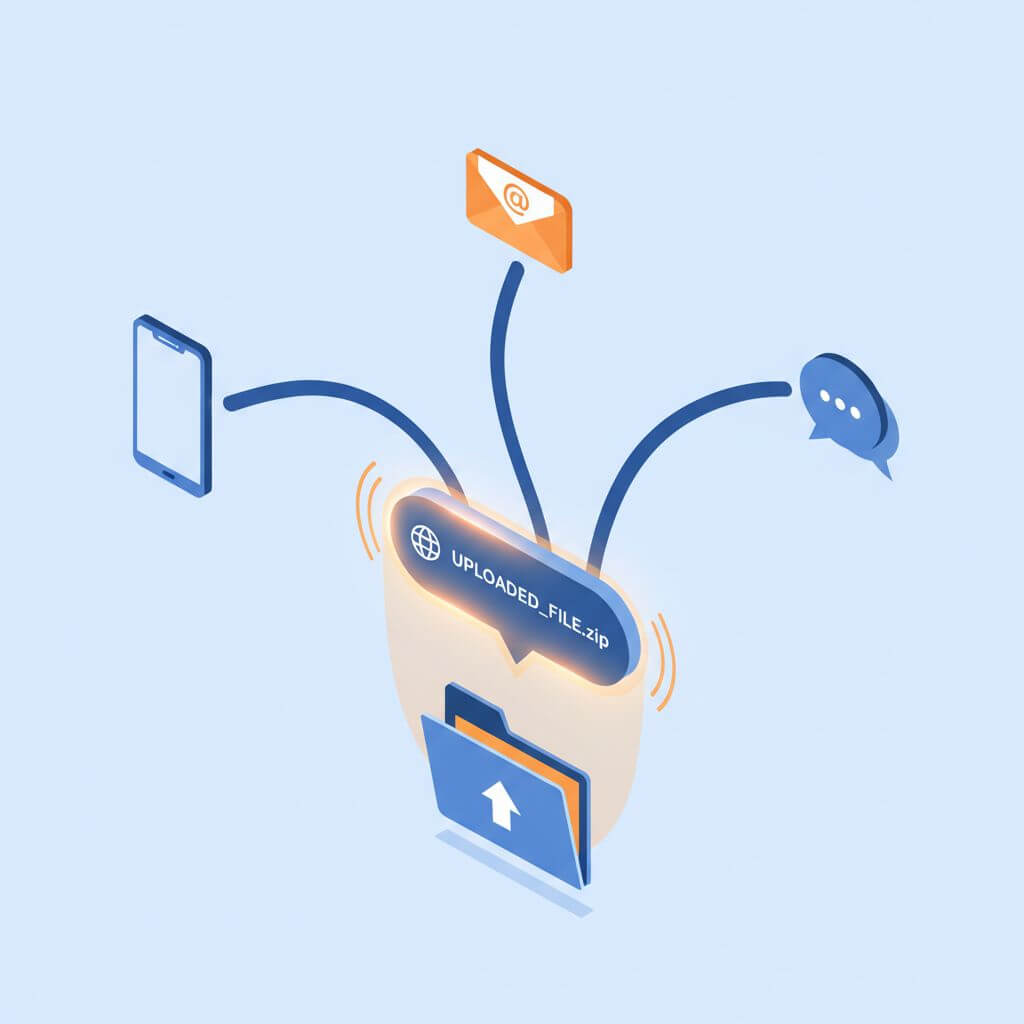
## Safety Tips During an Active Breach
A live ransomware event is exactly the wrong time to be casual with file sharing. Three rules cover most of the risk.
**Don't post emergency links on public pages.** Anything indexed by Google — a public blog, an open course wiki, a public Discord — turns your one-time class link into a permanent search result. Send links through closed channels: direct email lists, course-only chat groups, password-protected pages.
**Treat sensitive material differently.** Anything with grades, student IDs, social security numbers, or transcript data should never go through a free public file-sharing tool, even briefly. For those files, wait for IT to bring up the official channel, or use approved school-owned storage like institutional OneDrive or Google Workspace.
**Plan to clean up.** Once Canvas is back, retire the temporary links. Most file-to-URL services let you delete the upload from a dashboard or via the original confirmation email. Doing this prevents stale links from drifting into screenshots, syllabi, or future emails where they won't have current context.
## Quick-Share Options Compared
Several tools fit the "30-second emergency share" niche. Here's an honest read:
| Tool | Signup | File size limit | Best for | Not ideal for |
|------|--------|-----------------|----------|---------------|
| AnyToURL | None | Up to 100 MB per file | Quick file or text → link, no account | Long-term hosting, video files >100 MB |
| Google Drive | Required | 15 GB free | Persistent shared folders | Anyone without a Google account |
| Dropbox | Required | 2 GB free | Familiar workflow for staff | First-time users during a breach |
| WeTransfer | Optional | 2 GB free | One-off large file sends | Texts/notes (file-only) |
| LMS-internal (when up) | School SSO | Per school policy | Official record of submission | Times when the LMS is down |
The honest takeaway: AnyToURL fits when you need *zero friction* and a single shareable link in under a minute. It's not a replacement for Canvas, Google Drive, or your school's official storage; it's an emergency bridge while those are unreachable or while you're moving files between accounts.
## FAQ
### When will Canvas LMS be back online?
There's no public ETA from Instructure as of May 9, 2026. *The Verge* and *TechCrunch* both report that the company is investigating; school IT pages are the most reliable source for restoration timing at your specific institution. Plan for at least a 24-hour window of intermittent access.
### Are AnyToURL links safe to share during a breach?
Yes for non-sensitive material like lecture slides, practice problems, and personal study notes. The link is randomly generated and not indexed by search engines unless you publish it on a public page. For files containing grades, student IDs, or any PII, wait for an official channel.
### Will my school's IT policy allow temporary file-sharing services?
Most acceptable-use policies allow short-term file sharing for academic work as long as you're not exposing protected data (FERPA-covered records, internal credentials, etc.). When in doubt, ask the instructor first — many will explicitly green-light an emergency channel during downtime.
### What other backup options exist if Canvas stays down for days?
For longer outages, switch to your school's official cloud storage (institutional Google Workspace or Microsoft 365) for assignment submission. Use a temporary link service like AnyToURL only for the immediate "I need to share this in the next 5 minutes" gap. Long-running study groups can spin up a private Discord or Slack channel as a stable workspace.
### How big a file can I send through AnyToURL?
Up to 100 MB per file at the free tier — enough for most slide decks, PDFs, and lecture notes. For larger items like recorded video lectures, split the file or upload the recording directly to your school's media server (Panopto, Echo360) once it comes back.
### Can I use this method to submit graded assignments?
You can, but treat it as a fallback with paperwork. Email the instructor the AnyToURL link plus the upload timestamp; ask them to acknowledge receipt by reply. Re-upload the same file to Canvas once it's back online so the official record matches.
## Conclusion
Canvas being down is annoying, not a disaster — provided you have a plan that takes 30 seconds to execute. The plan above covers the three flows that actually matter during downtime: teacher-to-class, student-to-instructor, peer-to-peer. Each one comes down to "upload once, paste a link, confirm receipt." Bookmark this page; the next outage usually shows up at the worst possible time.
Need to back up Canvas files right now? [Try AnyToURL free →](https://anytourl.com) — drag a file or paste your notes, get a shareable link in seconds, no signup. Pair it with your school's official channels once they're back online.
---
### Browser File Sharing No Signup: AnyDrop vs WeTransfer 2026
URL: https://anytourl.com/blog/anydrop-vs-wetransfer-vs-anytourl
Description: Compare AnyDrop, WeTransfer, and AnyToURL — three no-signup browser file sharing tools, with picks for instant transfer, big files, and persistent links.
Three weeks ago you couldn't send your designer the new mockup without asking which of five accounts they had — Drive, Dropbox, WeTransfer, Slack with a paid file plan, or "just email it." Then on May 2, 2026, a small browser tool called AnyDrop hit Product Hunt with 73 upvotes and the simplest pitch in the category: "AirDrop, but in a tab." Same week, Reddit's r/startups had three new threads from solo founders asking the same question — "where do I share my waitlist link without making people log in?" — and old threads about WeTransfer's tighter 3 GB cap and 30-day metering kept resurfacing in the comments.
The pattern is clear: people want browser file sharing with no signup. What's less clear is which tool to pick, because "no signup" hides three very different jobs — peer-to-peer transfer, big-file delivery, and persistent shareable links. This guide compares the three best-known options for each — AnyDrop, WeTransfer, and AnyToURL — and tells you which fits which scene.
Last updated: May 2, 2026.
## Table of Contents
- [What Browser File Sharing No Signup Actually Means in 2026](#what-browser-file-sharing-no-signup-actually-means-in-2026)
- [AnyDrop vs WeTransfer vs AnyToURL — Three Approaches](#anydrop-vs-wetransfer-vs-anytourl--three-approaches)
- [Feature Comparison Table](#feature-comparison-table)
- [How to Choose: A Decision Tree](#how-to-choose-a-decision-tree)
- [How to Get an Instant File Share Link in 4 Steps](#how-to-get-an-instant-file-share-link-in-4-steps)
- [FAQ](#faq)
## What Browser File Sharing No Signup Actually Means in 2026
Browser file sharing no signup is any tool that lets you move a file from one device to another — or to another person — without creating an account, installing software, or signing in to a cloud drive. The category has split into three distinct shapes in 2026, and the right pick depends on which shape your job needs:
- **Peer-to-peer in the browser.** Two devices open the same page, pair via WebRTC, and bytes flow directly between them. Zero server touches the file. AnyDrop is the freshest example.
- **Hosted big-file delivery.** Upload to a server, get a link that expires in a few days, recipient downloads. WeTransfer invented this category and still defines the "big PDF or video to a client" use case.
- **Persistent shareable URL.** Upload (or paste text, or shorten a URL) and get a link that doesn't expire and works as a piece of content — paste into a doc, embed in chat, revisit next week. AnyToURL is built for this slot.
All three skip the signup wall for the basic flow. Where they diverge is what "share" means once the file is in. P2P assumes both devices are live at the same moment. Hosted big-file delivery assumes a one-shot send to a known recipient. Persistent URL assumes the link will outlive the conversation that created it.
The Product Hunt launch of AnyDrop on May 2, 2026 (73 upvotes, tagged Web App / Productivity / Privacy) and the steady drumbeat of "where do I share this without making people log in" posts on r/startups make the same point from two angles: demand for no-signup file sharing in the browser is climbing, but the three jobs it covers don't collapse into one tool.
## AnyDrop vs WeTransfer vs AnyToURL — Three Approaches
### AnyDrop — Browser P2P, Real-Time Pairing
AnyDrop pitches itself as "AirDrop for the browser." Two devices open the same page, see each other in a list, and drag-and-drop files. Under the hood it uses WebRTC data channels, encrypted with DTLS/SRTP — the server only acts as a WebSocket switchboard for the initial handshake, then steps out. Files never touch storage; they're buffered in browser RAM and gone when the tab closes. The product also ships a quick chat with voice messages and a live-synced notepad for shipping a snippet of text between devices.
- **Best for:** instant cross-device transfers when both sides are live, mixed-OS households (Mac to Android, Windows to iPhone), one-off device-to-device sends without installing anything.
- **Not ideal for:** asynchronous handoffs (receiver opens it tomorrow), generating a link to paste in a doc, very large files limited by browser memory.
- **Limit:** both ends must have the tab open at the same moment, and the link or session disappears after the transfer.
### WeTransfer — Hosted Big-File Delivery, Pioneered the Category
WeTransfer is the tool everyone already knows. Drag a big file in, type the recipient's email (or copy a link), and they download from wetransfer.com. After the Bending Spoons acquisition in mid-2024, the free plan tightened: 3 GB per transfer (up from 2 GB), 10 transfers or 3 GB total per 30-day window, and links expire after 3 days. Account creation is optional for basic sends, but features like password protection and file requests are gated behind a free account.
- **Best for:** sending one large file (a 2 GB video edit, a high-res photo set, a finished design folder) to a known person, with a clean download page.
- **Not ideal for:** persistent links, frequent sharing (the 10-transfer / 3 GB monthly cap hits creators fast), text snippets, URL shortening.
- **Limit:** 3 GB per file on free, links expire in 3 days, and the monthly cap on the free tier hits anyone sharing more than a few times a week.
### AnyToURL — Persistent Shareable URL, Files + Text + Short Links
[AnyToURL](https://anytourl.com) takes a third angle: instead of pairing devices or expiring links, it converts a file (or pasted text, or a long URL) into a persistent shareable link. No signup for the core flow, no install on either side, and the receiver can open the link from anywhere with internet — now or next week. The tool also handles two adjacent jobs the others don't: pasting a long text snippet as a hosted page, and shortening any URL.
- **Best for:** content that lives as a link (waitlist pages, demo files, log snippets), creators sharing the same asset across multiple channels, anyone who needs a URL they can paste in a chat, a doc, or an email signature.
- **Not ideal for:** strictly air-gapped sends, scenarios where the file should never touch a hosted server, multi-gigabyte transfers between two people on the same WiFi (LAN P2P will be faster).
- **Limit:** files upload to a hosted bucket (the right trade-off for cross-network async, but not for offline use), with reasonable per-file size caps.
## Feature Comparison Table
In our testing, the three tools split cleanly along **delivery model** (P2P vs hosted) and **link lifetime** (session vs days vs persistent). Here's the side-by-side:
| Dimension | AnyDrop | WeTransfer (Free) | AnyToURL |
|---|---|---|---|
| Signup required for basic use | No | No (account unlocks extras) | No |
| Install required | No (browser only) | No (browser only) | No (browser only) |
| Single-file size cap | Browser memory limit | 3 GB | Per-file size caps (varies) |
| Link / session lifetime | Session only (gone on tab close) | 3 days | Persistent (no auto-expiry) |
| Both ends live at same time | Yes (P2P session) | No | No |
| Cross-network (different WiFi) | Yes (WebRTC over internet) | Yes | Yes |
| Files touch a server | No (P2P, RAM only) | Yes (hosted) | Yes (hosted) |
| End-to-end encryption | Yes (DTLS/SRTP) | HTTPS in transit | HTTPS in transit |
| Text / clipboard sharing | Yes (live notepad + chat) | No | Yes (paste-to-link) |
| URL shortening | No | No | Yes |
| Monthly transfer limit on free | None published | 10 transfers or 3 GB / 30 days | None published |
| Best for | Instant device pairing | Big one-shot deliveries | Persistent shareable URL |

A few rows deserve a closer look:
- **Link lifetime** is the single biggest divider. AnyDrop's "link" is really a live session — close the tab and it's gone. WeTransfer gives you 3 days. AnyToURL gives you a URL with no built-in expiry, which is the right shape for content you want to revisit. If you need an instant file share link that also lives past the conversation, this row is the deciding one.
- **Monthly cap on WeTransfer Free** (10 transfers or 3 GB per 30 days) hits creators and freelancers faster than people expect. If you're sending more than ten things a month, the free tier runs out by the third week.
- **Files touching a server** matters for sensitivity. AnyDrop's strict P2P model means the server never sees the bytes — a real privacy edge for legal docs, medical records, or anything you'd rather not host. The trade-off is no async delivery.
- **Adjacent jobs** (text snippets, URL shortening) are quiet differentiators. AnyToURL covers all three from one page; the others cover one each.
## How to Choose: A Decision Tree
Use this five-step decision tree to pick one in under ten seconds:
1. **Are both sender and receiver online at the exact same moment, on devices you trust?**
- Yes → continue.
- No → skip to step 4.
2. **Do you want the file to never touch a server?**
- Yes → **AnyDrop.** Browser P2P with end-to-end encryption, no storage at all.
- No, hosted is fine → continue.
3. **Is it one big file (1–3 GB) going to one known recipient who'll download in the next 72 hours?**
- Yes → **WeTransfer.** This is exactly what the Free plan is shaped for.
4. **Do you need a link that lives past the conversation — paste it in a doc, share in chat, revisit next week?**
- Yes → **AnyToURL.** Persistent URL, no auto-expiry, plus paste-text and shorten-URL in the same tool.
5. **Sharing more than ten things a month, or mixing files / text / shortened URLs in one workflow?**
- Default to **AnyToURL** — the WeTransfer monthly cap will hit, and a tool that does all three jobs saves tab-switching. Drop your file into [AnyToURL](https://anytourl.com) and you'll get a shareable link in seconds — no signup, no expiry, no monthly cap.
Short version: AnyDrop wins instant device pairing, WeTransfer wins one-shot big-file delivery, and AnyToURL wins anything that has to live as a link.
## How to Get an Instant File Share Link in 4 Steps
If your job is "I need a URL I can paste right now, no account, link doesn't expire," here's the fastest path. We'll use AnyToURL as the working example because it's the only one of the three optimized for this exact job — but the same shape works for any persistent-URL tool.
**Step 1 — Open the tool in a browser.** Go to [AnyToURL](https://anytourl.com). No signup wall, no popup. Three input modes are visible: upload file, paste text, shorten URL.
**Step 2 — Pick the right input.**
- A file (PDF, image, ZIP, video) → drag into the upload area.
- A text snippet (log, config, paragraph) → paste into the text box.
- A long URL with UTM parameters → paste into the shortener field.
**Step 3 — Get your link.** Within a few seconds the tool returns a clean, short URL. Copy it.
**Step 4 — Share anywhere.** Paste into Slack, Discord, email, an X post, a doc, a Notion page, a chat that someone scrolls back to next week. Receivers open it from any device with internet — no install, no account, no same-network requirement.
The same flow works for the other two tools with different trade-offs: AnyDrop replaces step 3 with "have the receiver also open the page right now," and WeTransfer replaces step 4 with "paste the link, but they have 3 days." If your share doesn't need to be instant peer-to-peer or expiring, the persistent-URL flow above is the lowest-friction path.

## FAQ
### What's the best browser file sharing tool with no signup in 2026?
There isn't one — there are three, each best for a different job. AnyDrop is best for instant device-to-device transfers when both sides are live (browser P2P, no server). WeTransfer is best for sending one big file (up to 3 GB) to a known recipient who'll download within 3 days. AnyToURL is best when you need a persistent link to paste anywhere, plus text and URL shortening in the same tool. All three skip the signup wall for the basic flow.
### Is there an AnyDrop alternative that gives me a permanent link?
Yes. AnyDrop is built around live, session-based pairing — the link disappears when the tab closes. If you want a link that survives the session, [AnyToURL](https://anytourl.com) is the closest AnyDrop alternative in shape: same no-signup browser flow, but the URL persists with no auto-expiry and works for files, pasted text, or shortened URLs.
### What's a good WeTransfer alternative free of the monthly cap?
WeTransfer Free is capped at 10 transfers or 3 GB per 30 days, with links expiring in 3 days. For frequent sharing without the metering, AnyToURL is a no-signup browser tool with no published monthly cap and persistent links — though per-file size caps still apply. For one-shot huge files where the receiver is live, AnyDrop's browser P2P also avoids any monthly cap because nothing touches a server.
### Can I share files in the browser with no signup at all?
Yes. All three tools in this guide — AnyDrop, WeTransfer (basic flow), and AnyToURL — let you share files from a browser without creating an account. Some advanced features in WeTransfer (password protection, file requests) require a free account, but uploading a file and getting a link does not.
### Is browser file sharing without signup secure?
It depends on the tool. AnyDrop uses WebRTC with DTLS/SRTP end-to-end encryption and never stores files on a server, which is the strongest default for sensitive material. WeTransfer and AnyToURL use HTTPS in transit and host the file on their infrastructure — fine for everyday files (drafts, screenshots, PDFs), but worth thinking twice for legal, medical, or secret material.
### How big a file can I share without an account?
AnyDrop is bounded by browser memory (typically up to a few GB depending on device), since it buffers everything in RAM. WeTransfer Free caps single transfers at 3 GB. AnyToURL has per-file size caps that apply regardless of account state. If you're moving a single very large file between two live devices, AnyDrop is often the most permissive; for one-shot delivery to a known person, WeTransfer's 3 GB is reliable.
### Why is AnyDrop trending on Product Hunt?
AnyDrop hit Product Hunt on May 2, 2026 with 73 upvotes the same day, tagged Web App / Productivity / Privacy. The launch lined up with broader frustration around AirDrop's Apple-only walls, WeTransfer's tightened free limits, and the friction of installing apps for one-off transfers. The product's "AirDrop in a browser" framing answers all three at once for the live-pairing use case.
## Bottom Line
The three tools aren't really fighting each other — they're three answers to three different jobs all hiding under "browser file sharing no signup." If you need instant device-to-device transfer and both sides are live, AnyDrop. If you need to send one big file to a known person within the next few days, WeTransfer. If you need an instant file share link that lives as a piece of content — paste in chat, embed in a doc, revisit next week — AnyToURL.
Need a shareable link right now, with no signup and no expiry? [Try AnyToURL free →](https://anytourl.com) — drop a file, paste text, or shorten a URL and get a clean persistent link in seconds.
---
### LocalSend Web Alternative: Share Files Without Installing
URL: https://anytourl.com/blog/localsend-web-alternative
Description: Compare LocalSend vs Snapdrop vs AnyToURL. When to install a LAN tool vs use a no-install web alternative for cross-network file sharing.
732 points. 229 comments. That was [LocalSend](https://localsend.org) climbing to #19 on the Hacker News front page on April 29, 2026, with developers piling into the same thread to argue one question: is there an AirDrop that actually works across every device I own?
LocalSend is one good answer — open source, cross-platform, peer-to-peer over LAN. But it's not the only one. For a lot of everyday sharing, installing a desktop and mobile app on every device is overkill, and the LAN-only design rules out anything beyond your own WiFi. This guide compares LocalSend, Snapdrop, and a web-based alternative (AnyToURL), and shows when each one is the right tool.
Last updated: April 29, 2026.

## Table of Contents
- [Why People Are Searching for a LocalSend Web Alternative](#why-people-are-searching-for-a-localsend-web-alternative)
- [LocalSend, Snapdrop, AnyToURL — Three Approaches](#localsend-snapdrop-anytourl--three-approaches)
- [Feature Comparison Table](#feature-comparison-table)
- [How to Choose: A Decision Tree](#how-to-choose-a-decision-tree)
- [Three Scenarios Where a Web Alternative Wins](#three-scenarios-where-a-web-alternative-wins)
- [FAQ](#faq)
## Why People Are Searching for a LocalSend Web Alternative
A web-based LocalSend alternative is a browser tool that does what LocalSend does — move files between devices without email, USB sticks, or cloud accounts — without requiring an install on either side. The trade-off is usually network scope: LocalSend is LAN-only and peer-to-peer, while web tools either match that constraint (Snapdrop) or move the data through a hosted link (AnyToURL).
The HN thread that pushed LocalSend onto the front page surfaced three recurring frustrations:
- **AirDrop only works inside the Apple walled garden.** Sending a file from an iPhone to a Windows laptop still feels harder than it should in 2026.
- **Installing apps on every device is friction.** A guest's laptop, a borrowed iPad, a colleague's Linux box — none of them have your sharing app, and they probably won't install one for a 30-second transfer.
- **Cloud uploads to Google Drive or Dropbox feel heavy.** They want a signup, an account, a folder structure. For a one-shot file, that's overkill.
Those three frictions split into two distinct jobs: *peer-to-peer on the same network* (LocalSend, Snapdrop) and *cross-network async sharing via a link* (AnyToURL, WeTransfer-class tools). Picking the right tool starts with picking the right job.
## LocalSend, Snapdrop, AnyToURL — Three Approaches
### LocalSend — Install Once, Share Inside Your Network
LocalSend is an open-source desktop and mobile app that sends files and text between devices on the same local network. It uses HTTPS with self-signed certificates so transfers stay encrypted even when there's no internet. Once installed on each device, devices discover each other automatically and you tap to send.
- **Best for:** multi-device households, offline transfers, privacy-sensitive files that should never leave your network, large files where LAN speed beats any cloud upload.
- **Not ideal for:** sending to someone on a different network, sharing with people who won't install another app, generating a link you can paste into Slack later.
- **Limit:** every endpoint needs the LocalSend app installed and running. No app, no transfer.
### Snapdrop — Browser-to-Browser on the Same WiFi
[Snapdrop](https://snapdrop.net) is a long-running open-source web app that uses WebRTC to send files between two browsers on the same network. No install, no signup — open the page on both devices and they show up to each other as cute animal names. Files travel peer-to-peer between the browsers; the Snapdrop server only handles the initial signaling.
- **Best for:** quick ad-hoc transfers between a phone and a laptop on the same WiFi, when neither device has a sharing app installed.
- **Not ideal for:** cross-network sharing, async sending (both browsers must be open at the same time), persistent links you can revisit later.
- **Limit:** if the two devices aren't on the same network, Snapdrop usually won't pair them.
### AnyToURL — Upload Once, Share a Link Anywhere
[AnyToURL](https://anytourl.com) takes the opposite approach: instead of pairing two devices, it converts your file (or pasted text, or a long URL) into a persistent shareable link in seconds. No install on either side, no account, no shared network. The receiver opens the link from anywhere with internet.
- **Best for:** cross-network sharing, async handoffs (receiver opens it later), pasting links into Slack/Discord/email, sharing text snippets or shortening long URLs.
- **Not ideal for:** strictly offline transfers, situations where you don't want the file touching a hosted server, very large files (size caps apply).
- **Limit:** the file is uploaded to a hosted bucket; this is the right trade-off for cross-network async, but not for air-gapped or strictly peer-to-peer use cases.
## Feature Comparison Table
In our testing, the three tools split cleanly along *network scope* and *delivery model*. Here's the side-by-side:
| Dimension | LocalSend | Snapdrop | AnyToURL |
|---|---|---|---|
| Install required | Yes (desktop + mobile app) | No (browser) | No (browser) |
| Same network required | Yes (LAN/WiFi) | Yes (WebRTC peer) | No — any internet |
| Cross-network sharing | No | No | Yes |
| File types | Any | Any | Any (size caps apply) |
| Text / clipboard sharing | Yes | Yes | Yes (paste-to-link) |
| URL shortening | No | No | Yes |
| Persistent shareable link | No | No | Yes |
| Signup / account | None | None | None |
| Encryption | TLS (self-signed) | WebRTC DTLS | HTTPS in transit |
| Async (receiver offline) | No | No | Yes |
| Open source | Yes | Yes | No |
| Best for | Same-WiFi multi-device | Quick browser pairing | Cross-network async |

A few rows are worth pulling out:
- **Cross-network sharing** is the single biggest split. LocalSend and Snapdrop are both LAN-bound by design; AnyToURL is link-based and works anywhere with internet.
- **Async delivery** matters more than people expect. If you upload a file at 9 PM and your colleague picks it up at 8 AM their time, peer-to-peer tools don't help — both endpoints have to be live at the same moment.
- **Persistent links** unlock workflows the other two can't do: pasting into a doc, embedding in an email signature, sharing in a chat that someone scrolls back to next week.
## How to Choose: A Decision Tree
Use this decision tree to pick a tool in under ten seconds:
1. **Are both devices on the same WiFi right now, and will they stay on it for the whole transfer?**
- Yes → continue.
- No → skip to step 4.
2. **Do both devices already have, or are willing to install, a sharing app?**
- Yes → **LocalSend.** You get the fastest LAN speeds, end-to-end encryption, and clean multi-device discovery.
- No → continue.
3. **Just need a one-off browser-to-browser transfer?**
- Yes → **Snapdrop.** Zero install, both devices open the page and pair via WebRTC.
4. **Cross-network, or you want a link you can paste somewhere?**
- Yes → **AnyToURL.** Upload (or paste text, or shorten a URL) and copy the link. Receiver opens it from anywhere.
5. **Sharing more than a few GB to someone on the same WiFi?**
- Default to LocalSend — it'll usually beat any cloud upload because the bytes never leave your router.
The short version: same-WiFi peer-to-peer is LocalSend's home turf, ad-hoc browser pairing is Snapdrop's, and anything that has to cross networks or live as a copyable link belongs to a web tool like AnyToURL.
## Three Scenarios Where a Web Alternative Wins
Here are three concrete jobs LocalSend can't do, with step-by-step walkthroughs using AnyToURL.
### Scenario 1: Send a File to Someone in a Different City
Your designer is in Berlin. You're in Singapore. LocalSend won't help — different networks. Snapdrop won't pair — different WebRTC peers. You don't want to spin up Google Drive for a one-off PDF.
**Walkthrough:**
1. Open [AnyToURL](https://anytourl.com) in any browser — no signup needed.
2. Drag the PDF into the upload area. The page returns a short link in a couple of seconds.
3. Copy the link, paste it into Slack/email/iMessage.
4. The designer in Berlin opens the link and downloads the file. Both ends, no install.
This is the gap LocalSend leaves. A no-install [AnyToURL](https://anytourl.com) link travels through any chat tool and survives the receiver being offline when you upload.
### Scenario 2: Paste a Long Text Snippet as a Hosted Link
You want to send a 400-line log file or a config blob. You don't want to dump it into the chat (formatting nightmare), and you don't want to email an attachment (overkill). What you want is a URL that opens to the text.
**Walkthrough:**
1. Open AnyToURL and switch to the *Paste Text* mode.
2. Paste your snippet. Click *Generate Link*.
3. Share the resulting URL.
4. The receiver opens it in any browser — text is rendered server-side, no formatting drift.
LocalSend handles plain text between devices on the same network, but it can't produce a URL that lives outside that network. Hosted-text links are the right shape for code reviews, log handoffs, and quick "read this paragraph later" sends.
### Scenario 3: Shorten a Long URL Before Posting
You're sharing a link with 200+ characters of UTM parameters in a Discord message that has a 2000-char limit and a long thread already. A short link looks cleaner and saves space.
**Walkthrough:**
1. Paste the long URL into the [AnyToURL shortener](https://anytourl.com).
2. Hit shorten. You get a clean short link.
3. Drop it into Discord/Slack/Twitter.
Neither LocalSend nor Snapdrop touch this job — they're file-transfer tools, not link tools. If your day involves posting links into chat tools and docs, a web shortener saves room and looks more trustworthy than a wall of query strings.

## FAQ
### Is there a web version of LocalSend?
Not officially. LocalSend is a native desktop and mobile app by design, because it relies on direct LAN discovery and HTTPS transfers between installed clients. If you want a no-install browser experience, the closest peers are Snapdrop (same-network browser pairing) and AnyToURL (cross-network link sharing). They solve overlapping but different problems.
### Can LocalSend send files across the internet?
No. LocalSend is intentionally LAN-only — devices have to be on the same local network for discovery and transfer to work. This is what makes it private and fast, but it also means you can't use it to send a file to someone in another city. For cross-network sharing, a hosted link tool like [AnyToURL](https://anytourl.com) is the right fit.
### What's the difference between LocalSend and Snapdrop?
Both move files between devices on the same network. LocalSend is a native app you install on each device; Snapdrop is a web page you open in two browsers. LocalSend handles richer flows (multi-device, persistent device names, mobile share-sheets); Snapdrop is faster to spin up for a one-off transfer because there's nothing to install. Neither one works across networks.
### Do I need to sign up to share files via URL?
No. AnyToURL doesn't require an account for basic file uploads, text pasting, or URL shortening. You drag a file in or paste text, copy the link, and share it. Some advanced features (custom slugs, longer retention) may require an account, but the core flow stays signup-free.
### Are web-based file-sharing tools secure?
It depends on the tool. Look for HTTPS in transit, clear retention policies, and a privacy statement that explains what's logged. For sensitive material (legal docs, medical records, secrets), a same-network tool like LocalSend that never touches the public internet is a stronger default. For everyday files — drafts, screenshots, PDFs, code snippets — a reputable web tool over HTTPS is fine.
### Why is LocalSend trending on Hacker News?
The April 29, 2026 thread (#19, 732 points, 229 comments) lined up with broader developer-community concern about platform lock-in and centralized infrastructure, and LocalSend reads as the opposite of both — open source, local-first, no servers, no accounts. The discussion mostly compared it to AirDrop, KDE Connect, and Snapdrop, with people arguing about which one wins on which axis.
## Bottom Line
LocalSend, Snapdrop, and AnyToURL aren't really competing — they're three answers to three different questions. If you live in a multi-device household and want fast LAN transfers with privacy, install LocalSend. If you need a one-off browser-to-browser send on the same WiFi, Snapdrop is hard to beat. If your files have to cross networks, land asynchronously, or live as a link you can paste anywhere, a no-install web tool wins.
Ready to share files without installing anything? [Try AnyToURL free →](https://anytourl.com) — drop a file, paste text, or shorten a URL and get a clean shareable link in seconds. No signup, no app, no same-network requirement.
---
### How to Shorten URLs for Social Media Sharing
URL: https://anytourl.com/blog/shorten-url-for-social-media
Description: Learn how to shorten URLs for social media sharing. Step-by-step guide to creating short links that boost clicks and look clean on any platform.
You just crafted the perfect tweet. The copy is sharp, the timing is right — but then you paste your link and it eats up half the character limit. Worse, it looks like a wall of random characters that nobody wants to click. Sound familiar?
This guide walks you through how to shorten URLs for social media, why short links outperform long ones, and the specific steps to start generating clean, trackable short links today.

## Table of Contents
- [Why Long URLs Hurt Your Social Media Posts](#why-long-urls-hurt-your-social-media-posts)
- [How to Shorten a URL: Step-by-Step](#how-to-shorten-a-url-step-by-step)
- [Choosing the Right URL Shortener](#choosing-the-right-url-shortener)
- [Pro Tips for Short Links on Social Media](#pro-tips-for-short-links-on-social-media)
- [FAQ](#faq)
## Why Long URLs Hurt Your Social Media Posts
Long URLs create several problems on social platforms:
- **Character limits**: Twitter/X gives you 280 characters. A URL with UTM parameters can easily burn through 150 of them.
- **Low trust signals**: Links filled with query strings and tracking codes look suspicious. Users hesitate to click something that resembles `example.com/page?utm_source=twitter&utm_medium=social&utm_campaign=spring_sale_2026&ref=abc123`.
- **Broken formatting**: Some platforms wrap or truncate long URLs, leading to dead links in comments and bios.
- **No tracking**: Raw URLs give you zero insight into who clicked, when, or from which platform.
Short links solve all four problems at once. A clean `short.link/abc` is easy to read, fits anywhere, and can carry built-in analytics.
## How to Shorten a URL: Step-by-Step
The process is straightforward regardless of which short link generator you use:
### Step 1: Copy Your Target URL
Grab the full URL you want to share. This could be a blog post, product page, landing page, or any web address. Make sure the link works before shortening it — test it in your browser first.
### Step 2: Open a URL Shortener
Head to your preferred URL shortener tool. Most services work the same way: you'll see a text field where you paste your long URL. For a fast, no-signup option, [AnyToURL](https://anytourl.com) lets you paste any URL and get a short link in seconds.
### Step 3: Paste and Generate
Paste your long URL into the input field and hit the shorten button. The tool generates a unique short link instantly. Most services show you the result on the same page.
### Step 4: Customize (Optional)
Some URL shorteners let you edit the slug — the part after the domain. Instead of `short.link/x7k9m`, you could have `short.link/spring-sale`. Custom slugs are easier to remember and look more professional in printed materials or spoken mentions.
### Step 5: Copy and Share
Copy the short link and drop it into your social media post, bio, story, or ad. The redirect happens instantly — your audience lands on the original page without noticing the detour.

## Choosing the Right URL Shortener
Not every short link generator fits every use case. Here's what to compare:
| Feature | Free Tools | Paid Tools |
|---|---|---|
| Custom domains | Rarely | Usually |
| Click analytics | Basic counts | Detailed (geo, device, referrer) |
| Bulk shortening | Limited | Unlimited |
| Link expiration | Sometimes | Yes |
| API access | Rate-limited | Full |
**For casual sharing** — posting a few links per week on personal accounts — a free URL shortener does the job.
**For teams and campaigns** — where you need branded domains, UTM builders, and reporting dashboards — a paid plan pays for itself in time saved.
Key things to check before committing:
1. **Uptime and redirect speed**: A shortener that's slow or down defeats the purpose.
2. **Link lifespan**: Some free services delete links after 30 days.
3. **Privacy**: Check if the service logs visitor data and whether that aligns with your privacy requirements.
## Pro Tips for Short Links on Social Media
1. **Use UTM parameters before shortening**. Add `utm_source`, `utm_medium`, and `utm_campaign` to your original URL *before* you shorten it. The short link hides the mess while Google Analytics still captures every parameter.
2. **Match the slug to your content**. A slug like `/webinar-march` tells the reader what to expect. Random strings don't.
3. **Shorten links for bio sections**. Instagram and TikTok give you one clickable link. Make it count — a clean short link looks better and lets you swap the destination later without editing your profile.
4. **Track performance by platform**. Create separate short links for the same destination — one for Twitter, one for LinkedIn, one for your newsletter. This way you can compare click-through rates across channels without relying solely on UTM data.
5. **Test before posting**. Click your shortened link from a private browser window. Confirm it redirects to the right page, loads fast, and doesn't trigger any security warnings.

## FAQ
### Is it safe to click shortened URLs?
Yes, as long as they come from a reputable URL shortener. Trustworthy services scan links for malware and phishing. If you receive a short link from an unknown source, you can use a link preview service to check the destination before clicking.
### Do shortened URLs expire?
It depends on the service. Some free URL shorteners delete links after a set period (30-90 days). Paid plans typically keep links active indefinitely. Always check the service's retention policy if you plan to use the link long-term.
### Does shortening a URL affect SEO?
No. Most URL shorteners use 301 redirects, which pass full link equity to the destination page. Search engines treat the redirect as a permanent pointer, so your rankings won't be impacted.
### Can I edit the destination of a short link after creating it?
Many URL shorteners support link editing. This is useful when you want to redirect an existing short link to a new page — for example, swapping a seasonal landing page — without creating a new link.
## Wrapping Up
Shortening URLs for social media takes under 10 seconds and makes your posts cleaner, more trustworthy, and trackable. Pick a URL shortener that matches your needs, shorten your links before posting, and use separate links per platform to measure what's actually driving traffic. That's all it takes to level up your social media link game.
---
### Vercel CEO Offers to Cover Jmail Costs: The Cloud Pricing Controversy
URL: https://anytourl.com/blog/vercel-ceo-jmail-epstein-cloud-cost-debate
Description: Explore the Vercel CEO's decision to pay Jmail's costs and the heated debate on cloud pricing, spending limits, and platform responsibility.
In June 2024, a heated debate erupted in the developer community after Vercel's CEO, Guillermo Rauch, publicly offered to cover the expenses of 'Jmail'—a personal project tracking the Epstein documents that had just been taken down for excessive resource usage. This incident, which received over 260 points and 170+ comments on Hacker News, brought longstanding frustrations about cloud pricing, platform responsibility, and the real costs of web scale to the forefront.

## Table of Contents
- [Background: The Jmail Shutdown](#background-the-jmail-shutdown)
- [The Real Cost of Cloud Hosting](#the-real-cost-of-cloud-hosting)
- [Cloud Pricing Models and Predictability](#cloud-pricing-models-and-predictability)
- [Platform Alternatives: Cloud vs. Self-Hosting](#platform-alternatives-cloud-vs-self-hosting)
- [Technical Pitfalls: Asset Management](#technical-pitfalls-asset-management)
- [Broader Lessons for Developers and Founders](#broader-lessons-for-developers-and-founders)
- [FAQ](#faq)
- [Conclusion](#conclusion)
## Background: The Jmail Shutdown
Jmail was a personal project dedicated to tracking and archiving the controversial Epstein court documents. The site went viral, accumulating over 450 million pageviews—a staggering number for any independent site. But this success came at a cost: Vercel, the hosting provider, cited bandwidth and egress fees exceeding $46,000 per month. As a result, Jmail was taken offline by Vercel due to unsustainable costs, prompting Guillermo Rauch to offer to cover the expenses out-of-pocket.
### Community Response
The announcement sent ripples through the tech community. On Hacker News, developers debated whether Vercel's proactive intervention was fair, whether users were given enough warning or control, and how cloud costs could spiral out of control with viral content.
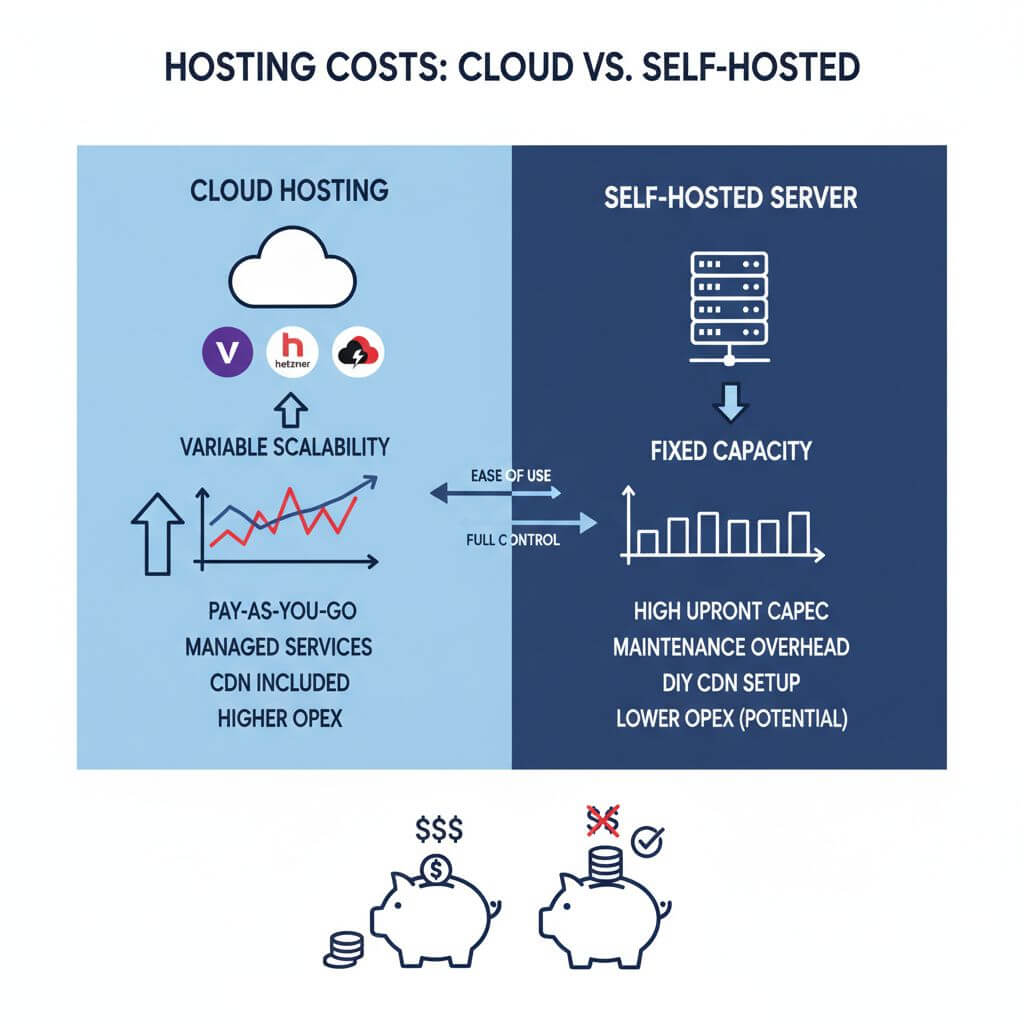
## The Real Cost of Cloud Hosting
### Bandwidth, Egress, and the Hidden Fees
Many users underestimate the true costs of running a high-traffic site in the cloud. While compute and storage are relatively affordable, bandwidth and egress charges can escalate rapidly. Jmail's traffic resulted in a monthly bill of over $46,000, largely due to serving static assets at scale.
### Cost Accidents and Spending Limits
A recurring theme in the discussion was the unpredictability of cloud bills. Developers shared stories of 'cost accidents'—unexpectedly high bills after viral spikes or misconfigured resources. Many argued for better real-time spending controls and alerting mechanisms from platforms.
## Cloud Pricing Models and Predictability
### Complexity and Lack of Transparency
Cloud pricing is notoriously complex. Even experienced developers find it difficult to predict monthly expenses, especially for bandwidth-heavy applications. The lack of clear real-time spending limits leaves users vulnerable to runaway bills.
### The "Convenience Tax"
Some commenters referred to cloud platform fees as a 'convenience tax,' comparing them to Dropbox's early pricing: you pay more for managed infrastructure and rapid scaling, but at a hidden premium.
## Platform Alternatives: Cloud vs. Self-Hosting
### Comparing Vercel with Hetzner, Railway, and Others
Many developers compared Vercel's pricing with alternatives like Hetzner, Fly.io, and Railway. For instance, a 16-core Hetzner server with 4TB NVMe storage costs about €450 ($535) per month—much lower than Jmail's cloud bill.
### The Case for Self-Managed Infrastructure
For predictable workloads, self-hosting (using a VPS, nginx, and a CDN like Cloudflare) can be dramatically more cost-effective. Cloudflare's free CDN, which offers unlimited bandwidth, was frequently cited as a strong alternative for serving static content at scale.
## Technical Pitfalls: Asset Management
### The 670 KB Logo Controversy
A specific technical criticism was Jmail's 670 KB logo file—unusually large for a website logo. This highlighted the importance of image optimization and asset management, especially when bandwidth costs are a concern.
### Modern Web Development Practices
Developers debated whether the site followed best practices for static assets, caching, and optimization. Neglecting these details can turn minor inefficiencies into major costs at scale.
## Broader Lessons for Developers and Founders
### AI Agent Traffic and the New Unknowns
The rise of AI agents scraping web content has introduced new unpredictability for bandwidth costs. Viral traffic is no longer just about human users.
### Platform Responsibility and User Control
Should platforms enforce spending limits by default? Should there be better, more transparent alerting and control mechanisms for users? The Jmail saga suggests these features are increasingly essential, not just nice-to-haves.
## FAQ
**Q: Why did Vercel take down Jmail?**
A: The site incurred massive bandwidth and egress costs due to viral traffic, making it financially unsustainable for the platform without intervention.
**Q: Are cloud platforms always more expensive than self-hosting?**
A: Not always. For unpredictable, viral workloads, cloud can be safer. But for predictable, static content, self-hosting is often much cheaper.
**Q: What can developers do to avoid 'cost accidents'?**
A: Use real-time alerts, set spending limits if possible, and optimize assets to minimize bandwidth usage.
## Conclusion
The Vercel-Jmail incident serves as a wake-up call for anyone deploying high-traffic sites: understand your platform's pricing, optimize your assets, and demand better tools for cost control. While the convenience of cloud platforms is undeniable, the underlying costs—and risks—should never be ignored.
If you ever need to quickly share files or generate short links, you can try [AnyToURL](https://anytourl.com).
---
### Top 10 Best Ways to Send Large Files Securely in 2025
URL: https://anytourl.com/blog/best-ways-to-send-large-files-2025
Description: Explore the top 10 secure ways to send large files in 2025. Compare services, security, compliance, and practical tips for safe file sharing.
In the digital era, sharing large files securely has become a daily necessity across all industries. Whether you are a legal professional managing sensitive eDiscovery documents, an accountant exchanging tax records, or a healthcare provider handling confidential patient data, the need for safe and efficient file transfer is paramount. Traditional methods like email attachments or USB drives are no longer sufficient due to size limitations, security risks, and compliance concerns.

## Table of Contents
- [Why Secure Large File Sharing Matters](#why-secure-large-file-sharing-matters)
- [Common Methods for Sending Large Files (and Their Risks)](#common-methods-for-sending-large-files-and-their-risks)
- [Top 10 Best Ways to Send Large Files in 2025](#top-10-best-ways-to-send-large-files-in-2025)
- [Key Takeaways for Secure File Transfers](#key-takeaways-for-secure-file-transfers)
- [FAQ](#faq)
- [Conclusion](#conclusion)
## Why Secure Large File Sharing Matters
Convenience is just one piece of the puzzle when sending large files; security and regulatory compliance are equally critical. Email services like Gmail and Outlook limit attachments to 25MB, making them unsuitable for large or sensitive data. Moreover, even popular cloud storage solutions like Google Drive, Dropbox, and OneDrive may not always satisfy enterprise-grade compliance standards such as HIPAA, GDPR, or ISO27001.
Ensuring that your file sharing methods are both secure and compliant protects your business from data breaches, legal liabilities, and reputational damage.
## Common Methods for Sending Large Files (and Their Risks)
### Email Attachments & Zip Folders
Emailing files is simple, but attachment limits (typically 25MB) and lack of encryption present security risks. Zipping files can bypass size limits, but without encryption, your files remain exposed.
### USB Drives & External Hard Drives
Physical media can transfer vast amounts of data, but they are easily lost or stolen. They also lack convenience for remote or distributed teams.
### FTP (File Transfer Protocol)
FTP allows for large file transfers but usually requires technical setup and does not offer encryption by default, making it vulnerable to interception.
### Cloud Storage Services
Services like Google Drive and Dropbox make sharing easy but may not provide robust encryption or compliance out-of-the-box, especially with free accounts.
## Top 10 Best Ways to Send Large Files in 2025
Here are the leading solutions for secure, large file sharing in 2025:
1. **TitanFile**: Trusted by over 500,000 professionals, offering 256-bit encryption and ISO 27001 certification for top-tier security.
2. **Google Drive**: 15GB free storage, seamless integration with Google services, but ensure settings align with compliance needs.
3. **Dropbox**: Business plans offer a minimum of 3TB, with advanced collaboration tools and sharing controls.
4. **WeTransfer**: Free transfers up to 2GB, popular among creatives for its simplicity, but limited security features on the free plan.
5. **pCloud**: Up to 5GB free with zero-knowledge encryption, meaning only you can access your files.
6. **OneDrive**: Deep integration with Microsoft 365, making it ideal for organizations using Microsoft tools.
7. **Send Anywhere**: Enables cross-platform transfers via a 6-digit key, with no account required for basic use.
8. **Filemail**: Compliant with GDPR, HIPAA, and ISO27001, supporting very large files and secure transfers.
9. **Tresorit**: End-to-end encryption and Swiss privacy laws for maximum data protection.
10. **Resilio Sync**: Peer-to-peer transfers eliminate cloud intermediaries, enhancing speed and privacy.
## Key Takeaways for Secure File Transfers
- Always use encrypted channels when sharing sensitive files.
- Check for compliance with relevant regulations (HIPAA, GDPR, PIPEDA, etc.).
- Balance ease of use with security requirements—some free tools are suitable for personal use, but may lack enterprise features.
- Consider your team's workflow and choose solutions that integrate well with existing tools.
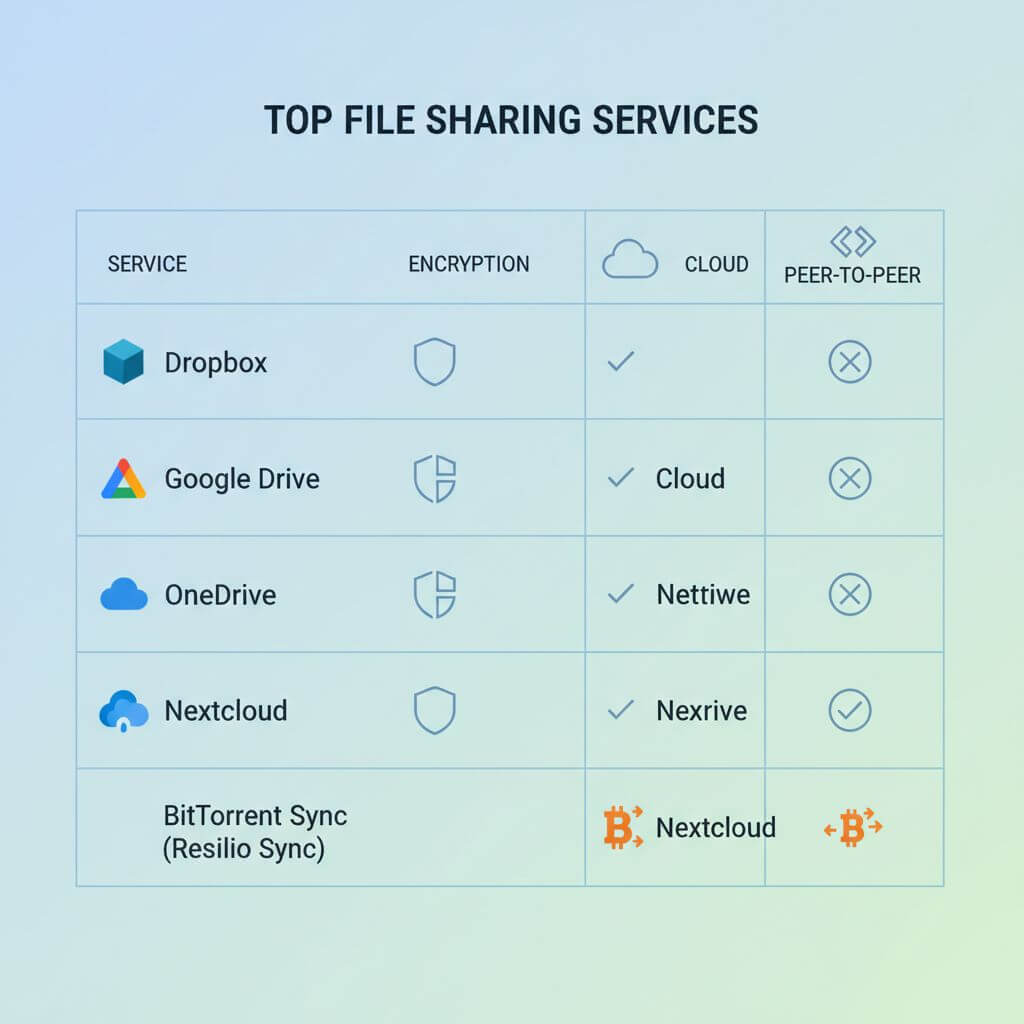
## FAQ
**Q: What's the safest way to send large files?**
A: Use services that offer end-to-end encryption and comply with industry standards like ISO27001, HIPAA, or GDPR. Avoid sending sensitive data over unencrypted email or unsecured cloud platforms.
**Q: Are free file sharing tools secure?**
A: Free tools can be secure for non-sensitive files, but enterprise or regulated environments should opt for paid, compliant services.
**Q: How can I generate a shareable link for a file quickly?**
A: Some platforms allow you to upload a file and instantly generate a shareable URL, making distribution simple and fast.
## Conclusion
Securely sending large files is a fundamental requirement for modern professionals. By understanding the risks of traditional methods and adopting one of the top 10 solutions above, you can protect your data, meet compliance standards, and streamline collaboration. If you need to quickly share files or generate short links, you can try [AnyToURL](https://anytourl.com).
---
### What is AnyToURL
URL: https://anytourl.com/blog/what-is-any-to-url
Description: AnyToURL is the fastest way to share files online. Simply drag & drop your files and get a shareable link in seconds, delivered via a high-performance global edge network.
---