
Backup Canvas Files: Emergency Guide When LMS Is Down
Canvas LMS down after the ShinyHunters breach? Back up and share course files in 30 seconds — emergency guide for students and teachers.
 AnyToURL Team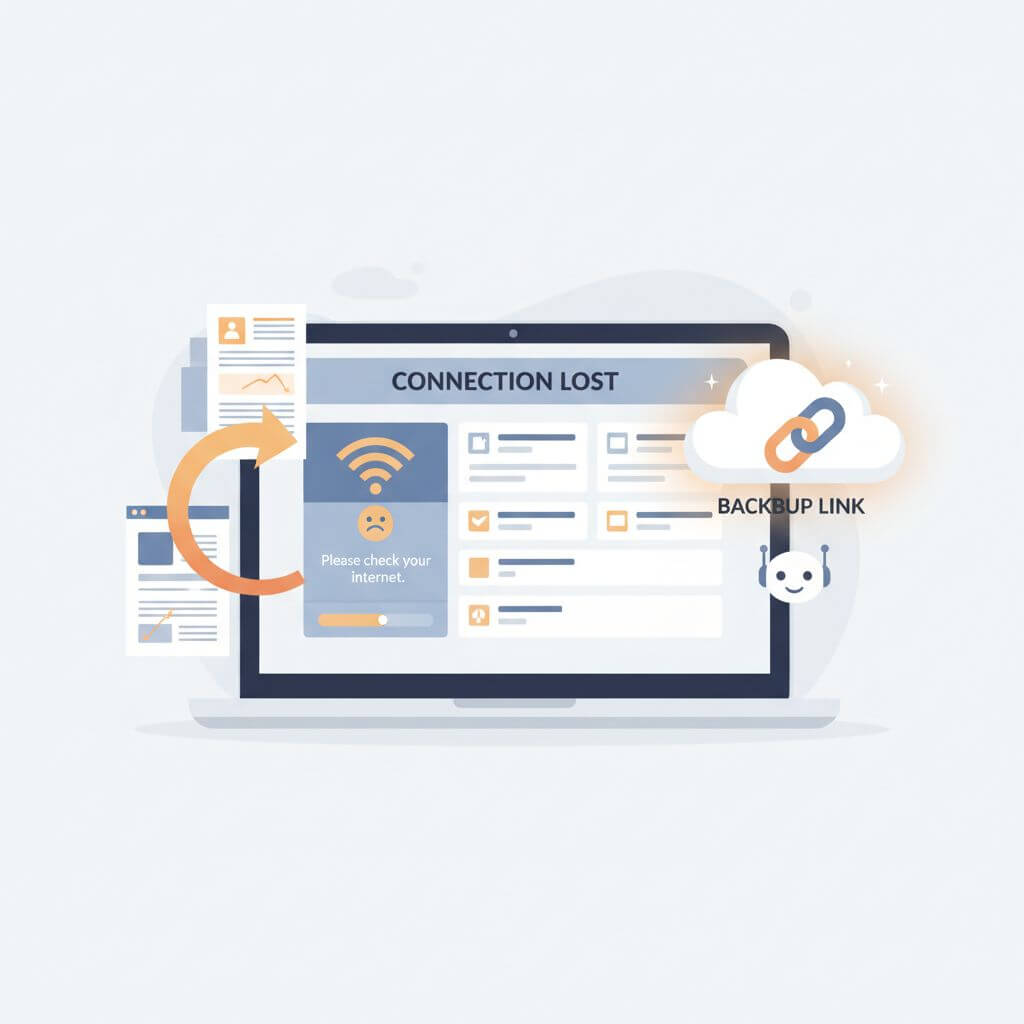
The Verge reports that Canvas LMS — used by more than 30 million students worldwide — was knocked offline this week after the ShinyHunters group dumped data tied to an Instructure breach and defaced school login pages. If your school portal is showing a 503 right now, your slides, lecture notes, and half-finished essays are sitting on the wrong side of an outage you can't fix.
This guide is for the next 24 hours. It walks through three real classroom scenarios — teachers without a way to push slides, students with assignments due, study groups that lost shared docs — and shows how to back up Canvas files and pass them around using a plain web link, no signup, no install. Keep this open in a tab; you may need it before the LMS comes back.
Last updated: May 9, 2026
In this guide
- What just happened to Canvas
- Why a backup plan matters right now
- Three emergency scenarios
- Step-by-step: 30-second backup
- Safety tips during an active breach
- Quick-share options compared
- FAQ
What Just Happened to Canvas
On May 7, 2026, the ShinyHunters group claimed responsibility for an Instructure-related breach and defaced login pages at multiple US schools. The Verge reported that the group had been quiet for months before resurfacing with a Canvas LMS data dump, and TechCrunch confirmed that several institutions saw their portals replaced with hacker-controlled landing pages within hours. Google Trends recorded more than 500,000 US searches for "canvas hacked" within five hours of the news breaking.
That means two things for anyone using Canvas right now. First, you may be locked out of slides, gradebooks, and submission folders even if your school's email and Wi-Fi still work. Second, even after the LMS comes back, IT teams will likely rotate sessions, force password resets, and tighten access — so the path you used yesterday to share a syllabus may not be there tomorrow. A small habit of being able to back up Canvas files outside the LMS turns a service outage from a panic event into a 30-second workaround.
Why a Backup Plan Matters Right Now
Most courses route everything through the LMS — lecture decks, assignment briefs, peer feedback threads, recorded sessions. When the LMS is the single chokepoint and it goes down, three things happen in the same hour:
- Teachers lose the channel they use to push out class material.
- Students lose the upload path for assignments due that day.
- Study groups lose the shared workspace where review notes lived.
A good emergency plan is not about replacing Canvas. It's about giving each of those three flows a fallback that takes less than a minute, works on any device, and doesn't ask students or staff to sign up for yet another account during a breach.

Three Emergency Scenarios
The cleanest way to think about Canvas downtime is by role and direction of the file.
Scenario 1: Teachers — Push Slides to a Class Without the LMS
A 9 a.m. lecture starts in fifteen minutes and the Canvas course page won't load. The teacher has the deck on their laptop but no way to drop it into the usual "Files" folder. The fix is to upload the deck to a one-shot file-to-URL service, paste the link into the course email list or whatever messaging channel the school still has up (Slack, Teams, group email), and continue the lecture.
What makes this work: the link is stable for the rest of the day, students don't need a login to open it, and the teacher can revoke or stop sharing once Canvas is back.
Scenario 2: Students — Submit Assignments to an Instructor
A take-home essay is due at 5 p.m., the submission portal is down, and email is the only working channel. Attaching a 40 MB PDF directly to email gets bounced by half of campus mail servers. The fix is to upload the file once, get a link, and paste that link into the submission email along with the time you uploaded it. If the instructor accepts a screenshot of upload time as the timestamp of record, that's your audit trail.
Scenario 3: Study Groups — Share Notes and Review Materials
The week before finals, study groups lean on shared Canvas pages or attached PDFs. With the LMS down, the group needs a single place to drop review sheets, practice questions, and recorded study session notes. A short shared link in the group chat solves this without anyone signing up to a new platform.
Step-by-Step: 30-Second Backup
Here's the actual workflow to back up Canvas files when the LMS is down. Times are based on a 20 MB PDF on a typical home connection — adjust for larger files.
Step 1: Pull the File Off Canvas (or Your Local Drive)
If Canvas was up earlier today, your browser cache or the LMS mobile app may still have the file even when the website itself is down. Check the Canvas mobile app first — it caches downloaded files. If you authored the file yourself, skip ahead and grab it from your laptop's Downloads or Documents folder.
Step 2: Upload Once, Get a Link
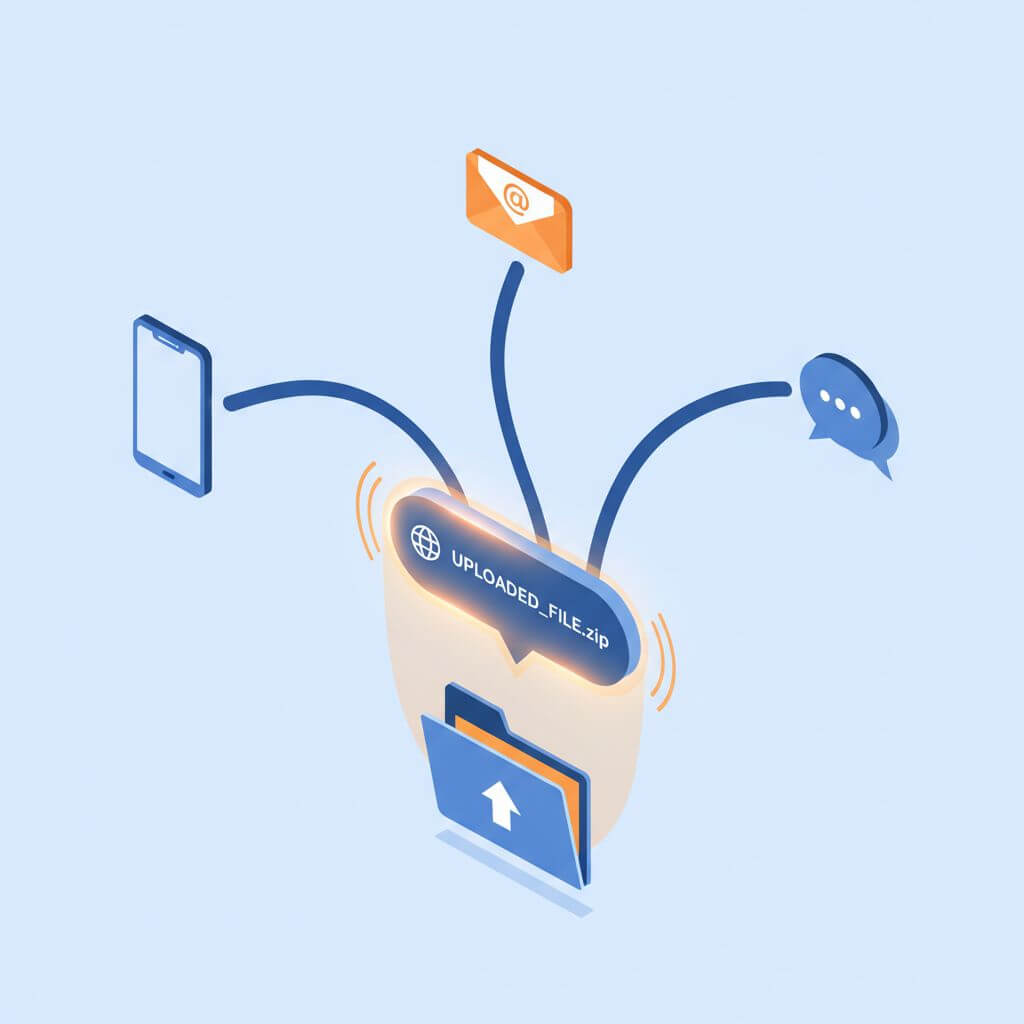
Open AnyToURL in any browser. Drag the file into the upload zone — it accepts PDFs, slide decks, ZIPs, images, audio recordings, and most everyday formats. In our testing a 20 MB PDF uploaded in around 8–12 seconds on a 50 Mbps connection. AnyToURL returns a shareable URL immediately, no account needed. If you have only the text of your notes (no file), use the paste-text option on the same page to convert plain text into a link instead.
This is the step where time matters. Three people on a study group all trying to spin up Google Drive accounts during a breach is a 10-minute detour; one drag-and-drop is 30 seconds.
Step 3: Send the Link Through a Working Channel
Paste the URL into whatever channel your class actually uses right now — group email, Slack, Teams, Discord, or SMS. Add one line of context: file name, course code, deadline. Example:
CS-201 Lecture 12 slides (Canvas down) — https://anytourl.com/abc123 — please confirm receipt.
For assignment submissions, include the upload timestamp from the AnyToURL confirmation page so the instructor has a verifiable record.
Step 4: Track What You Sent and Plan for the LMS Coming Back
Keep a one-line note for each file you shared this way: filename, recipient, link, time. When Canvas is restored, re-upload the same files into the official course folder so the LMS becomes the source of truth again. Treat the temporary links as a 24-hour bridge, not a long-term home.
Safety Tips During an Active Breach
A live ransomware event is exactly the wrong time to be casual with file sharing. Three rules cover most of the risk.
Don't post emergency links on public pages. Anything indexed by Google — a public blog, an open course wiki, a public Discord — turns your one-time class link into a permanent search result. Send links through closed channels: direct email lists, course-only chat groups, password-protected pages.
Treat sensitive material differently. Anything with grades, student IDs, social security numbers, or transcript data should never go through a free public file-sharing tool, even briefly. For those files, wait for IT to bring up the official channel, or use approved school-owned storage like institutional OneDrive or Google Workspace.
Plan to clean up. Once Canvas is back, retire the temporary links. Most file-to-URL services let you delete the upload from a dashboard or via the original confirmation email. Doing this prevents stale links from drifting into screenshots, syllabi, or future emails where they won't have current context.
Quick-Share Options Compared
Several tools fit the "30-second emergency share" niche. Here's an honest read:
| Tool | Signup | File size limit | Best for | Not ideal for |
|---|---|---|---|---|
| AnyToURL | None | Up to 100 MB per file | Quick file or text → link, no account | Long-term hosting, video files >100 MB |
| Google Drive | Required | 15 GB free | Persistent shared folders | Anyone without a Google account |
| Dropbox | Required | 2 GB free | Familiar workflow for staff | First-time users during a breach |
| WeTransfer | Optional | 2 GB free | One-off large file sends | Texts/notes (file-only) |
| LMS-internal (when up) | School SSO | Per school policy | Official record of submission | Times when the LMS is down |
The honest takeaway: AnyToURL fits when you need zero friction and a single shareable link in under a minute. It's not a replacement for Canvas, Google Drive, or your school's official storage; it's an emergency bridge while those are unreachable or while you're moving files between accounts.
FAQ
When will Canvas LMS be back online?
There's no public ETA from Instructure as of May 9, 2026. The Verge and TechCrunch both report that the company is investigating; school IT pages are the most reliable source for restoration timing at your specific institution. Plan for at least a 24-hour window of intermittent access.
Are AnyToURL links safe to share during a breach?
Yes for non-sensitive material like lecture slides, practice problems, and personal study notes. The link is randomly generated and not indexed by search engines unless you publish it on a public page. For files containing grades, student IDs, or any PII, wait for an official channel.
Will my school's IT policy allow temporary file-sharing services?
Most acceptable-use policies allow short-term file sharing for academic work as long as you're not exposing protected data (FERPA-covered records, internal credentials, etc.). When in doubt, ask the instructor first — many will explicitly green-light an emergency channel during downtime.
What other backup options exist if Canvas stays down for days?
For longer outages, switch to your school's official cloud storage (institutional Google Workspace or Microsoft 365) for assignment submission. Use a temporary link service like AnyToURL only for the immediate "I need to share this in the next 5 minutes" gap. Long-running study groups can spin up a private Discord or Slack channel as a stable workspace.
How big a file can I send through AnyToURL?
Up to 100 MB per file at the free tier — enough for most slide decks, PDFs, and lecture notes. For larger items like recorded video lectures, split the file or upload the recording directly to your school's media server (Panopto, Echo360) once it comes back.
Can I use this method to submit graded assignments?
You can, but treat it as a fallback with paperwork. Email the instructor the AnyToURL link plus the upload timestamp; ask them to acknowledge receipt by reply. Re-upload the same file to Canvas once it's back online so the official record matches.
Conclusion
Canvas being down is annoying, not a disaster — provided you have a plan that takes 30 seconds to execute. The plan above covers the three flows that actually matter during downtime: teacher-to-class, student-to-instructor, peer-to-peer. Each one comes down to "upload once, paste a link, confirm receipt." Bookmark this page; the next outage usually shows up at the worst possible time.
Need to back up Canvas files right now? Try AnyToURL free → — drag a file or paste your notes, get a shareable link in seconds, no signup. Pair it with your school's official channels once they're back online.