
Share Markdown Notes as URL: From Files.md/Obsidian to Link
Share markdown notes as URL in 30 seconds. Compare Gist vs Notion Publish vs AnyToURL for sharing Files.md and Obsidian notes online.
 AnyToURL Team
531 upvotes. Hacker News front page, #8. That was Files.md on May 14, 2026 — an open-source plain-text alternative to Obsidian, written in PHP, with a single core idea: your notes are just files on disk, nothing else. The thread is full of developers swearing off proprietary note formats and re-falling in love with markdown.
Markdown knowledge management is back. Files.md, Obsidian, Logseq, Zettlr, Bear, Neovim with Markview — pick your editor, the writing experience is excellent. But there's a quieter problem the HN comments keep brushing past: you finished a great note, now what? Sending raw .md files over Slack looks weird. Pasting 400 lines of markdown into chat is worse. Spinning up a static site for a one-off paragraph is overkill.
This guide walks through how to share markdown notes as URL — the missing last mile after the writing is done. It compares three mainstream approaches (GitHub Gist, Notion Publish, and one-click URL via AnyToURL), then shows the step-by-step flow from Files.md or Obsidian to a public link.
Last updated: May 19, 2026.
Table of Contents
- Why Share Markdown Notes as URL?
- Three Ways to Publish a Markdown Link
- Step-by-Step: From Files.md / Obsidian to a Public URL
- Pro Tips for Better Sharing
- Advanced Scenarios
- FAQ
Why Share Markdown Notes as URL?
Sharing markdown notes as URL means turning a local .md file or an editor snippet into a public web link that anyone can open in a browser, with no app install, no signup on the receiver's side, and no copy-pasted formatting damage. It's the last mile of any markdown workflow — the editor handles writing, the URL handles distribution.
The HN thread on Files.md (#8, 531 points) is a good snapshot of why this matters. People moving to plain-text markdown editors are deliberately stepping away from notion-style walled gardens. But the moment you want to share — a meeting note, a tech doc, a client brief — the walled garden quietly comes back through the side door: Notion has a Publish button, your markdown editor doesn't.
Three concrete jobs keep showing up:
- Send a finished doc to a colleague or client. Email attachments rot, raw
.mddoesn't render in chat, and a Google Doc forces a different format conversion. - Publish a quick draft for review. You want a URL you can paste into Slack, get comments back, and throw away in 24 hours.
- Sync notes across devices for read-only access. Sometimes you just want to open last week's meeting note on your phone without setting up an Obsidian Sync subscription.
All three flows want the same primitive: markdown in, public link out. The next section compares the three mainstream ways to get that primitive.
Three Ways to Publish a Markdown Link
In our testing, GitHub Gist, Notion Publish, and a one-click URL tool like AnyToURL cover ~95% of the markdown-to-URL use cases. They look similar from the outside but split along four real axes: account requirement, privacy default, rendering quality, and how fast you can go from finished note to link in clipboard.
| Dimension | GitHub Gist | Notion Publish | AnyToURL |
|---|---|---|---|
| Account required | Yes (GitHub) | Yes (Notion) | No |
| Signup on receiver side | No | No | No |
| Renders markdown | Yes (GitHub flavor) | Yes (Notion blocks) | Yes (server-rendered) |
Supports raw .md paste |
Yes | No (re-typed into Notion blocks) | Yes |
| Public by default | Optional (public / secret) | Yes (when Publish is on) | Yes (link-only) |
| Time from paste to link | ~30 seconds | ~60–90 seconds (block-by-block) | ~10 seconds |
| Search engine indexable | Public gists: yes | Yes | Configurable per link |
| Edit after publish | Yes (re-save) | Yes (auto-syncs) | Replace the link |
| Best for | Code-heavy devs already on GitHub | Long-form, multimedia-rich docs | Quick one-shot shares, drafts, plain markdown |
A few rows are worth pulling out:
- Account friction. Gist needs a GitHub account; Notion Publish needs a Notion workspace. For a 30-second share to a freelance client who doesn't use either, that's two extra steps. AnyToURL is signup-free on both ends.
- Paste fidelity. Notion Publish is great for documents you wrote in Notion, but if your source is a Files.md or Obsidian
.mdfile, you re-paste into Notion blocks and lose the round-trip with your editor. - Indexability. Public gists are indexed by Google by default — fine for blog posts, bad for a client brief. AnyToURL lets you keep the link unlisted; only people with the URL find it.
If the note is a code snippet you're already version-controlling, Gist is the obvious choice. If it's a long-form doc with embedded video, tables, and comments, Notion Publish wins. For everything else — a meeting summary, a tech brief, a draft for review, a paragraph you want to send right now — a no-account paste-to-link tool is usually the fastest path.
Step-by-Step: From Files.md / Obsidian to a Public URL
Here's the end-to-end flow, using a real Obsidian note as the source. The same steps apply to Files.md, Logseq, Bear export, or any editor that gives you plain markdown.
Step 1: Copy the Markdown Source
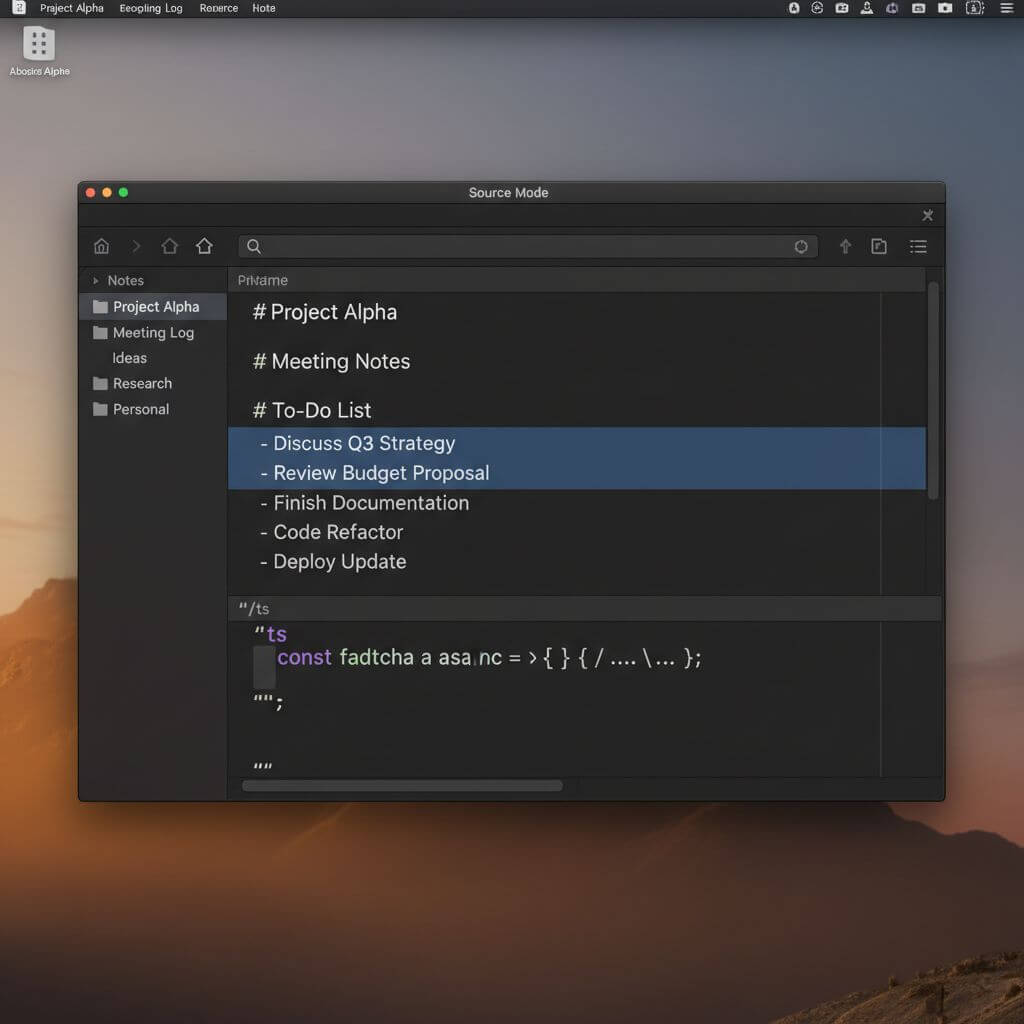
Open your note in Files.md or Obsidian. Switch the view to Source Mode (Obsidian: Ctrl/Cmd + E; Files.md: click the source toggle in the toolbar). You want the raw .md text including headings, links, and code fences, not the rendered preview.
Select everything (Ctrl/Cmd + A), copy (Ctrl/Cmd + C). The clipboard now holds the markdown source verbatim — that's what you'll paste.
Step 2: Decide What Goes Public
Before pasting anywhere, do a quick scrub. Markdown notes often pick up things you didn't mean to publish:
- Personal todos at the top of the file
- Local image paths (
![[Pasted image.png]]) that won't render on a public host - Backlinks in
[[wiki-style]]syntax that only resolve inside your vault - Frontmatter with tags, status, or internal review notes
Delete or replace these in a scratch buffer before publishing. It takes 20 seconds and prevents the "why is [[meeting-2026-04-18]] showing up as a broken link in the public version" follow-up question.
Step 3: Paste into AnyToURL to Generate the Link
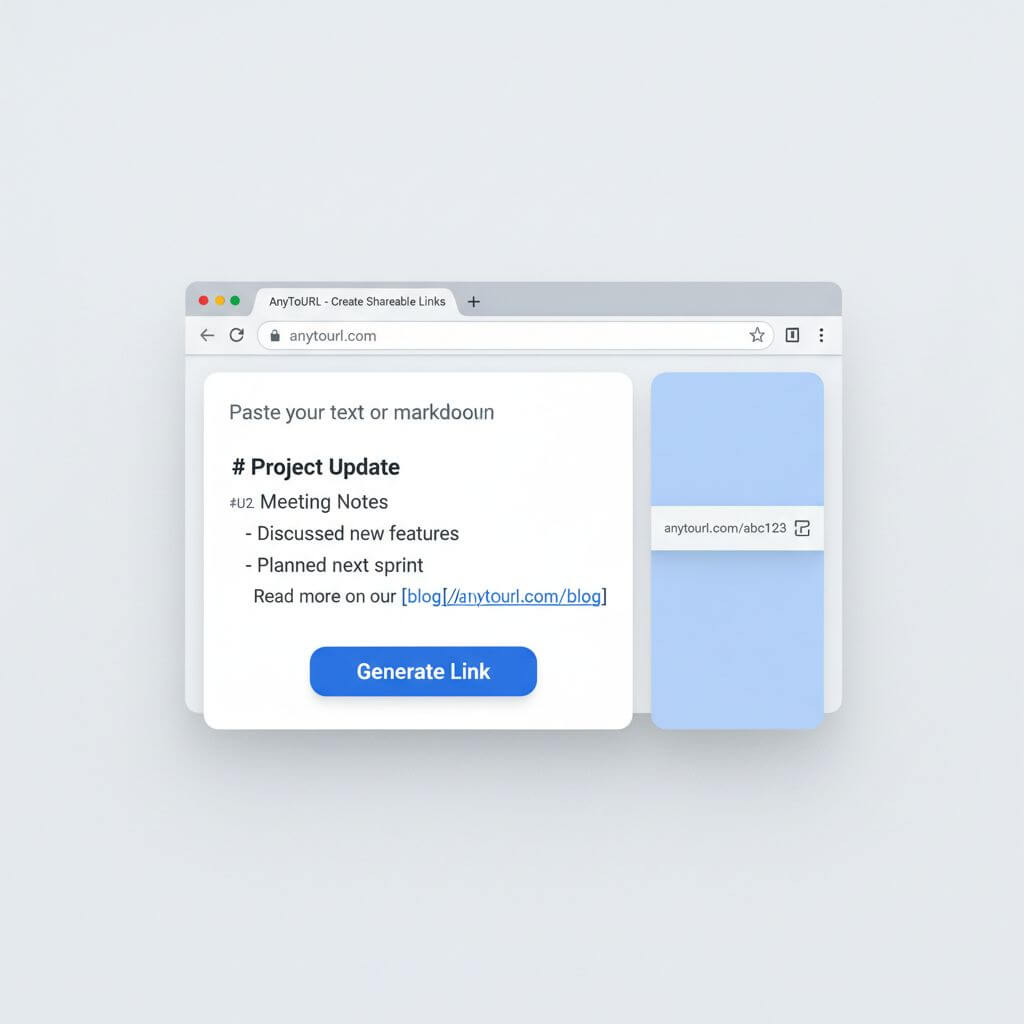
Open AnyToURL in any browser — no signup needed. Switch to the Paste Text mode (or the markdown / text input on the homepage), paste your scrubbed markdown, and click Generate Link. You'll get a short URL in about 10 seconds.
The receiver opens that URL in any browser and sees the rendered markdown — headings, lists, code blocks, tables, all formatted. No app, no account, no broken formatting from a chat tool re-wrapping your lines. The full round-trip from "I finished my Obsidian note" to "link is in my clipboard" runs about 30 seconds.
If you'd rather use a different tool, the same step works with Gist (gist.github.com → Create new gist → paste → Create public gist) or Notion (paste into a page → Share → Publish). The trade-offs from the comparison table apply.
Step 4: Share the Link
Paste the link into Slack, Discord, email, iMessage, or wherever your reader lives. Add a one-line context note above the URL ("Q2 retro notes, ~5 min read") so the link doesn't look like a random short URL.
If the link is sensitive, mention how long it should live — "feel free to delete this thread after, I'll let the link expire end of week." That sets expectations and avoids the link living forever in an indexed crawl.
Step 5: Update or Replace When the Note Changes
Markdown notes are living documents. Two reasonable approaches when the source changes:
- Replace the link. Generate a new URL from the updated markdown and re-send. Simple, but the old link still points to the old version.
- Edit in place. On Gist, save a new revision under the same URL (the URL is stable across edits). On Notion Publish, the public page auto-updates when you edit the source. On AnyToURL, you can replace the content behind the same link if your tool of choice supports it; otherwise generate a fresh URL.
Pick the approach that matches the doc's lifecycle: short-lived briefs are fine to replace; reference docs benefit from stable URLs.
Pro Tips for Better Sharing
A handful of small habits make markdown-as-URL sharing much smoother:
- Strip frontmatter and local wiki links before pasting. Public viewers don't care about your
status: drafttag, and broken[[backlinks]]look unprofessional. 20 seconds of cleanup beats a follow-up "what's this[[ref]]thing?" message. - Keep code fences explicit about the language.
```tsrenders with syntax highlighting on Gist and most markdown-rendering services; a bare```falls back to plain monospace. Worth the three extra characters. - Use absolute image URLs, not local paths.
works everywhere;only resolves on your own machine. - Add a
Last updated:line at the bottom. It signals freshness to both human readers and LLM crawlers, and stops the "is this still accurate?" question before it arrives. - Treat the link as throwaway by default. Most shared notes are situational — a meeting recap, a draft for review, a one-off explainer. Make a new link for each context; don't try to maintain one canonical URL forever unless the doc earns it.
Advanced Scenarios
Three concrete workflows where sharing markdown as URL replaces clunkier alternatives.
Temporary Draft for Review
You want feedback on a 1,000-word draft from two reviewers. Emailing a .md attachment forces them to find a markdown viewer; pasting it into Slack mangles the formatting; spinning up a Notion page is overkill for something that'll get deleted in 48 hours.
Generate an AnyToURL link, send it with a Loom video or a comment thread in your team chat, and let the link expire on its own. The draft never enters a permanent doc system, and reviewers don't need any app beyond their browser.
Client Review of a Tech Brief
A freelance client doesn't have your Notion workspace and probably doesn't want one. They want a URL they can open on their phone during their commute, read your one-page tech brief, and reply.
A paste-to-link AnyToURL URL hits exactly that shape: open in any browser, no signup, renders cleanly on mobile. If the brief has product screenshots, upload them separately and embed with absolute URLs.
Read-Only Cross-Device Note Access
You wrote a long meeting note in Obsidian on your laptop. Three days later you need to reference it from your phone, and you haven't set up Obsidian Sync because you only need read access occasionally.
Paste the note into AnyToURL, bookmark the resulting URL on your phone. It's not a full sync solution, but for read this one note on my phone it's faster than spinning up a sync subscription, and works on devices that aren't yours.

FAQ
How long do AnyToURL markdown links stay live?
Links stay live by default until the content is deleted. AnyToURL hosts pasted text and files on a stable URL — there's no built-in 24-hour expiration. If you want a link to expire, the simplest pattern is to delete the content when you're done; the URL becomes a dead link and the receiver can no longer load the note.
Are my markdown notes private when I share them via URL?
Link-only sharing means only people with the URL can open the note. That's privacy by obscurity, which is appropriate for casual sharing (drafts, briefs, meeting notes) but not for secrets or regulated data. For sensitive material, use a tool with explicit access controls and audit logs. For everyday markdown — the kind you'd email anyway — link-only sharing is a reasonable default.
Does AnyToURL render markdown formatting?
Yes. Pasted markdown is rendered server-side as HTML — headings, lists, links, tables, code fences, blockquotes, and inline formatting all show up correctly. The receiver opens the URL in any browser and sees a clean rendered page, not raw .md source.
Will my shared markdown notes be indexed by Google?
Depends on the tool. Public GitHub Gists are indexed by default. AnyToURL links are designed for link-only sharing, so they're not actively submitted to search engines — but any URL on the public internet can theoretically be discovered if it shows up in scraped chat logs or social shares. If a note must never be indexed, keep it off public services entirely.
How is this different from publishing a markdown file as a static site?
A static site (Astro, Hugo, Next.js, etc.) gives you a permanent URL, custom domain, and full site structure — great for a blog or docs site, overkill for a one-off note. Share-as-URL tools skip the build step entirely: paste, get a link, done. Use static sites for things you want to maintain; use share-as-URL for things you want to send and forget.
Can I share a Files.md note without copying the text manually?
Not directly today — Files.md is a local-first editor by design and doesn't have a built-in publish button. The standard flow is open the file → copy contents → paste into a sharing tool. It's two extra clicks compared to Notion's Publish button, but it preserves the local-first principle that pulled people to Files.md in the first place.
Is there a way to share an entire Obsidian vault as URLs?
For full vault publishing, Obsidian Publish is the official paid service. For ad-hoc, single-note sharing without a subscription, paste-to-link tools like AnyToURL fill the gap. Pick based on how often you share: regular publisher → Obsidian Publish; occasional one-offs → paste-to-link.
Bottom Line
The Files.md HN moment is part of a broader shift: writers are walking away from proprietary note formats and back to plain markdown. The trade-off they're accepting is losing the built-in Publish button — and the workaround is treating markdown-as-URL as a separate tool in the stack. GitHub Gist, Notion Publish, and AnyToURL each cover a different shape of that workaround; pick by account requirement, paste fidelity, and how throwaway the share is.
Writing your next note in Files.md, Obsidian, or any markdown editor? Try AnyToURL free → — paste your markdown, get a clean shareable link in seconds. No signup, no app, no formatting damage. Send it, get feedback, move on.