
How to Share a Video with a Link (No YouTube Needed)
Share a video with a link in 30 seconds. Send your AI-generated MP4 as a shareable URL with no YouTube upload, no account, no subscription.
 AnyToURL Team
You just rendered a clean MP4 out of an AI video tool — maybe a faceless short from MoneyPrinterTurbo, a product demo from Demoflow, or a quick clip from Runway. Now comes the annoying part: getting it to someone else. Uploading to YouTube means a public listing, an account, and processing time. Cloud drives want a login on both ends. Email bounces the file for being too big.
There's a faster path. You can share a video with a link in about 30 seconds — no YouTube upload, no account, no subscription. This guide shows you exactly how, plus the tradeoffs of each method so you can pick the right one.
In this guide:
- Why share a video with a link instead of uploading to YouTube?
- Step-by-step: how to share a video with a link
- Pro tips for sharing video files
- FAQ
- Conclusion
<h2 id="why">Why share a video with a link instead of uploading to YouTube?</h2>
Sharing a video with a link means uploading the file once and sending a single URL anyone can open in a browser — no platform account, no public listing, no video processing wait. It's the fastest way to hand off a clip when the recipient just needs to watch it, not subscribe to a channel.
The need for this exploded as AI video generation went mainstream. MoneyPrinterTurbo, an open-source tool that turns a topic into a short video, has crossed 72,000 stars on GitHub. Demoflow and similar AI demo-makers trend regularly on Product Hunt. The barrier to producing an MP4 has collapsed, so millions of people now sit on video files they need to send — without wanting to become YouTubers.
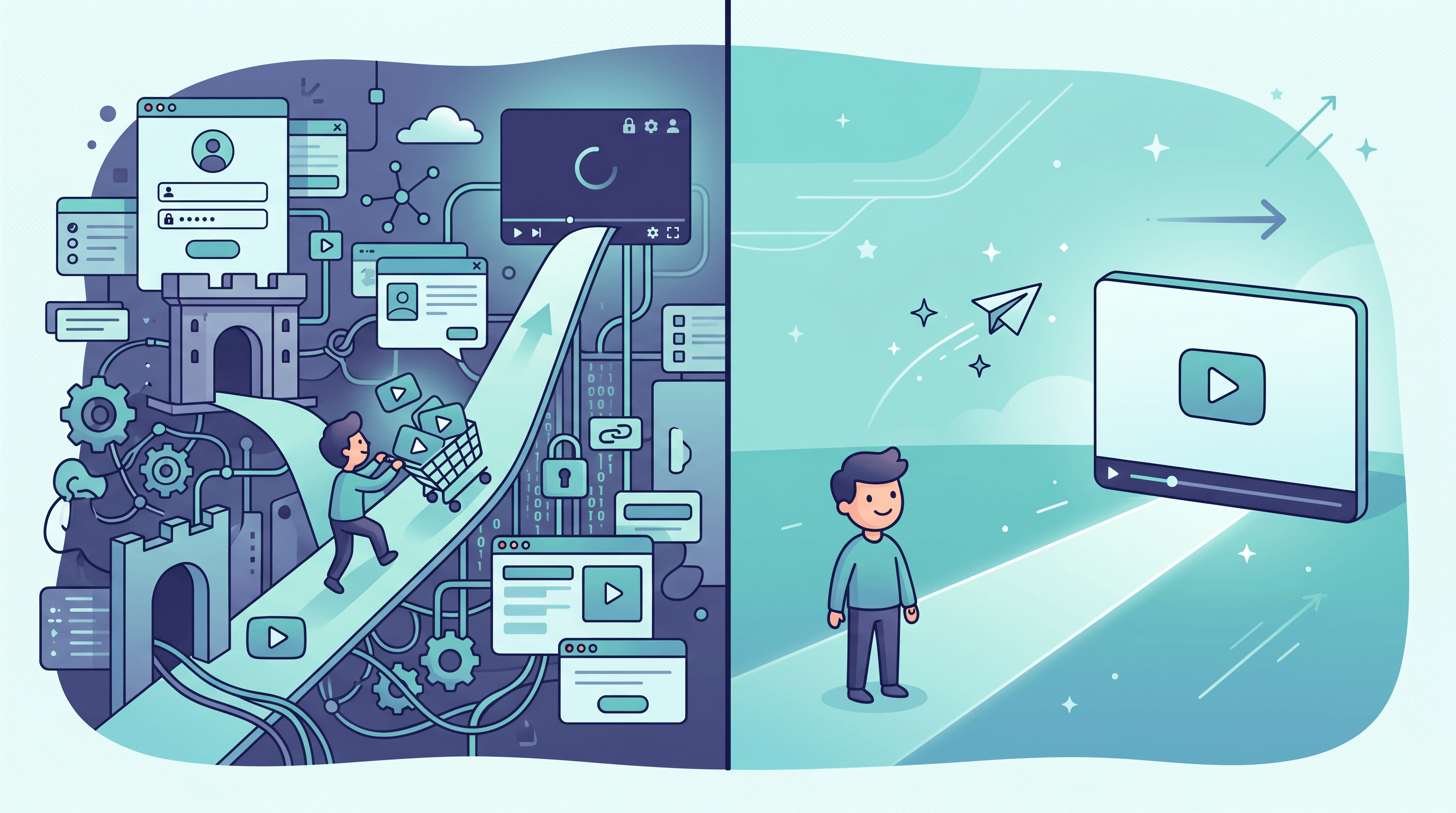
YouTube is built for an audience and a channel, not a one-time handoff. Even an "unlisted" upload forces an account, runs the file through processing, and ties the clip to your identity. Cloud drives like Google Drive or Dropbox work, but they often prompt the recipient to sign in, request access, or install an app before they can watch. For a single clip going to one person or a small group, a direct shareable link is simpler and more private.
Here's how the common methods compare when your only goal is to share a video with a link:
| Method | Account needed? | Recipient friction | Best for |
|---|---|---|---|
| File-to-link tool (e.g. AnyToURL) | No | Click and watch | One-off clips, demos, AI shorts |
| YouTube (unlisted) | Yes | None, but it's on YouTube | Building a channel or audience |
| Google Drive / Dropbox | Yes (you) | Often "request access" or sign-in | People already in your workspace |
| Email attachment | No | Fails over ~25 MB | Tiny clips only |
| WeTransfer | No (basic) | Download, then open | Big files you want downloaded, not streamed |
The pattern is clear: when you just need someone to watch a clip once, a file-to-link tool removes the most friction on both ends. The recipient never logs in, and you never publish anything.
<h2 id="steps">Step-by-step: how to share a video with a link</h2>
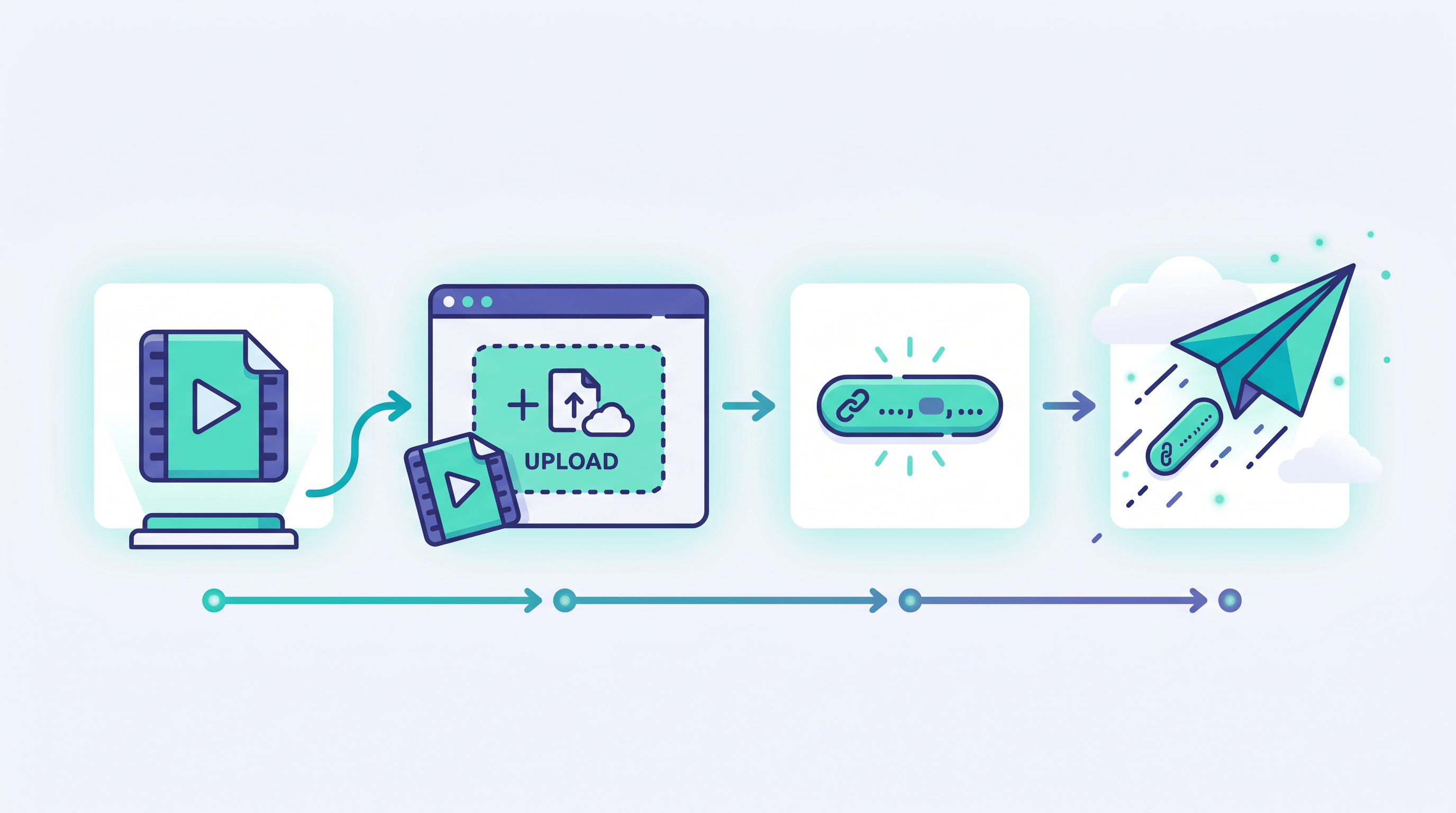
To share a video with a link, upload the MP4 to a file-to-link service, copy the generated URL, and send it. The whole process takes under a minute and works for any common video format. Here's the exact flow.
Step 1: Have your video file ready
Export or download your clip as a standard format — MP4 is the safest choice because every browser plays it natively. If your AI tool gives you WebM or MOV, those work too, but MP4 has the widest device support. Keep the file somewhere easy to find, like your Downloads folder or desktop.
Expected result: a single video file (e.g. my-demo.mp4) saved locally and ready to upload.
Step 2: Open a file-to-link tool in your browser
You don't need to install anything. Open a service that converts an uploaded file into a shareable URL. The key features to look for: no mandatory signup, support for video file types, and an instant link rather than a slow upload-and-process pipeline.
Expected result: an upload page open in your browser, ready to receive the file.
Step 3: Upload the video and generate the link
Drag your video file into the upload area, or click to select it. Drop your file into AnyToURL and you'll get a shareable link in seconds — no signup needed, no subscription, and the recipient opens it straight in their browser. AnyToURL is one of the simpler options here because it skips the account wall entirely; you upload, it hosts the file, and it hands back a short URL on the spot.
Expected result: a short, clickable link (something like anytourl.com/abc123) pointing directly to your hosted video.
Step 4: Copy the link and share it
Copy the generated URL and paste it wherever you need — a message, an email, a Slack thread, a project comment. Anyone with the link can open it; they don't need an account, an app, or permission. To confirm it works, open the link yourself in a private browser window before sending.
Expected result: your recipient clicks the link and watches the video in their browser, no friction.
<h2 id="tips">Pro tips for sharing video files</h2>
A few habits make video links cleaner and more reliable. These come from regularly sending AI-generated clips to clients and teammates.
- Stick with MP4 (H.264) when you can. It plays in every browser and on every phone without a codec prompt. In our testing, MOV and MKV files occasionally fail to preview on older Android browsers.
- Compress before uploading if the file is over ~100 MB. A 30-second AI short is usually 5–20 MB, but longer renders balloon fast. Tools like HandBrake cut size by 50–70% with no visible quality loss, so the link loads quicker for your recipient.
- Rename the file before upload.
final_v3_REAL.mp4looks sloppy;product-demo-march.mp4reads as professional and sometimes carries into the link or download name. - Test the link in an incognito window. This shows you exactly what the recipient sees — no surprise login walls, no "request access" screens.
- Don't share sensitive footage on a public link. A direct link is convenient but anyone with it can view. For private material, use a method with expiry or password protection instead.
<h2 id="faq">FAQ</h2>
How do I share a video without uploading it to YouTube?
Upload the video file to a file-to-link service and share the URL it generates. This skips YouTube's account requirement, public listing, and processing wait. The recipient opens the link in any browser and watches the clip directly — no platform sign-up on either end.
How can I send a large video file as a link?
Use a file-hosting tool that returns a shareable URL, since email attachments usually cap around 25 MB. Upload the MP4 once, copy the link, and send the link instead of the file. For very large files, compress with HandBrake first to speed up both upload and playback.
What's the best format to share an MP4 online?
MP4 with H.264 video encoding is the best format to share online because every modern browser and phone plays it natively, with no plugin or codec download. If your AI tool exports WebM or MOV, those also work, but MP4 has the widest compatibility across devices.
Do I need an account to get a shareable link for my video?
No — services like AnyToURL let you upload a file and get a shareable link without creating an account. You drag in the video, the tool hosts it, and you get a URL on the spot. This is the main advantage over YouTube and cloud drives, which both require sign-ins.
Is it safe to share a video with a link?
A direct link is safe for non-sensitive clips, but remember that anyone with the URL can open it. For demos, marketing clips, or AI-generated shorts, that's usually fine. For confidential footage, choose a tool that offers link expiry or password protection.
Can I share a video made with MoneyPrinterTurbo or Demoflow this way?
Yes. AI video tools like MoneyPrinterTurbo and Demoflow export a standard MP4, which is exactly what a file-to-link tool expects. Once the render finishes, upload the MP4, copy the link, and share it — there's no extra step for AI-generated clips versus any other video file.
<h2 id="conclusion">Conclusion</h2>
Sharing a video with a link is the fastest way to hand off an AI-generated clip without turning it into a YouTube production. The flow is simple: have your MP4 ready, open a file-to-link tool, upload the video, and copy the URL. Within a minute, anyone can watch your clip in their browser — no account, no public listing, no processing wait. Compress large files, stick with MP4, and test the link before sending, and the handoff stays clean every time.
Ready to share your next clip? Try AnyToURL free → — upload your video, get a shareable link in seconds, and send it to anyone. No signup, no subscription.
Last updated: May 2026