
How to Share a PDF as a Link (and Keep Control of the File)
Share a PDF as a link in seconds — no attachment limits, no account for recipients. Learn how link expiry, quotas, and no-copy text extraction keep the file from lingering.
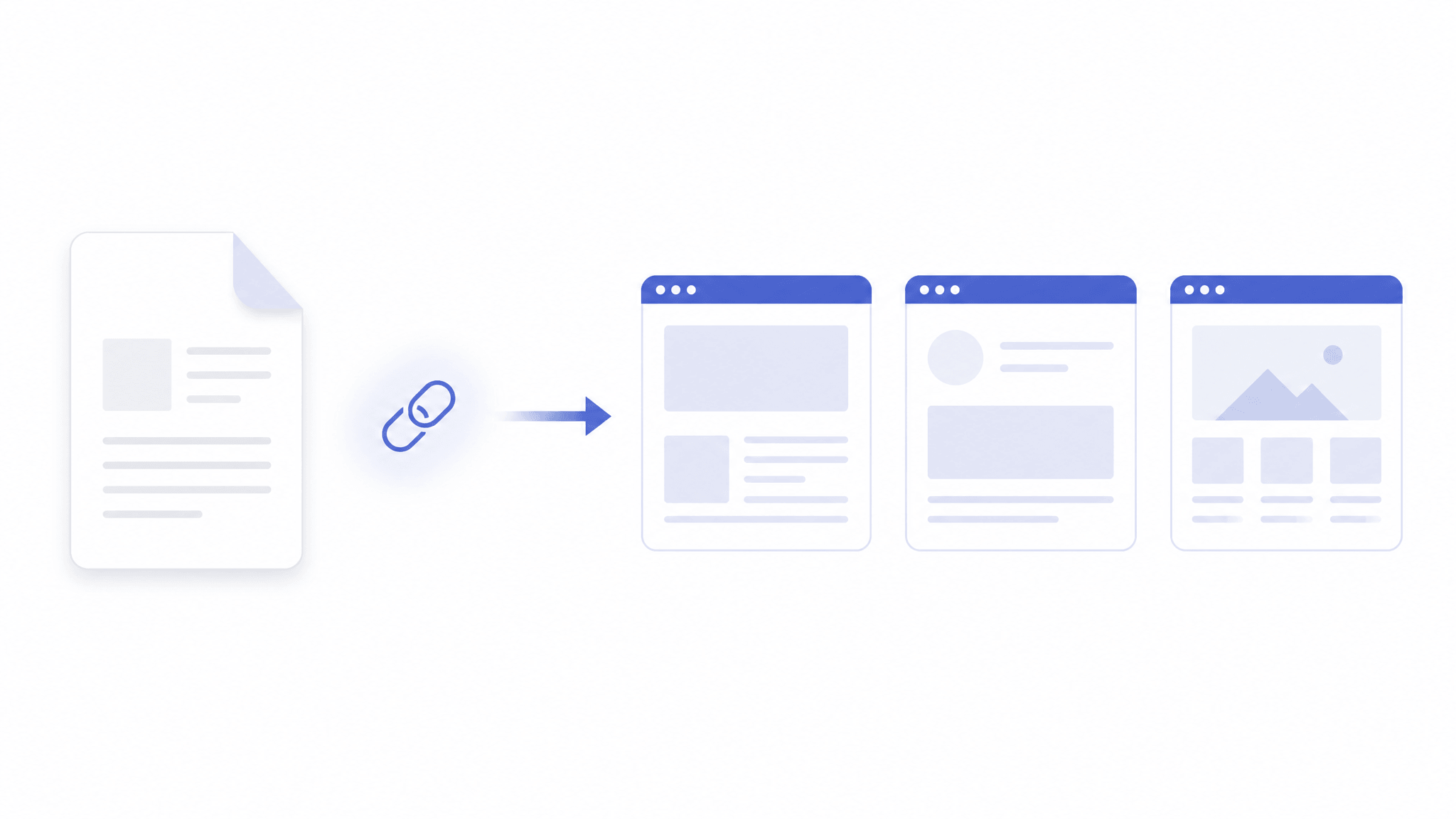
You finished a report, a resume, or a signed contract and exported it as a PDF. Now the annoying part: getting it to someone. Email rejects anything over roughly 20–25 MB, cloud drives ask your recipient to sign in, and every "attachment" quietly creates one more copy of your document living in an inbox forever.
The faster path is to share the PDF as a link: upload the file once to a file-to-URL tool, copy the URL it generates, and paste that link anywhere — email, chat, a job application form. The recipient opens it in a browser, no account needed. Just as important, a single link concentrates your document in one place you control, where retention rules — like a 24-hour expiry window — decide when the file stops existing instead of leaving copies scattered across inboxes.
This guide walks through the exact steps, the controls that decide how long your PDF stays reachable, and what to do when you also need the text out of a PDF without uploading it to yet another server.
Key takeaways
- A PDF link replaces the attachment: no email size caps, no sign-in walls, one hosted copy instead of a duplicate in every inbox.
- Uploading to a file-to-URL tool takes under a minute: choose the file, get the URL, share it, and test it in a private window.
- Link lifetime is a control, not an accident — free plans often expire files in 24 hours, while paid tiers keep them permanently. Match retention to how sensitive the document is.
- Anyone who has the URL can open a public link, so treat the link itself as the secret.
- When you need a PDF's text, prefer tools that process the file in your browser or run on your own machine, so no upload copy is created.
Why share a PDF as a link instead of an attachment?
An email attachment solves the delivery problem but creates a copy problem. Every message with the PDF attached stores the full file in the sender's sent folder and in each recipient's inbox — and in whatever backup system those mailboxes use. Six months later, "final_report_v2.pdf" is still sitting in five mailboxes, even though you sent a corrected v3 three days later. Attachments also hit hard size caps: most email providers bounce or compress attachments somewhere around 20–25 MB, which a single image-heavy PDF can exceed.
A link inverts the model. The file is uploaded once and hosted in one place; your email, chat message, or form field carries only a short URL. The recipient clicks and the PDF opens in their browser — no waiting for a download bar, no "you've reached your attachment limit," no request-access loop through a cloud drive. If you fix a typo and re-upload, you send a new link and the old one eventually expires on its own schedule instead of the wrong version haunting inboxes.
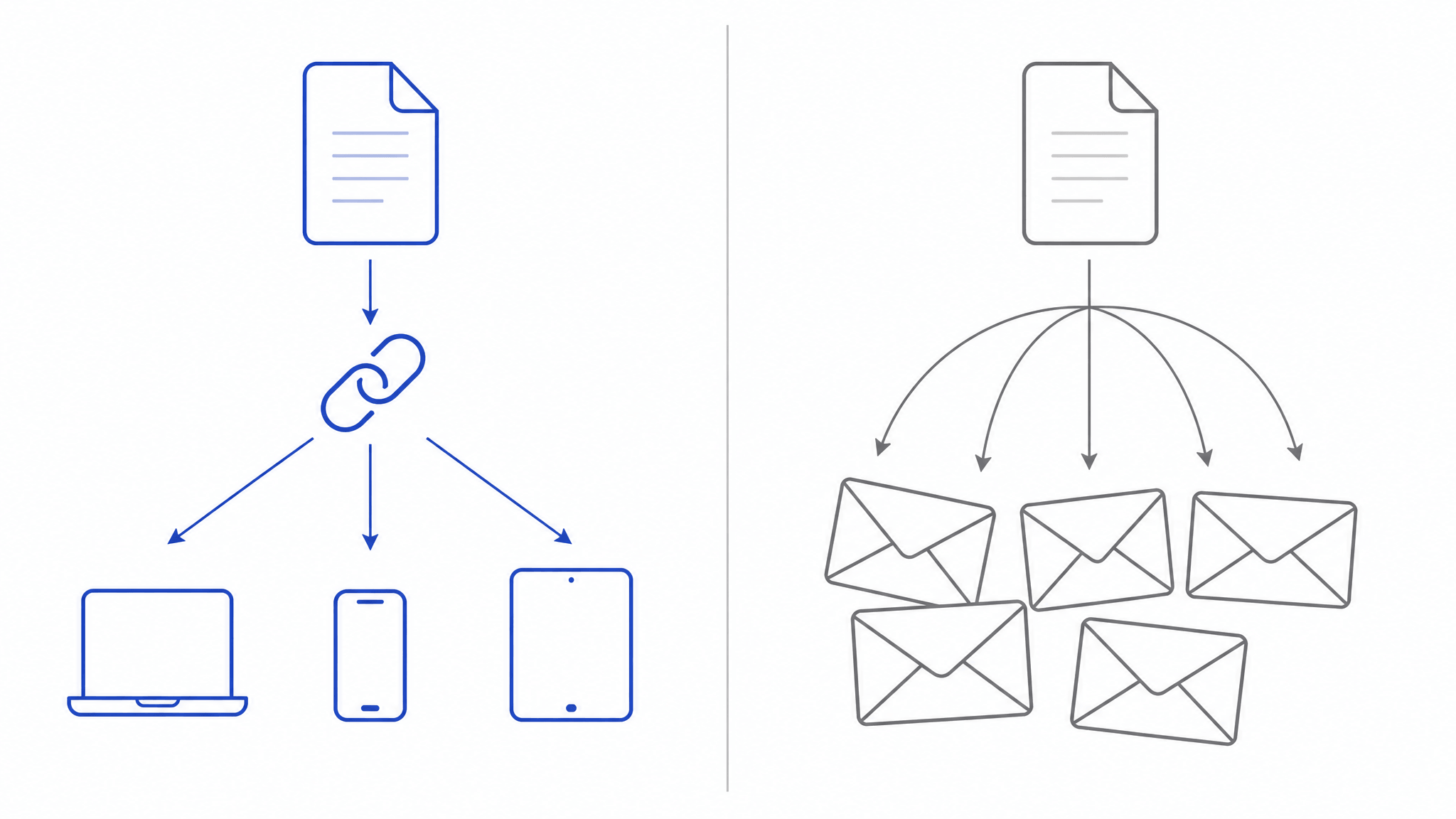
There's a privacy dimension too, and it points the same direction. Copies are the enemy of privacy: every copy is one more place the file can leak from. A workflow built around a single hosted link with a defined lifetime keeps the surface small. That idea — the file doesn't have to land everywhere — runs through the rest of this guide, including how you extract text from a PDF later.
How to share a PDF as a link, step by step
The whole flow takes under a minute with a file-to-URL converter. Here is the exact process.
Step 1: Get the PDF ready. Rename the file to something you'd be comfortable showing, because the name often travels with the link or the download. Do a last check of what's actually inside: comments, tracked changes, form-field values, and metadata can survive an export. If the document is sensitive, scrub what you don't want to ship before it goes online at all.
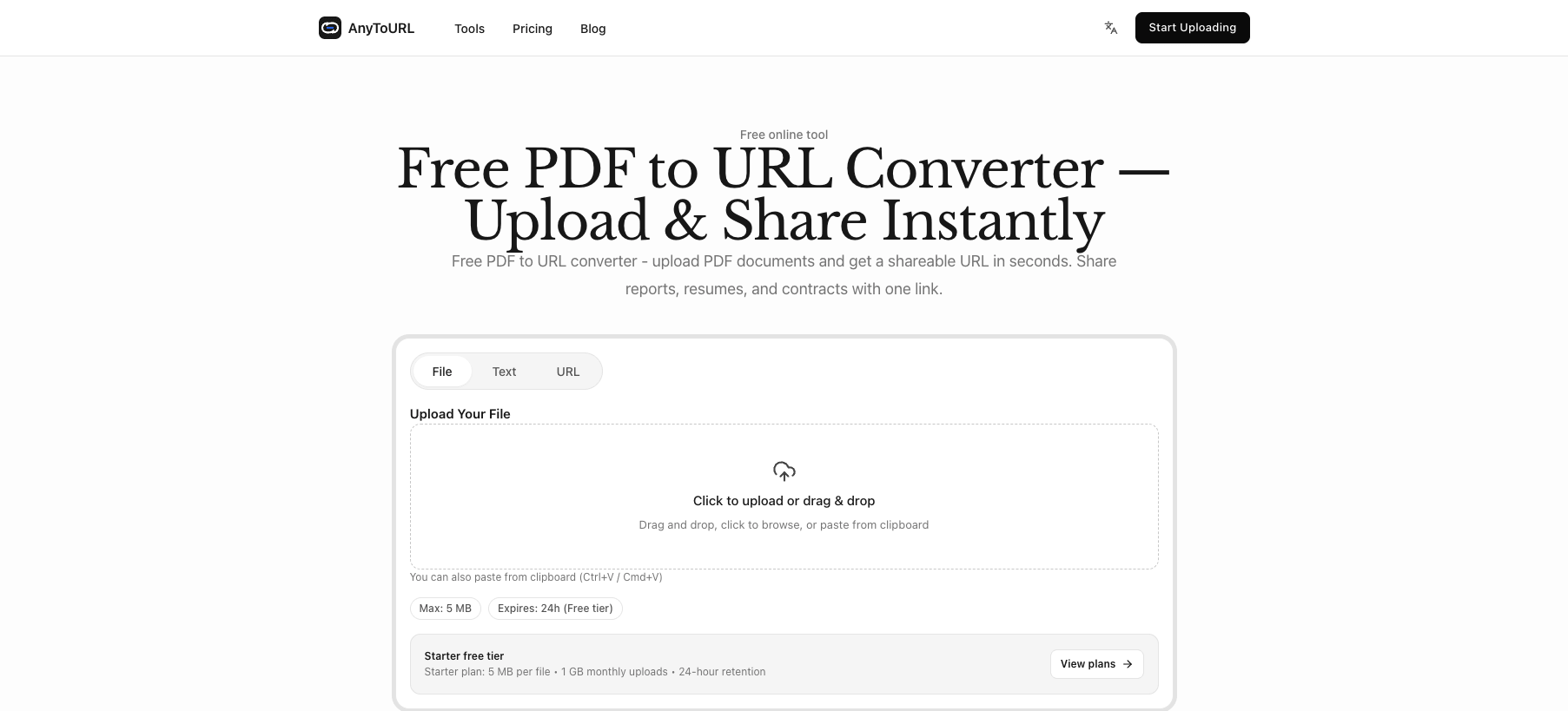
Step 2: Open a file-to-URL tool. Any service that converts an uploaded file into a shareable URL works. Three things to look for: explicit PDF support, no forced account on the upload side, and some control over how long the file stays up. AnyToURL, for example, lists a dedicated PDF to URL converter built exactly for this — reports, resumes, and contracts going out as one link.
Step 3: Upload the PDF and copy the link. Drag the file in or select it, and the tool returns a shareable URL in seconds. With AnyToURL's PDF tool, you upload the document and get a shareable link that any browser can open — the recipient never sees an upload wall or a sign-in prompt. The free Starter plan keeps the file available for 24 hours with a 5 MB per-file limit, and paid plans extend both ceilings sharply (more on the numbers below).
Step 4: Test, then send. Open the link yourself in a private browsing window first — that shows exactly what a recipient gets, with none of your cookies or sessions. Then paste the URL wherever the file needs to go: an email body, a Slack message, a résumé upload form that accepts links.
Control what happens after you share
Sending the link is the easy half. The half most people skip is deciding how long the file stays reachable — and it's worth thirty seconds of thought, because retention is where link sharing genuinely beats attachments.
On AnyToURL, retention is explicit and plan-based. The free Starter plan holds files for 24 hours — enough for the normal "send it, they open it today" case, after which the hosted copy simply disappears. The Pro plan ($9.9/month) extends storage to 100 GB per month with files up to 1 GB, and the Ultra plan ($29.9/month) adds permanent retention with 10 GB per file. File history lets you delete an upload manually at any time, which matters when a document outlives its purpose early. If you're weighing short-lived links against long-lived ones in depth, the burn-after-read vs permanent link comparison breaks that trade-off down.
Quotas are the other quiet control. Plans cap file size, monthly upload volume, and daily bandwidth, which is uninteresting until the day a 300 MB portfolio PDF or a sudden wave of clients hits them. The practical reading: the free tier comfortably serves one-off document sharing, while recurring, heavier sharing is what the paid tiers price for.
One more thing worth saying plainly: a public link is a capability — whoever holds the URL can open the file. That's the feature that makes it frictionless, and it's also the whole security model. Don't paste a contract's link into a public channel; send it to the people who need it, and prefer a short retention window for anything confidential. If a document is truly sensitive, ask whether it should be a link at all.
Need the text out of the PDF? Extract it without another copy
Sharing solved delivery, but PDFs have a second annoying habit: getting the text back out. Maybe you need quotes from a report for your own notes, or clean text from a paper for a research pipeline. The catch is that plenty of "extract text from PDF" tools work by uploading your file to their server — which quietly recreates exactly the copy problem you just avoided.
The privacy-conscious pattern is the same one this article has been building: don't let the file land anywhere new. Three paths exist, in increasing order of setup:
- Browser-based extraction — the file never leaves your device. A class of tools runs the extraction in JavaScript inside your browser tab, so the PDF is processed locally and no upload happens at all. papero, an open-source (MIT-licensed) PDF extraction project released in early October 2026, is a clear example: its browser app processes the file on your machine — the project's README states plainly, "Your PDF never leaves your machine."
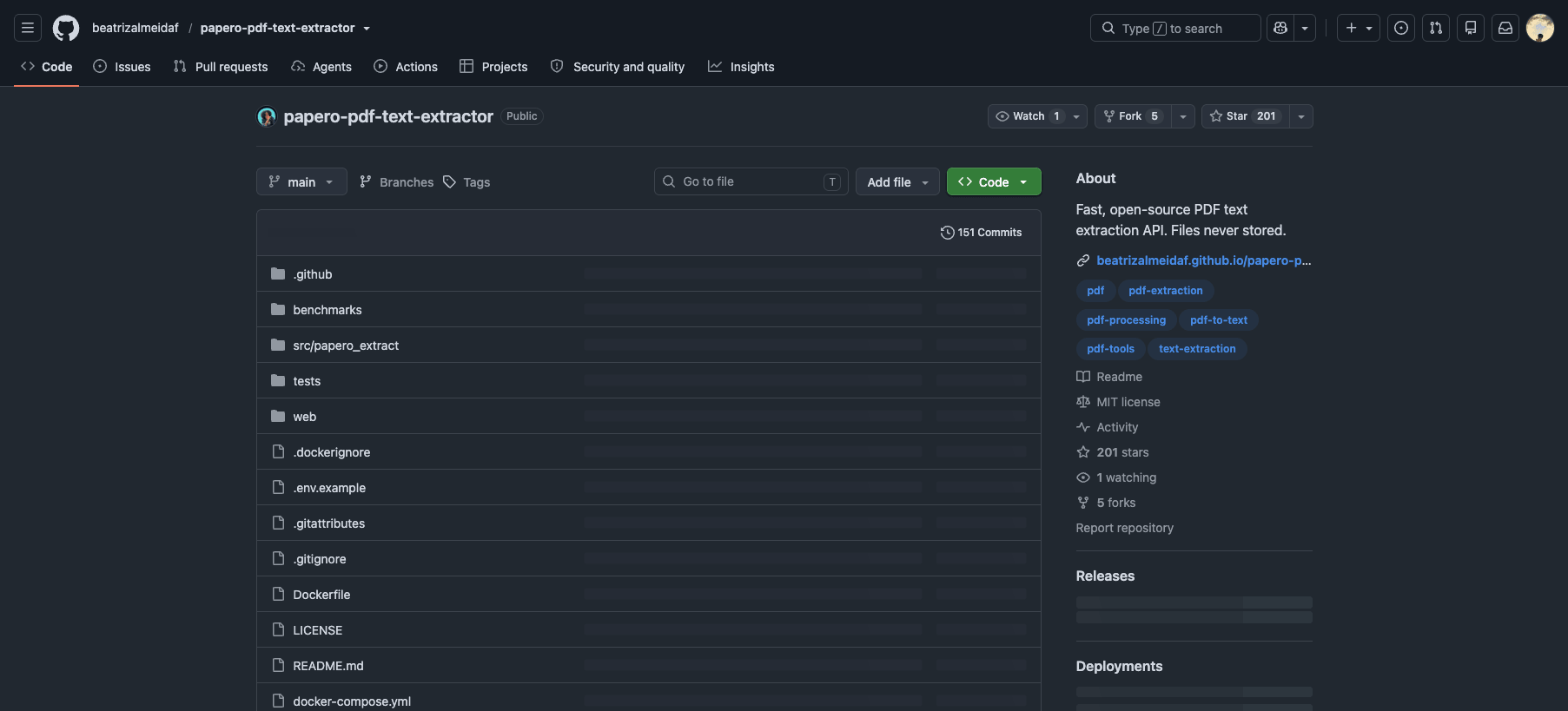
papero-pdf-text-extractor on GitHub (MIT license). Source: github.com/beatrizalmeidaf/papero-pdf-text-extractor, accessed October 7, 2026.
-
Open source, run it yourself. The same papero project installs as a Python library (
pip install papero-extract) or runs as a self-hosted REST API via Docker. Instead of heavy machine-learning models it uses geometry-based layout analysis on a CPU, reconstructing reading order, tables, and formulas — the project's own benchmark reports processing 54 dense academic papers with zero failures at a median of 39 milliseconds per page on a laptop CPU. Self-reported numbers deserve exactly that skepticism, but the architecture claim is verifiable in the repo: nothing phones home because there's nowhere to phone. -
Skip extraction entirely — share the link, let the recipient work from the original. If the goal is for someone else to read or cite the document, extracting text yourself may be an extra step, not a requirement. A hosted PDF link lets the recipient search, select, and copy text straight from their browser's PDF viewer.
| Path | Where the file goes | Best for |
|---|---|---|
| In-browser tool | Stays on your device | Quick one-off extraction, sensitive documents |
| Self-hosted (papero CLI/API) | Your machine or server | Batch jobs, research pipelines, repeatable workflows |
| No extraction — share the link | One hosted copy you already control | When the recipient just needs to read and copy |
The through-line from the first half of this article holds here: every path that avoids a new server-side copy is a path where your PDF lands nowhere it doesn't need to.
FAQ
Is it safe to share a PDF as a link? For most documents, yes — with the right mental model. A public link means anyone who obtains the URL can open the file, so the URL should be treated like a key: send it directly to your recipients, don't post it publicly, and favor short retention windows for anything confidential. For documents whose leak would cause serious harm, a link with a 24-hour expiry plus manual deletion is a reasonable middle ground; anything beyond that deserves stronger protection than a plain URL.
How do I share a PDF link that expires? Use a file-to-URL tool with plan-based retention. On AnyToURL's free Starter plan, files are kept for 24 hours and then removed automatically — you share the link, the recipient opens it while it matters, and the hosted copy disappears on schedule. File history also lets you delete an upload manually the moment it's no longer needed.
Can I extract text from a PDF without uploading it somewhere? Yes. Browser-based tools process the file locally in your tab, and open-source options like papero can run entirely on your own machine via Python or a self-hosted Docker API. Both approaches leave your PDF where it is; no upload copy is created.
What's the difference between a PDF link and a PDF attachment? An attachment embeds the file itself in each message, hitting email size caps and leaving a copy in every inbox it touches. A link carries only a URL pointing at one hosted copy, which opens in any browser and disappears according to the hosting plan's retention rules.
Do recipients need an account to open a shared PDF link? Not on AnyToURL: public links open directly in the recipient's browser with no sign-in, no app install, and no "request access" step.
Conclusion
Sharing a PDF as a link replaces the attachment dance with a single controlled copy: upload the file to a file-to-URL converter, copy the link, test it in a private window, and send it. Decide deliberately how long the file should live — a 24-hour window covers most document handoffs, and permanent retention is there when a file genuinely needs to stay. And when you need the text out of a PDF, choose a path that doesn't upload the file again: in-browser processing, a self-hosted open-source tool, or simply letting the recipient work from the link you already shared.
Ready to turn a PDF into a link? Try the AnyToURL PDF to URL converter — upload your document, get a shareable link in seconds, and keep control of how long it stays online.